
Team managers
A team manager is the person listed as direct manager in other people’s records. In addition to their own employee portal, they have the Empleados (Employees) entry in the menu, with two options: Lista de empleados and Solicitudes de empleados. In both they see only the people on their team.
Employee list
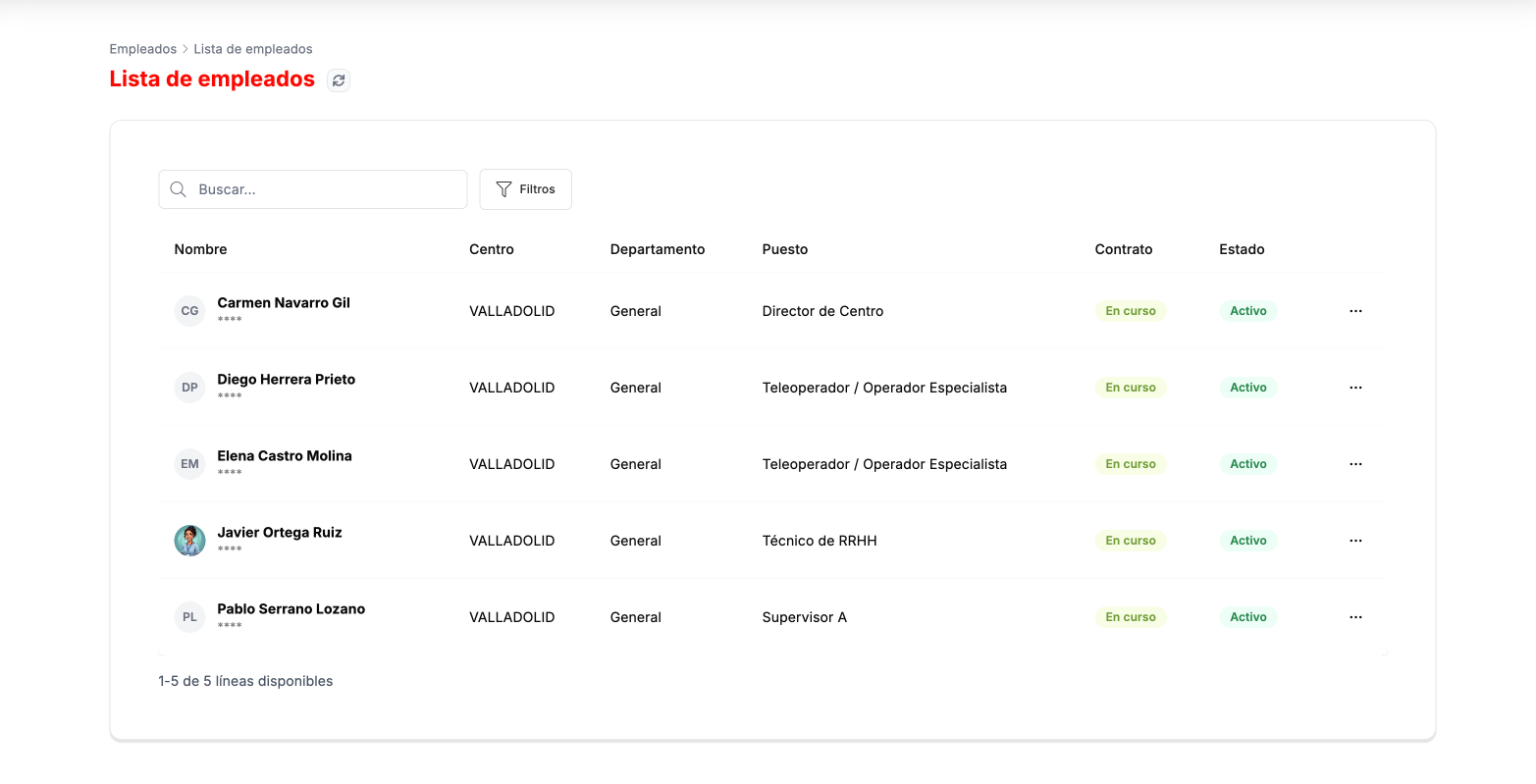
Section titled “Employee list”Empleados › Lista de empleados shows the people on their team, with their work center, department, job position, contract status and whether they are active. You can search and filter, and the ⋯ menu on each row has Ver detalle (View details).
The record of a team member
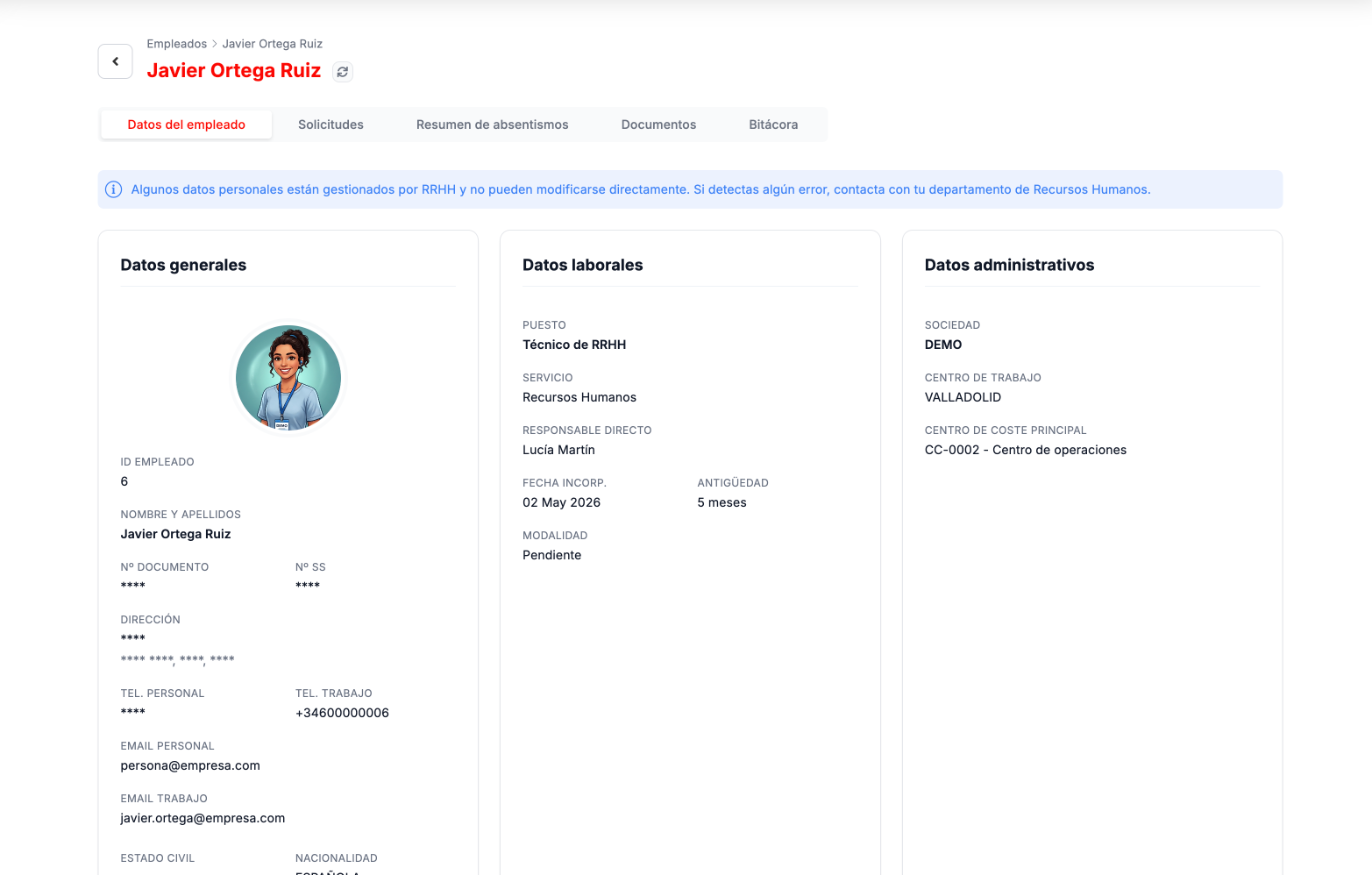
Section titled “The record of a team member”When opening a person, the manager sees their record with five tabs: Datos del empleado (Employee details), Solicitudes (Requests), Resumen de absentismos (Absence summary), Documentos (Documents) and Bitácora (Log). The most sensitive personal details, such as the ID document, the Social Security number, the address or the personal phone number, are hidden with asterisks. The record is view-only: it does not have HR’s options to create absences or the Acciones (Actions) menu.
Team requests
Section titled “Team requests”Empleados › Solicitudes de empleados shows the requests of the people on their team, with the tabs Pendientes, Todas, Aprobadas and Rechazadas (Pending, All, Approved and Rejected). The Aprueba (Approves) column says who has to approve each one: the direct manager alone, or together with an HR team.
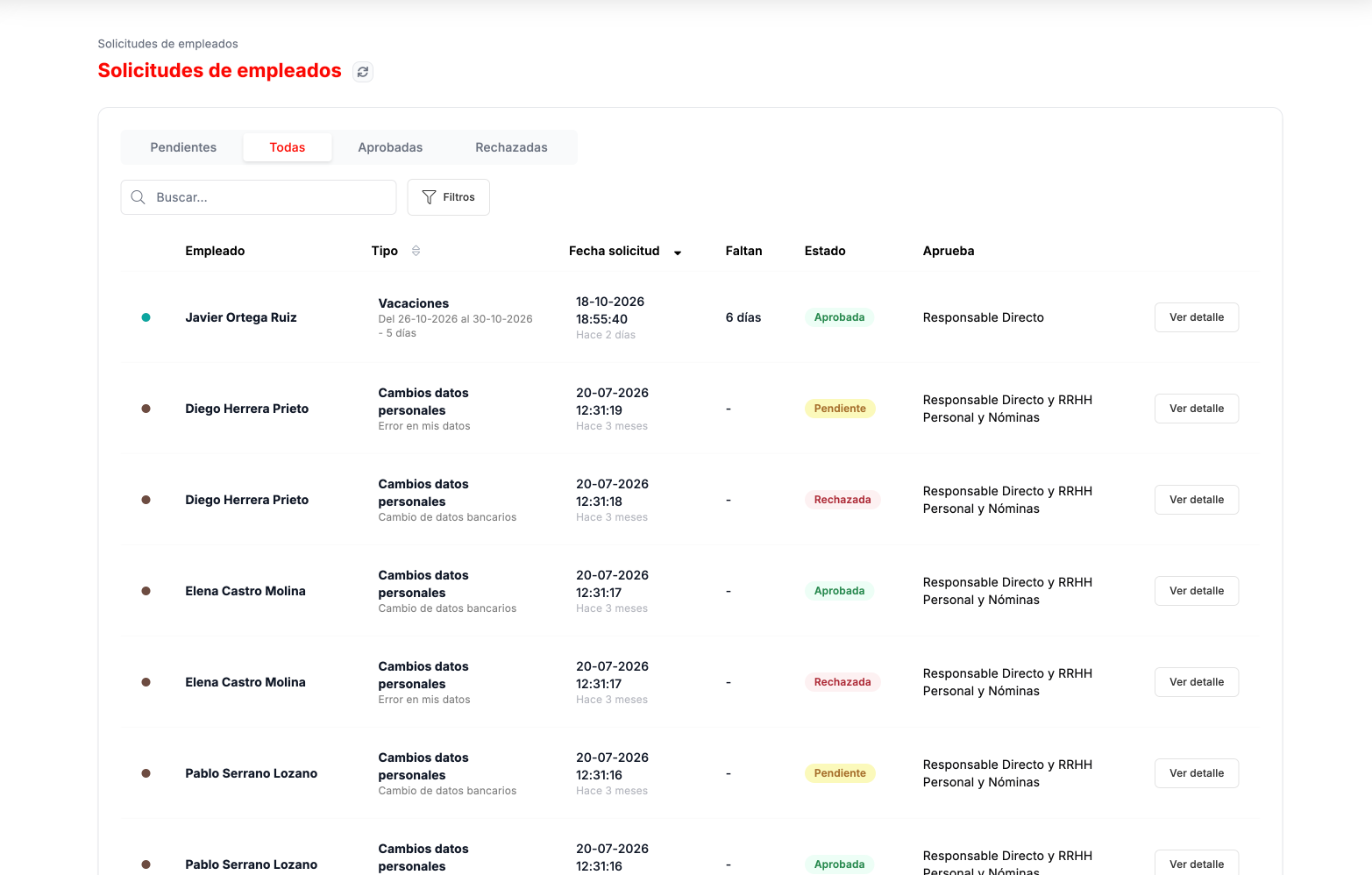
Ver detalle opens the request. If it is pending, it has the Aprobar (Approve) and Rechazar (Reject) buttons. How each type is resolved is explained in Requests and absences.
Troubleshooting
Section titled “Troubleshooting”- You do not see a person in your list. Only people who have you as direct manager in their record appear. If someone is missing, ask HR to check it.
- You see details with asterisks. That is expected: the ID document, Social Security, address and personal phone are only visible to HR.