
Getting started
The management team
Section titled “The management team”The HR, back-office or finance people who manage CLOUD HRMS make up the organization’s management team. They are added in CLOUD HRMS › Panel Admin › Equipo de gestión, where each one is linked to their platform user and given a role, for example «RRHH Personal y Nóminas» (HR Staff and Payroll), «RRHH Contratación» (HR Recruitment), «BackOffice» or a finance role.
Those roles are what the approval groups use later to decide who approves each type of request, together with each person’s direct manager.
What each user sees in the menu depends on the privileges of their platform user. To manage the organization you need at least one active user with the people administration privilege: the checker verifies this.
The setup checker
Section titled “The setup checker”In the side menu, expand CLOUD HRMS and, inside it, Configuración (Settings). The second entry, Configuración Guiada (Guided setup, just below Organizaciones), opens a screen with a different name: Verificador de Configuración HRMS (HRMS setup checker). It analyzes the organization’s setup and tells you what is ready, what needs attention and which features would be blocked if data is missing.
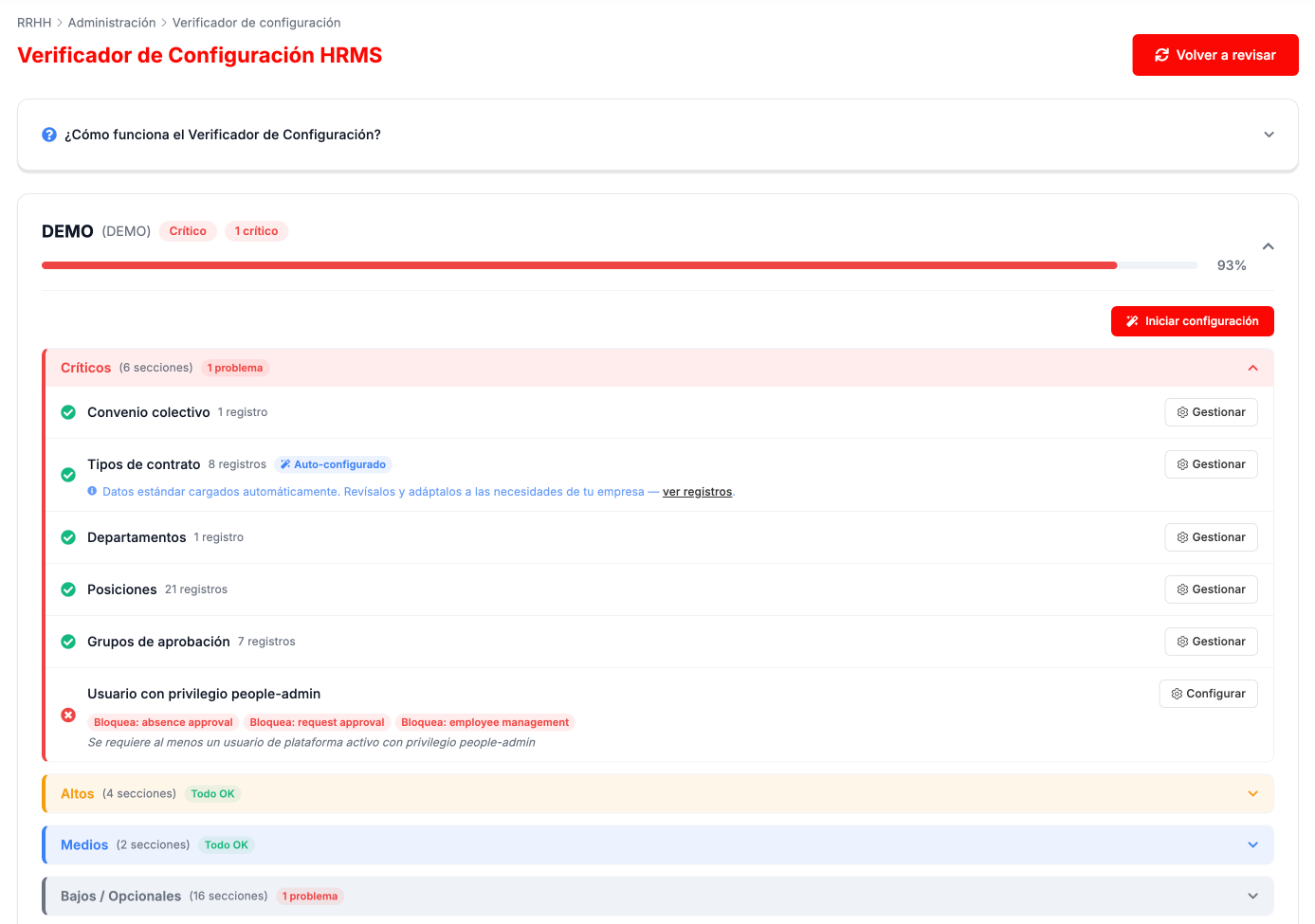
At the top you see the organization’s percentage and its warnings. Below, the sections grouped by importance:
- Críticos (Critical): collective agreement, contract types, departments, positions, approval groups and the administrator user. If one is missing, the row says what it blocks, for example absence approval.
- Altos (High): absence types, collective agreement rules, approvers and request type settings.
- Medios (Medium): request types and working-day types.
- Bajos / Opcionales (Low / Optional): work centers and cost centers, structures, services, work formats, request categories, Social Security schemes, education levels, occupation codes, document categories and types, work calendars, announcement types, professional groups, work teams and expense types.
Each row shows how many records it has and has a Gestionar (Manage) button to open its table, or Configurar (Set up) if it is empty. Volver a revisar (Check again) repeats the analysis.
Auto-configured data
Section titled “Auto-configured data”Some sections appear as Auto-configurado (Auto-configured): they are filled in with standard data when the organization is created or when a collective agreement is linked. They are a starting point: review them and adapt them to your company, removing what does not apply and adding your own.
The wizard
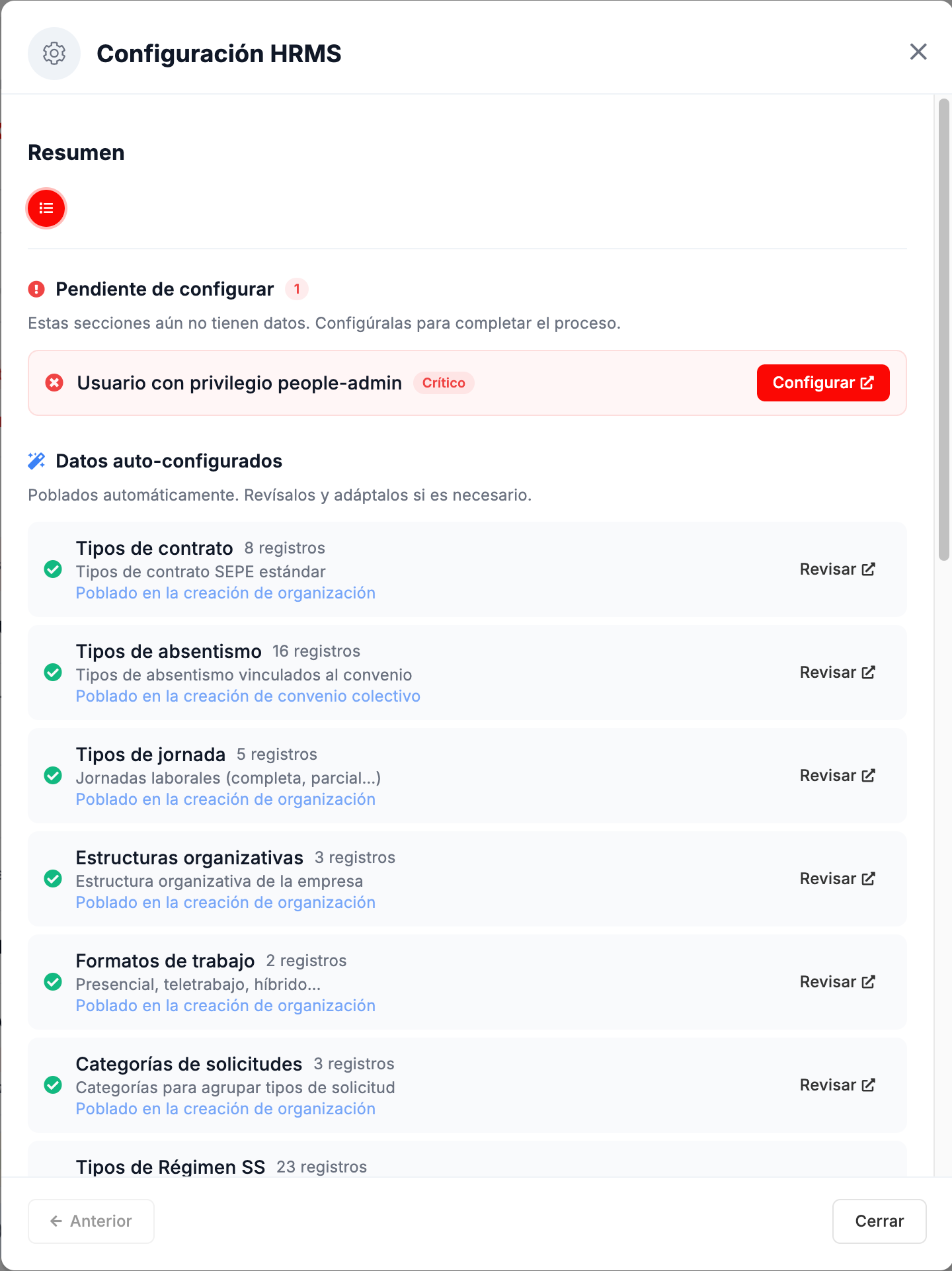
Section titled “The wizard”Iniciar configuración (Start setup) opens a step-by-step wizard. It starts with a summary of what is pending setup and of the auto-configured data, each with its button to set it up or review it. You can also go section by section with the button on each row of the checker.
Troubleshooting
Section titled “Troubleshooting”- The checker flags a critical problem. The row says what it blocks, for example absence approval or employee management. Use its Configurar or Gestionar button and click Volver a revisar.
- A user with the people administration privilege is missing. Without one, approvals and employee management are blocked: give it to at least one active platform user.