
Organization setup
Everything that defines how CLOUD HRMS works in your organization is in the CLOUD HRMS › Configuración menu. If it is your first time, start with Configuración Guiada (Guided setup), which opens the setup checker: it tells you what is missing and takes you to each table.
How the setup screens work
Section titled “How the setup screens work”Most entries under Configuración open a table with its records. You can filter by organization, search any column, choose which columns to show, copy, download as CSV or print, and create a new one with the button in the header.
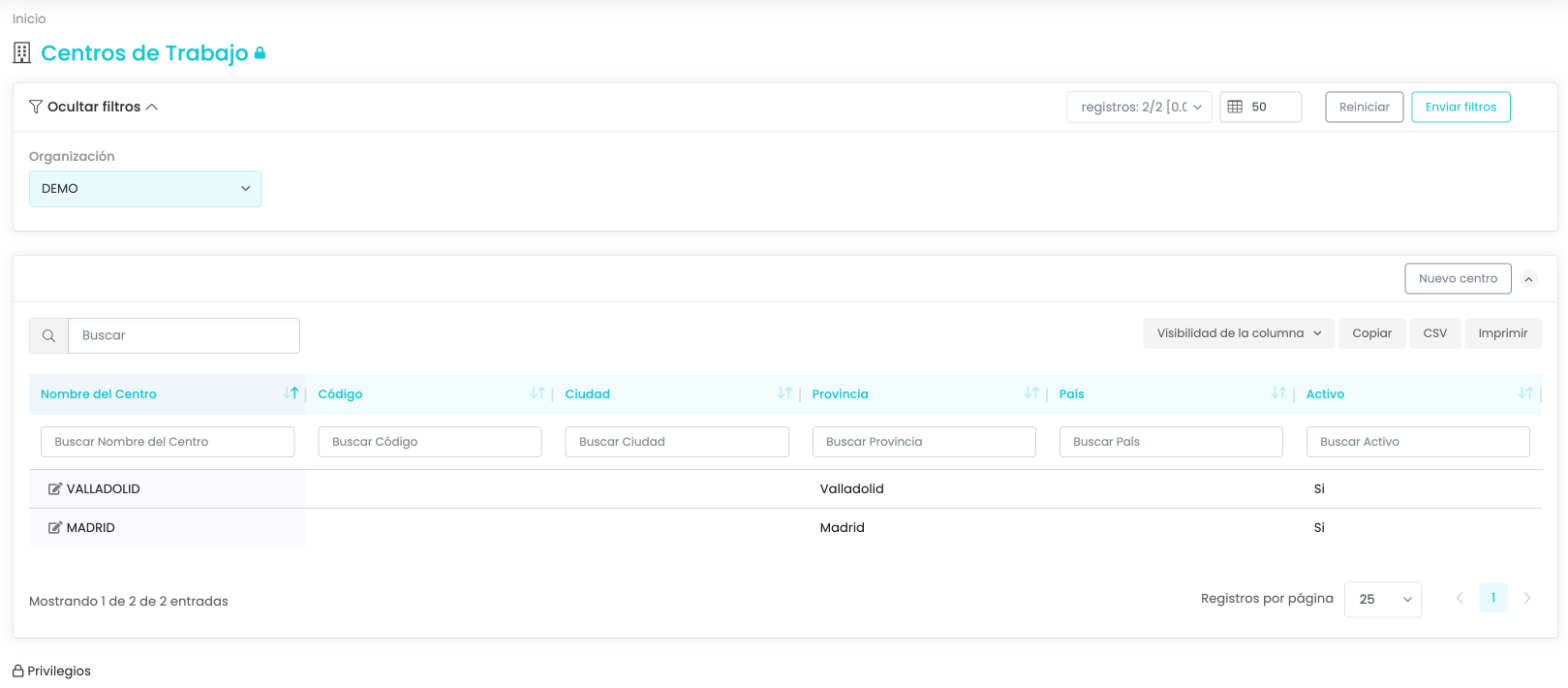
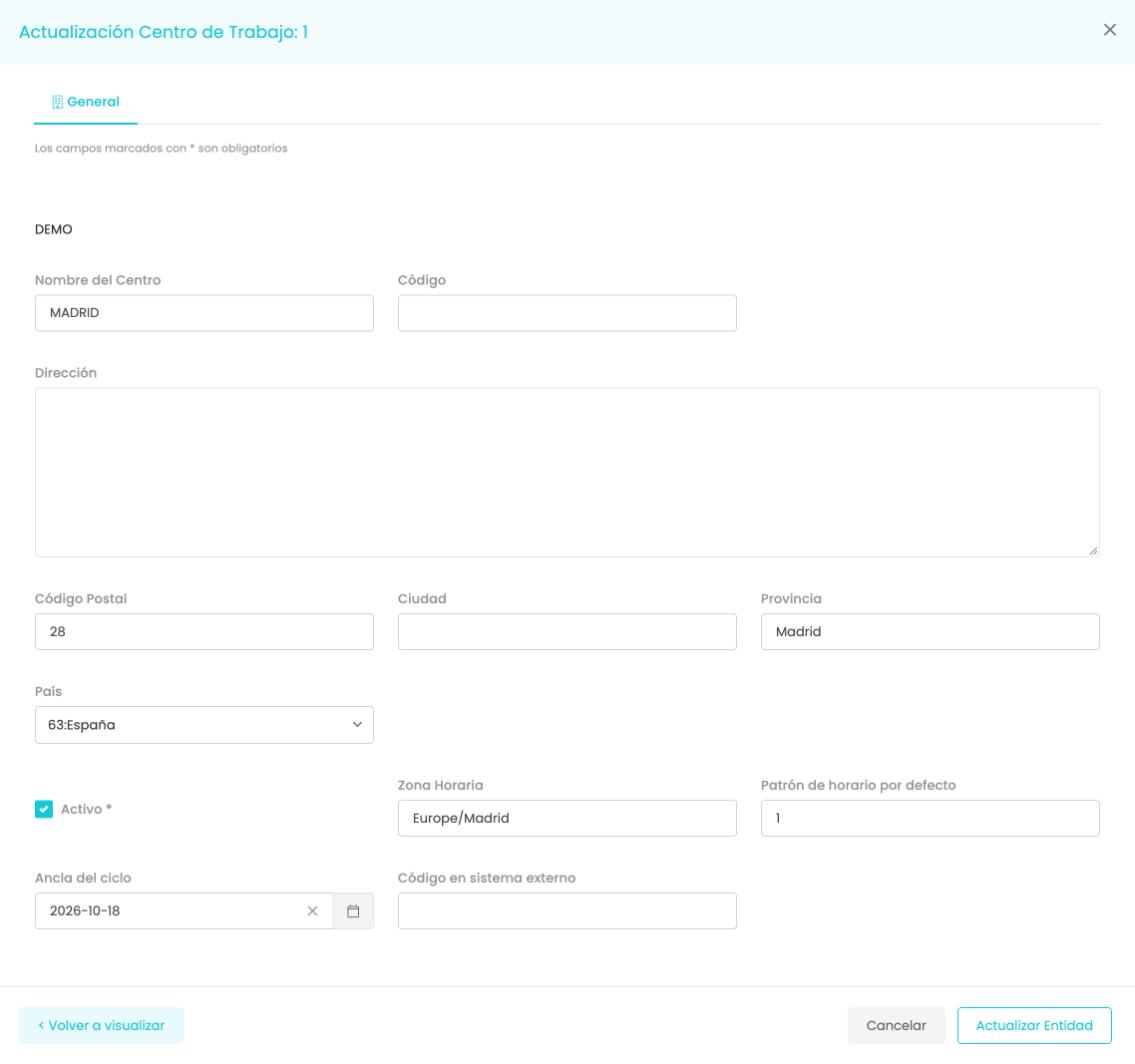
Clicking a record opens its form on the right. Fields with an asterisk are required. Changes are saved with Actualizar Entidad (Update entity), or discarded with Cancelar (Cancel).
Structure
Section titled “Structure”| Entry | What it is |
|---|---|
| Organizaciones (Organizations) | The organization’s details. |
| Estructuras, Servicios, Áreas, Departamentos and Posiciones (Structures, Services, Areas, Departments and Positions) | How the workforce is organized and which job positions exist. |
| Centro de Trabajo (Work center) | The physical sites, with their time zone, which is the one used to display clocking times. |
| Centros de Coste (Cost centers) | The centers that costs are charged to. |
| Equipos de Trabajo (Work teams) | The organization’s work teams. |
Convenios/Grupos/Niveles (Agreements/Groups/Levels)
Section titled “Convenios/Grupos/Niveles (Agreements/Groups/Levels)”The collective agreement is the basis of much of the setup: professional classification, salaries, absence types and the vacation policy all hang from it.
Everything is in the CLOUD HRMS › Configuración › Convenios/Grupos/Niveles menu. This entry does not open a screen: it expands a submenu with Convenios (Agreements), Tipos de absentismo (Absence types), Turnos del convenio (Agreement shifts), Límites de cobertura (Coverage limits), Grupos en Convenios (Groups in agreements), Niveles de Grupos (Group levels), Tablas Salariales (Salary tables) and Categorías Profesionales (Professional categories).
Agreements
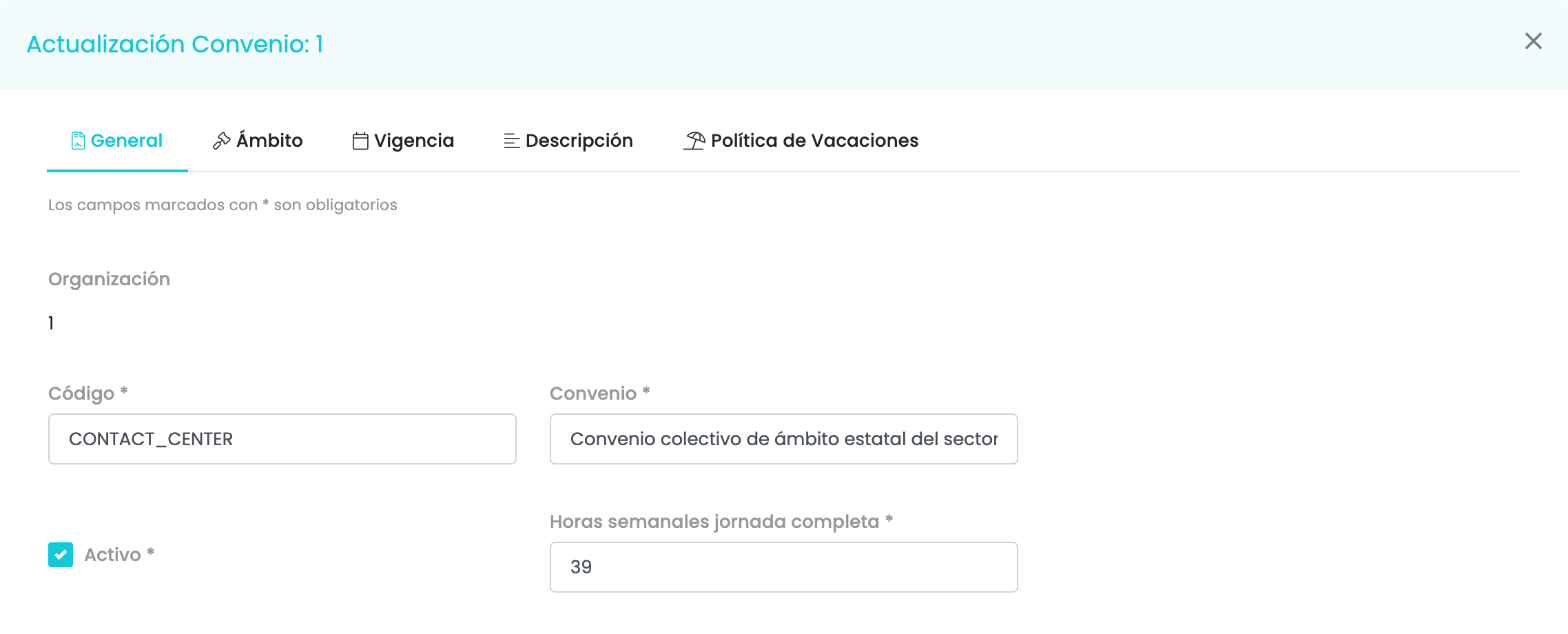
Section titled “Agreements”Convenios has one record per agreement, with five tabs:
- General: code, name, whether it is active and the weekly hours of a full working week. Those hours are the maximum proposed when onboarding a person under that agreement.
- Ámbito (Scope): the agreement’s scope (for example, national), the official registration code, the reference source (for example, its publication in the BOE, Spain’s Official State Gazette) and a link to the document.
- Vigencia (Validity): from and until when it is valid.
- Descripción (Description).
- Política de Vacaciones (Vacation policy), explained below.
Vacation policy
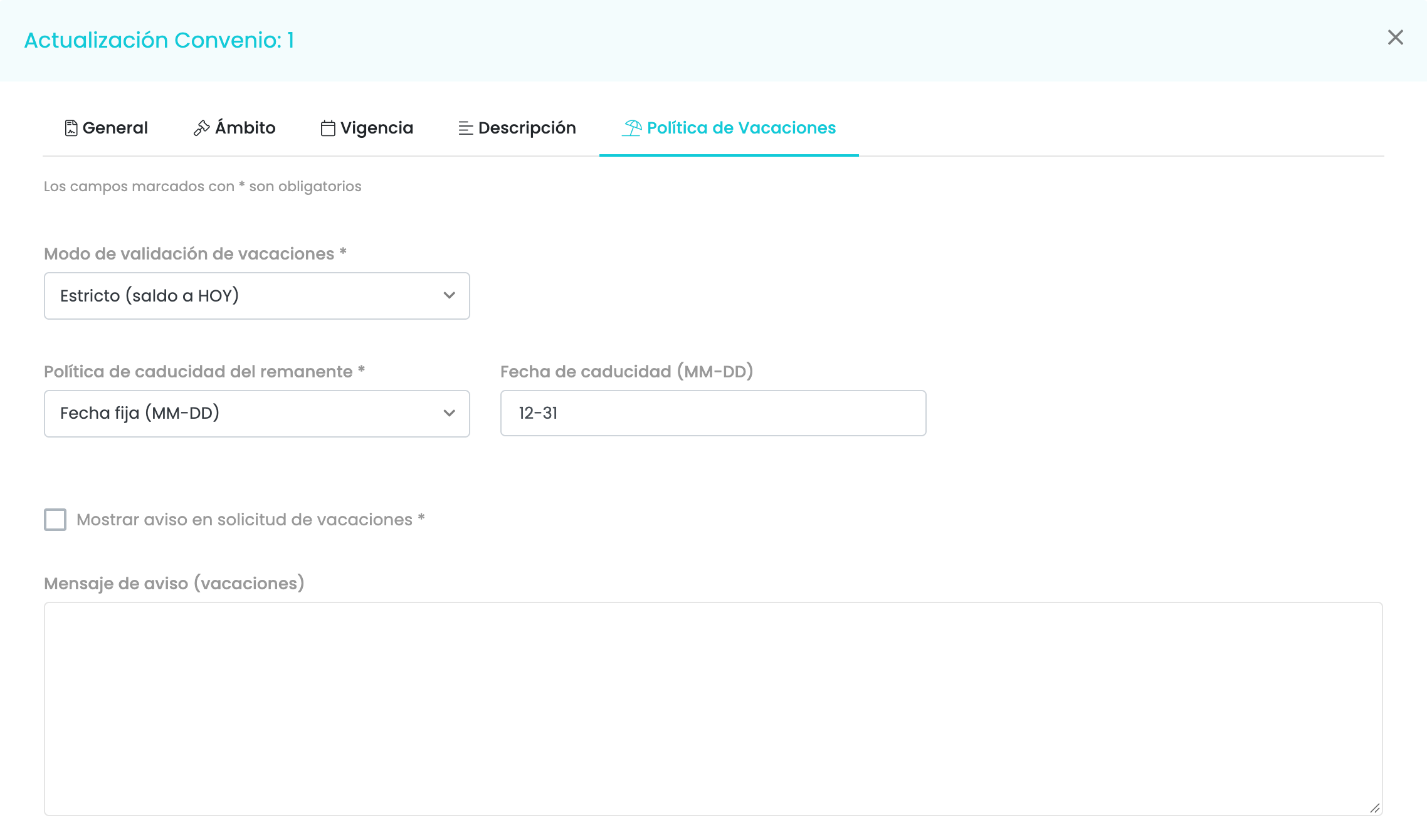
Section titled “Vacation policy”On the agreement’s Política de Vacaciones tab you decide:
- The validation mode: Estricto (Strict), which checks the balance as of today, or Proyectado (Projected), which calculates it as of the date of the request.
- The expiry of the carry-over from the previous year: never expires, is not carried over to the next year, expires on a fixed date or on a custom date (month and day).
- Whether a notice is shown when requesting vacation, and its text.
Groups in agreements, group levels, salary tables and professional categories
Section titled “Groups in agreements, group levels, salary tables and professional categories”They are in the same Convenios/Grupos/Niveles submenu:
| Menu entry | What it contains |
|---|---|
| Grupos en Convenios | The professional groups, with their Social Security contribution group. |
| Niveles de Grupos | The levels of each group, with their hierarchical order. |
| Tablas Salariales | By group, level and year, the gross annual base salary, the fixed supplements and the total. |
| Categorías Profesionales | The categories, with their default contribution group. |
The agreement level is chosen when onboarding a person and then appears in their contract.
Agreement shifts
Section titled “Agreement shifts”Turnos del convenio contains the shifts defined by the agreement. Each shift can have a default schedule in Organization schedules.
Collective agreement rules
Section titled “Collective agreement rules”The agreement rules do not have their own menu entry: they appear in the setup checker as Reglas de convenio colectivo (Collective agreement rules). They hold the agreement’s parameters by category (pay, allowances, remote work…), with their value, their configuration code and the source, for example the BOE table.
Hiring data
Section titled “Hiring data”These are official tables, or tables that rarely change, used when onboarding a person and in their record. Several are loaded with the standard values when the organization is created: review them before onboarding anyone.
| Entry | What it contains |
|---|---|
| Tipos Contratos (Contract types) | Each contract type with its official SEPE code (Spanish public employment service), whether it is temporary and its duration in months. It is the type chosen when onboarding. |
| Tipos de Régimen (Scheme types) | The Social Security schemes with their official code, and which one is the default. |
| Niveles Formativos (Education levels) | The official education levels, with their Social Security code. |
| Códigos de Ocupación CNO (CNO occupation codes) | The codes of Spain’s National Classification of Occupations. |
| Formatos de Trabajo (Work formats) | On-site, remote or hybrid, with the percentage of remote work. |
Calendar and working hours
Section titled “Calendar and working hours”Calendarios Laborales (Work calendars) and Tipos de Jornada (Working-day types). Work schedules are managed separately, in Organization schedules.
Motivos de reducción o adaptación de jornada (Reduced or adjusted working hours reasons): the catalog of reasons why a person has reduced (childcare…) or adjusted (work-life balance…) working hours. How they are created and assigned is explained in Reduced or adjusted working hours reasons.
Absences
Section titled “Absences”Absence types
Section titled “Absence types”Convenios/Grupos/Niveles › Tipos de absentismo defines each absence that exists in the organization (vacation, paid and unpaid leave, sick leave, leaves of absence…) and how it behaves. Each type belongs to an agreement. Its form has five tabs:
- General: the code, the group (paid, unpaid, automatic…), the category, the name, a description and whether it is active.
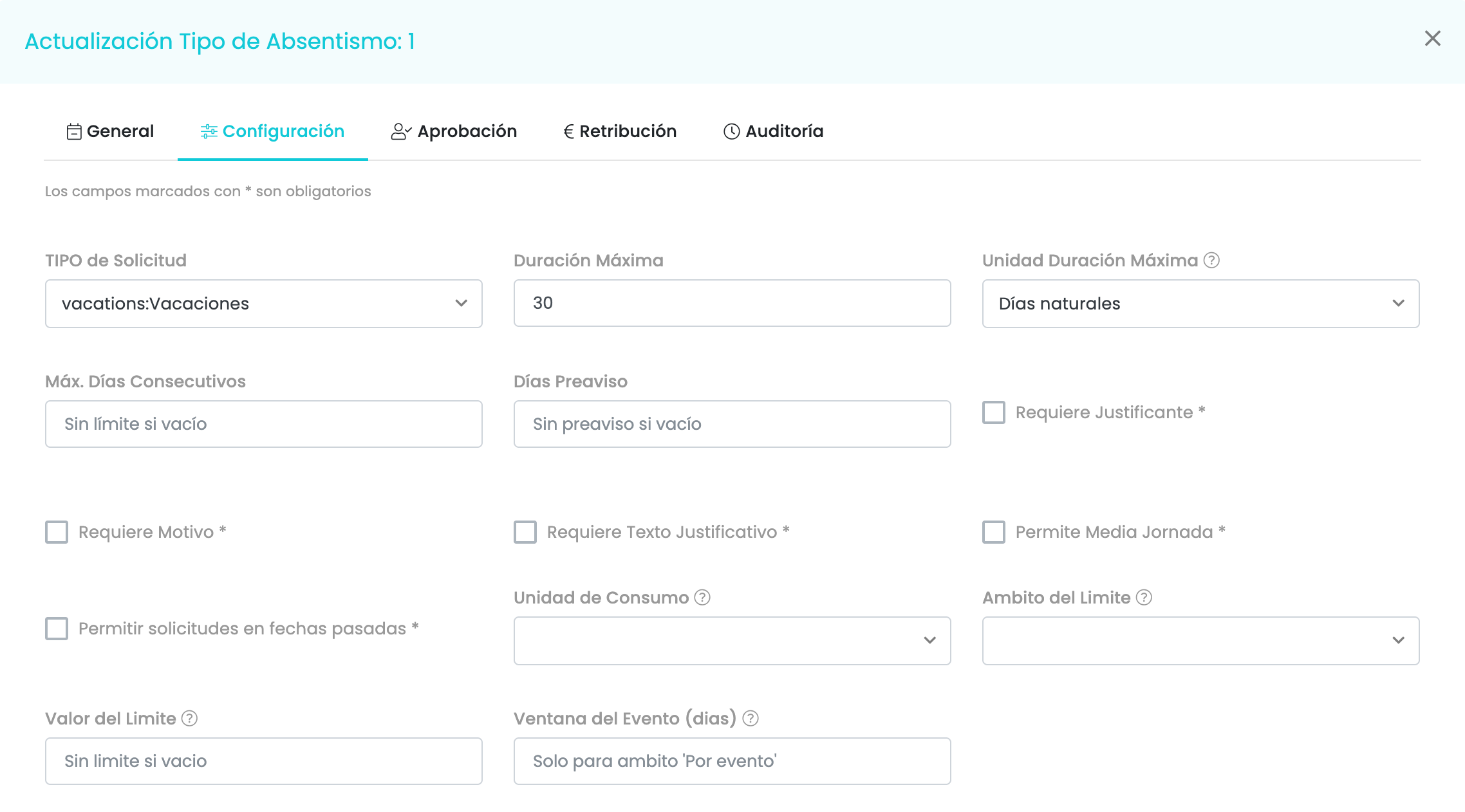
- Configuración (Settings): how it can be requested.
- Aprobación (Approval): whether it requires approval and whether the employee sees it.
- Retribución (Pay): how it affects payroll and vacation.
- Auditoría (Audit).
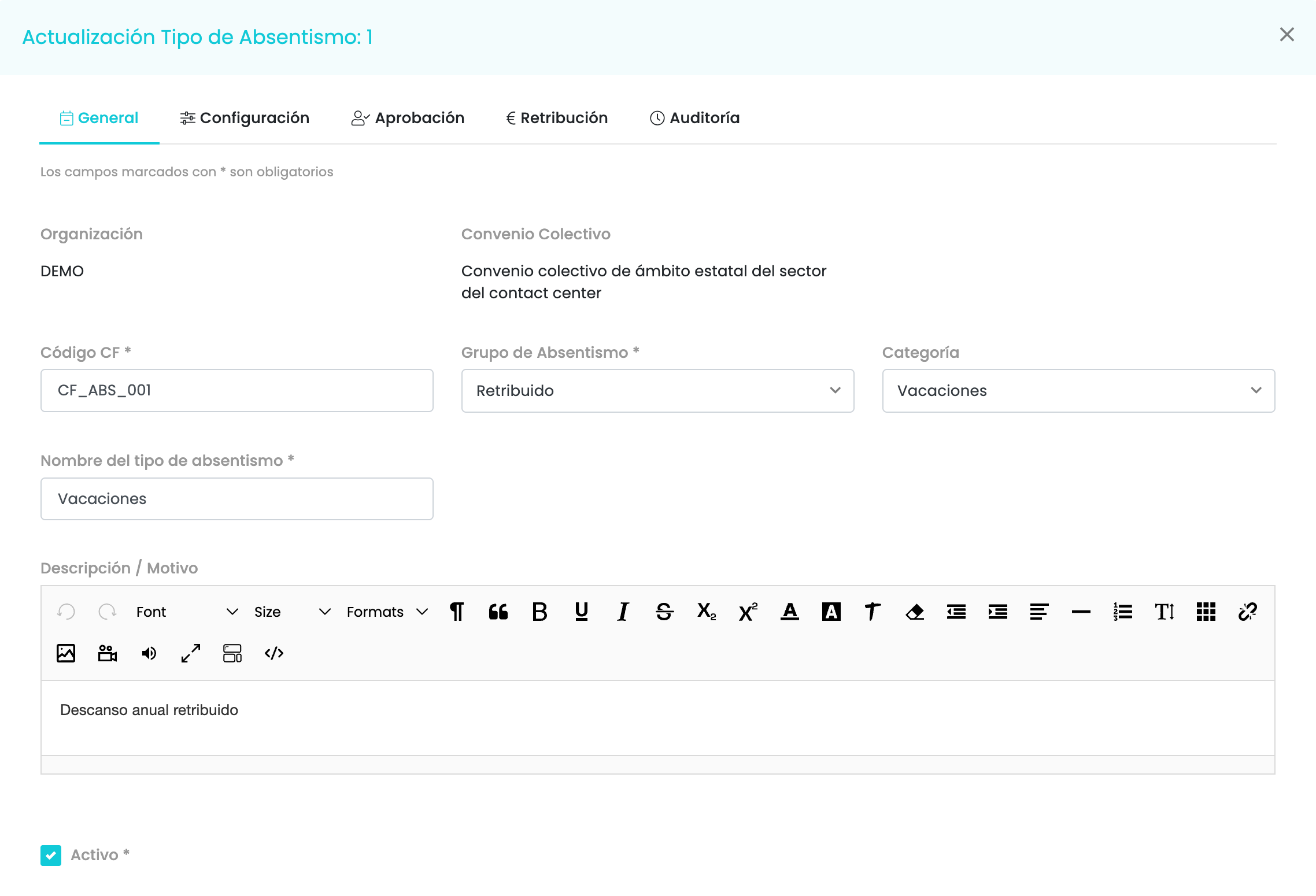
In Configuración you set:
| Field | What it does |
|---|---|
| Tipo de solicitud (Request type) | The request type it corresponds to, which decides which approval group handles it. |
| Duración máxima (Maximum duration) and its unit | The maximum per request. The unit can be calendar days (counts the days in the range), strict calendar days (carries weekends and public holidays up to the day before returning), working days (only working days in the calendar), hours, weeks or months. |
| Máx. días consecutivos (Max. consecutive days) and días de preaviso (notice days) | If empty, no limit and no notice. |
| Requiere justificante, requiere motivo, requiere texto justificativo (Requires supporting document, reason, justification text) | What the person has to provide when requesting it. |
| Permite media jornada (Allows half day) | Whether it can be requested for half a day. |
| Permitir solicitudes en fechas pasadas (Allow requests for past dates) | Whether it can be requested with a date earlier than today. |
| Unidad de consumo (Consumption unit) | How usage is counted: calendar days, working days or hours. |
| Ámbito del límite (Limit scope) and valor del límite (limit value) | The usage cap and the period it applies to: per request, per event (sum of requests for the same occurrence), monthly, yearly, per day or no limit. For example, 35 hours a year or 15 days per event. |
| Ventana del evento (Event window) | Only with the «per event» scope: the days that group nearby requests under the same cap, such as a bereavement. |
In Aprobación: the approval flow (whether it requires approval), an Aprobado por (Approved by) text that is descriptive only (who approves is decided by the approval groups), whether it is visible to the employee and whether managers can edit it after approving it.
In Retribución: the SAP code, whether it is paid, whether it is sent to payroll, whether it counts against vacation (deducts from the vacation balance already earned) and whether it suspends vacation accrual (those days do not earn vacation entitlement).
Coverage limits
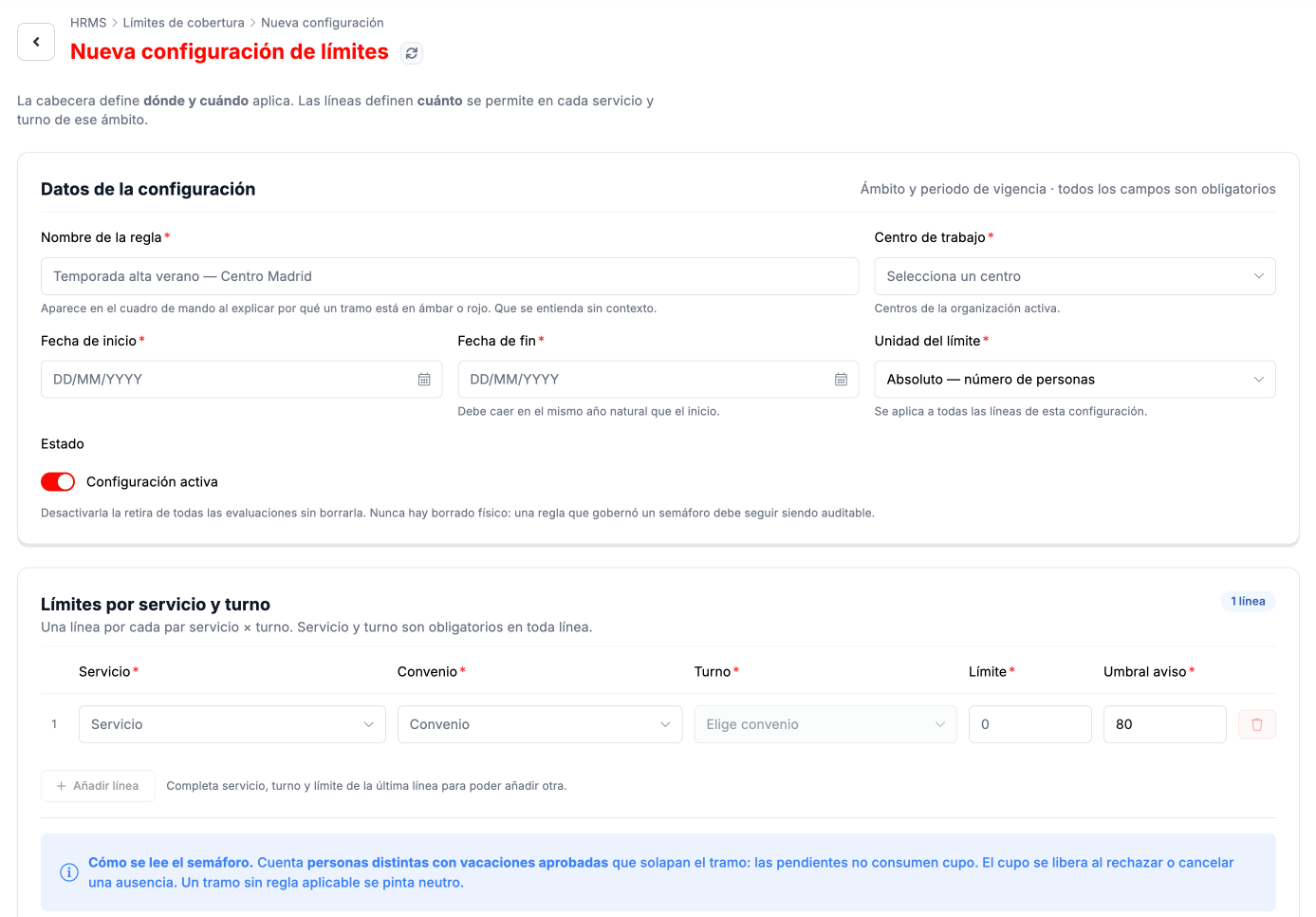
Section titled “Coverage limits”Convenios/Grupos/Niveles › Límites de cobertura sets how many people can be on vacation at the same time in each service and shift during a period. It feeds the concurrency traffic light of the back-office dashboard: it informs, it does not block requests.
Each configuration has a header (rule name, work center, start and end dates within the same year, limit unit and whether it is active) and one line per service and shift, with the agreement, the limit and the warning threshold. A deactivated configuration is no longer evaluated but is not deleted.
Requests and approvals
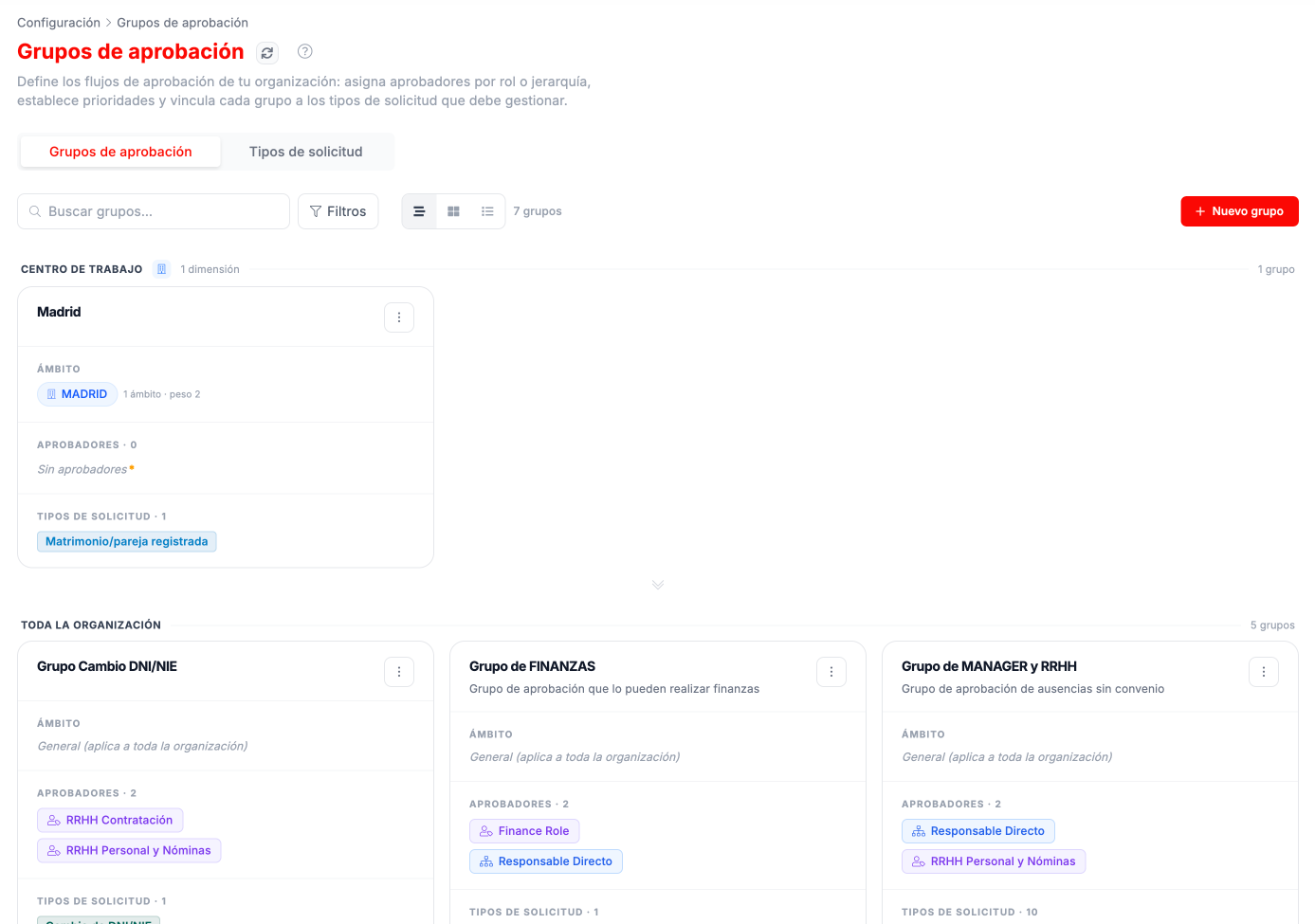
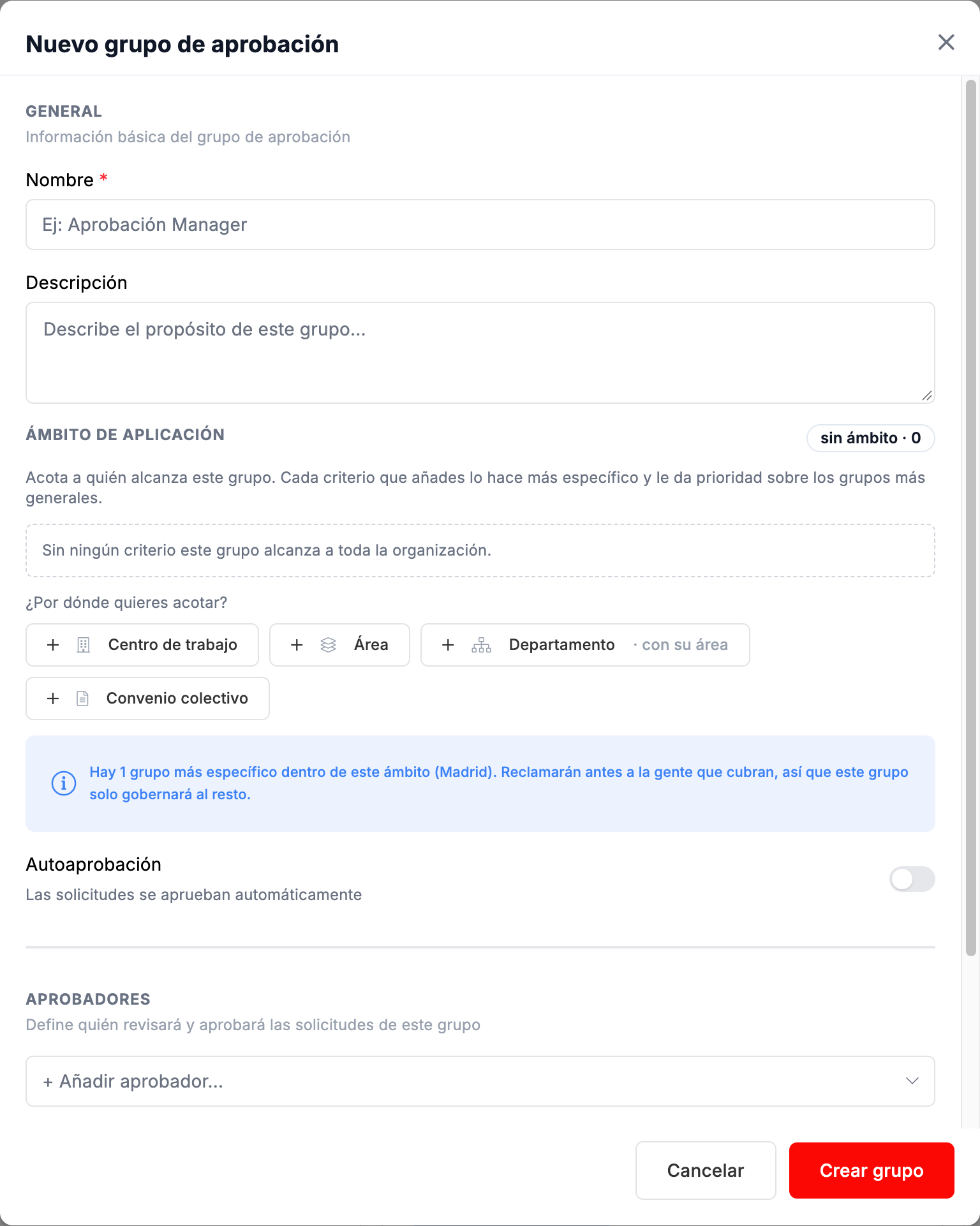
Section titled “Requests and approvals”In Grupos de aprobación (Approval groups) you define who approves each type of request. It has two tabs.
Approval groups
Section titled “Approval groups”Each group has:
- A name and a description.
- A scope: with no criteria it covers the whole organization, and you can narrow it by work center, area, department or collective agreement. The narrower it is, the higher its priority over the general groups.
- Autoaprobación (Auto-approval), if the requests of that group are approved automatically.
- The approvers: the person’s direct manager or a role of the management team.
- The request types it handles.
The organization also has a default group that picks up whatever no other group resolves. A group without approvers does not block the requests in its scope: they move on to the next configuration by specificity and, if none resolves them, to the default group.
Request types
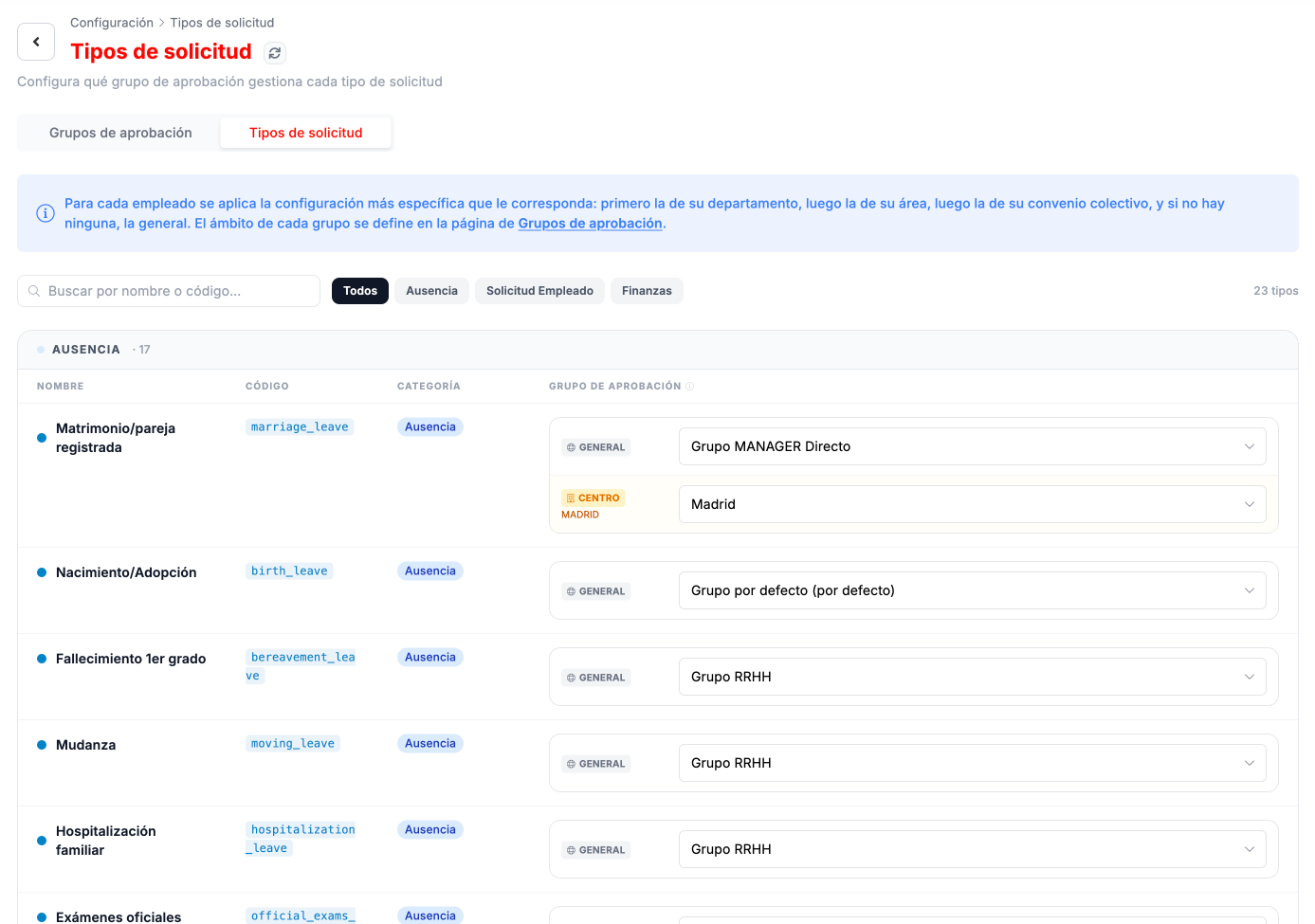
Section titled “Request types”The second tab shows each request type (absences, employee requests and finance) with the group that approves it in general and, if there is one, the group for a specific scope.
Documents
Section titled “Documents”Categoría de documentos (Document categories) and Tipos de documentos (Document types) organize the documents sent to the workforce. Categories and subcategories can also be edited from Employee documents.
Communications
Section titled “Communications”- Tipos de Comunicados (Announcement types): the types chosen when publishing an announcement (mandatory training, event, internal announcement, regulatory or general). Each type has its icon and decides whether the announcement requires read confirmation and whether the confirmation must be explicit.
- Workflows and Contenidos de Email (Email contents) open the same table: the templates of the emails sent by CLOUD HRMS, each with its code, its type (to the employee, notification or automatic) and its subject. For example, the employee welcome, the payslip-available notice or the emails for a request that was submitted, approved or rejected.
- Plantilla de Email (Email template) requires different permissions from HR’s.
Expenses
Section titled “Expenses”In Config. Gastos (Expense settings):
- Tipos (Types): each expense type (hotel, restaurant, taxi, train…) with its category, its code, the maximum amount, whether it requires a receipt, whether it requires approval and whether the employee sees it.
- Estados (Statuses): the statuses an expense report goes through (draft, submitted, in approval, approved, rejected and sent to SAP), with their color, their order and whether it is a final status.
Troubleshooting
Section titled “Troubleshooting”- You cannot find a table. Everything is under CLOUD HRMS › Configuración; the agreement tables are in its Convenios/Grupos/Niveles submenu. You can also open each one with Gestionar (Manage), from the checker.
- A change is not saved. In the edit form, fields marked with an asterisk are required.