
Employee management
Employee list
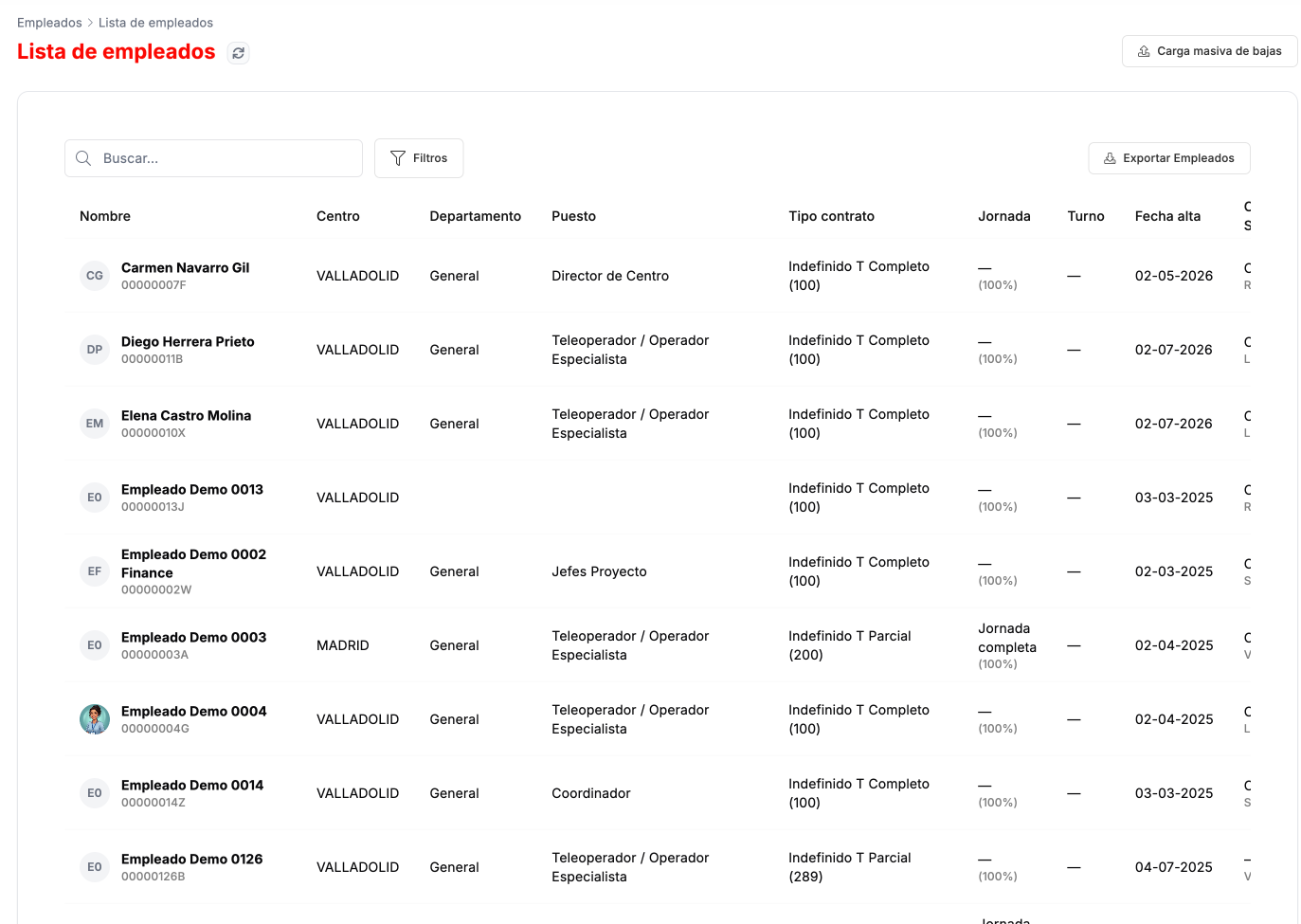
Section titled “Employee list”In CLOUD HRMS › Gestión de Empleados › Listado de Empleados you have the organization’s workforce. By default, active people are shown. You can search and filter, and there is an Exportar Empleados (Export employees) button.
Each row shows the work center, department, job position, contract type, working hours, shift, start date, cost center or service, area, contract and status. Click a person to open their record.
Bulk terminations
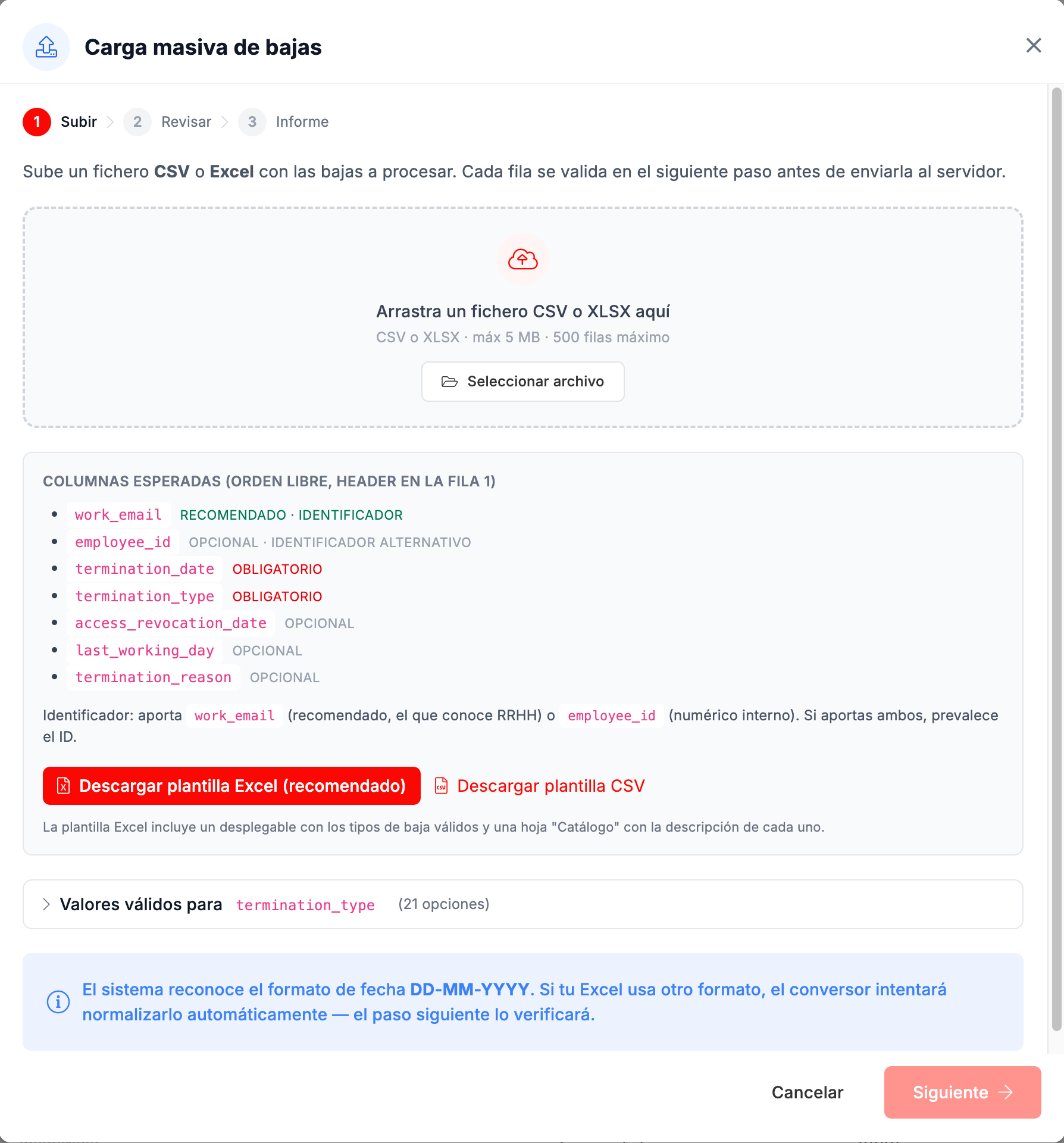
Section titled “Bulk terminations”Carga masiva de bajas (Bulk terminations) terminates several people at once, in three steps: Subir (Upload), Revisar (Review) and Informe (Report). You upload a CSV or Excel file (up to 5 MB and 500 rows) with the header in the first row. Each row is validated in the review step before it is submitted.
- To identify each person, use their work email (
work_email, recommended) or their internal number (employee_id). If you include both, the number takes precedence. - The termination date (
termination_date) and the termination type (termination_type) are required. - The access revocation date, the last working day and the reason are optional.
- You can download a template in Excel (recommended, with a drop-down of valid termination types and a sheet describing them) or in CSV.
- Dates use the DD-MM-YYYY format. If the file uses another one, the system tries to convert it and you will see this in the review.
The employee record
Section titled “The employee record”The record brings together everything about a person in six tabs: Datos del empleado (Employee details), Solicitudes (Requests), Resumen de absentismos (Absence summary), Documentos (Documents), Horario (Schedule) and Bitácora (Log).
At the top right there are two menus, on any tab: Crear absentismo (Create absence) and Acciones (Actions). They are explained at the end of this page.
Employee details
Section titled “Employee details”Three blocks: the general details (ID document, Social Security, address, phone numbers, emails, marital status and nationality), the employment details (job position, service, direct manager, start date, seniority and work arrangement) and the administrative details (company, work center and cost center). Below them, the featured documents and the bank information, with the IBAN masked.
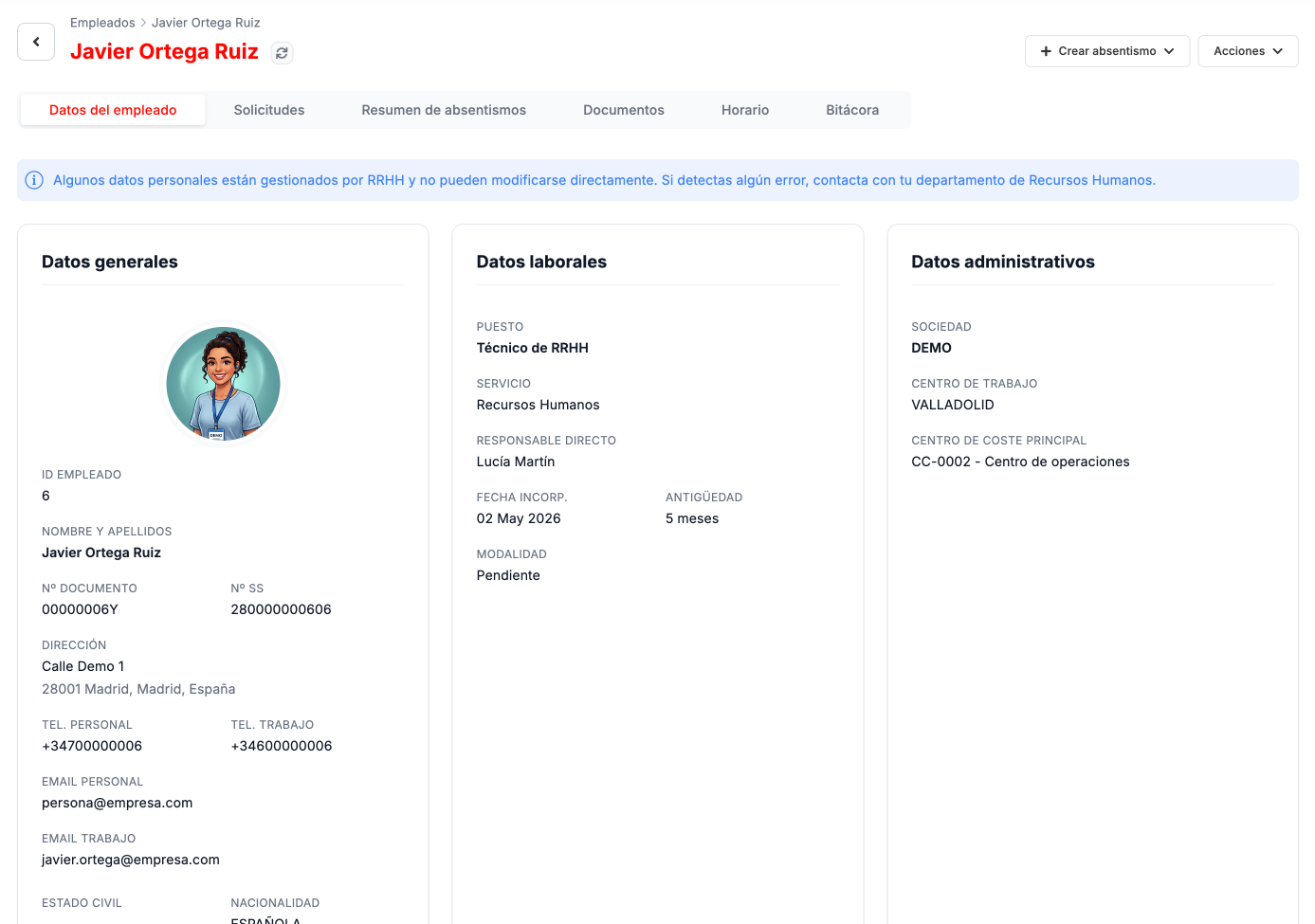
Some personal details are managed by HR and the person cannot change them from their portal: if they spot a mistake, they request it as a change of details request.
Requests
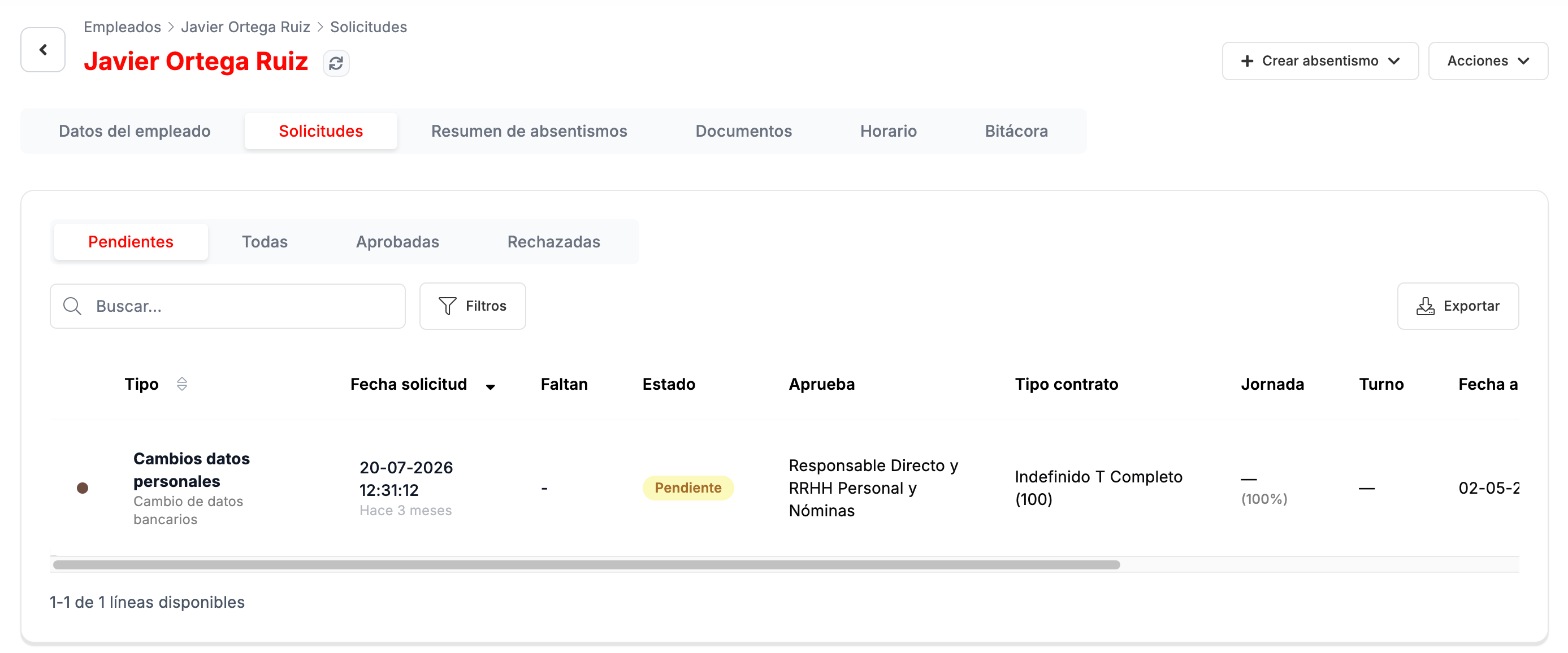
Section titled “Requests”This person’s requests, with the same tabs as the general list (Pendientes, Todas, Aprobadas and Rechazadas — Pending, All, Approved and Rejected), search, filters and export. Ver detalle (View details) opens each one to approve or reject it, as explained in Requests and absences.
Absence summary
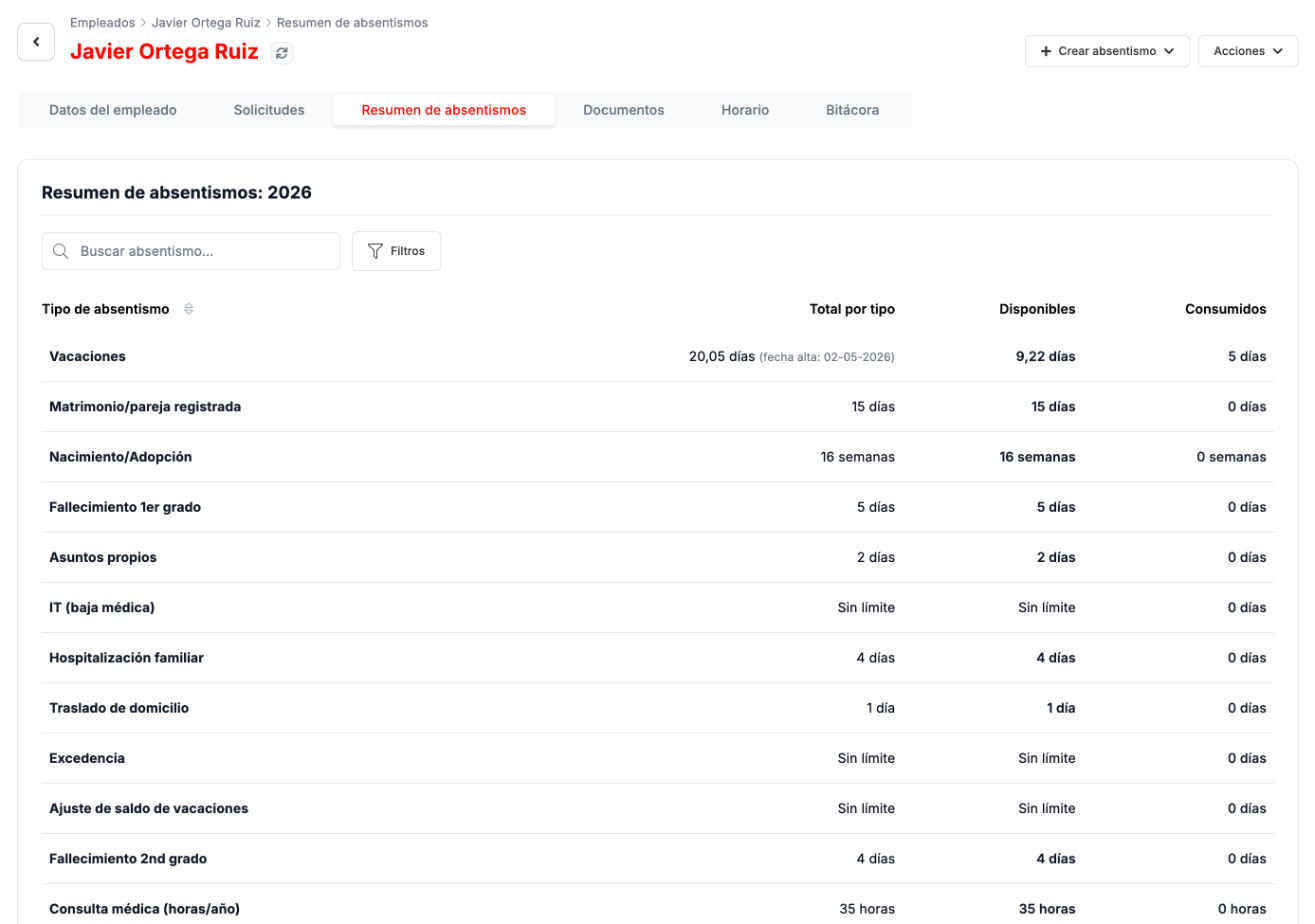
Section titled “Absence summary”For each type of absence in the year: the total the person is entitled to, what is available and what has been used. Next to the vacation total, the person’s start date appears if they joined during the year.
Documents
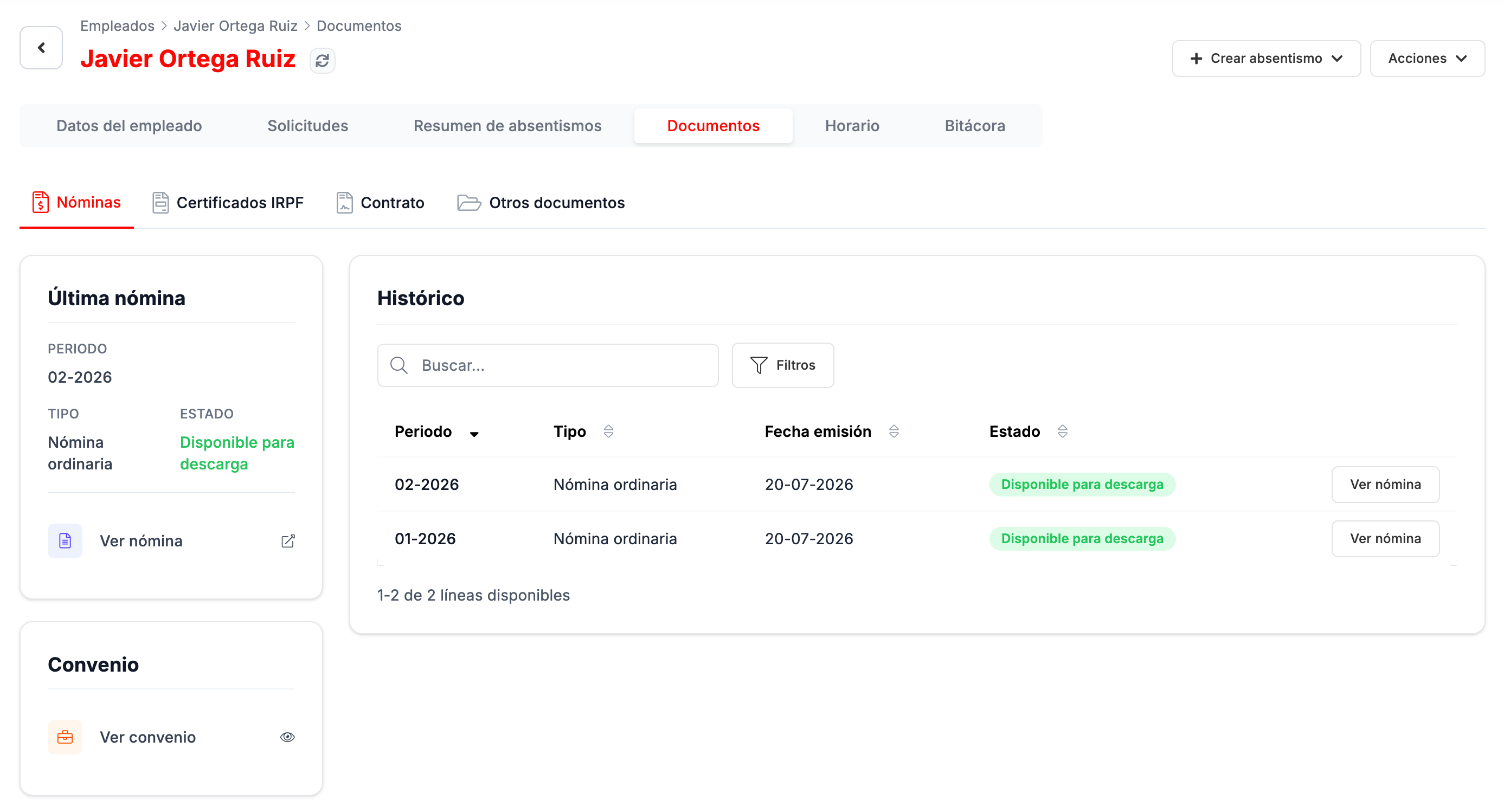
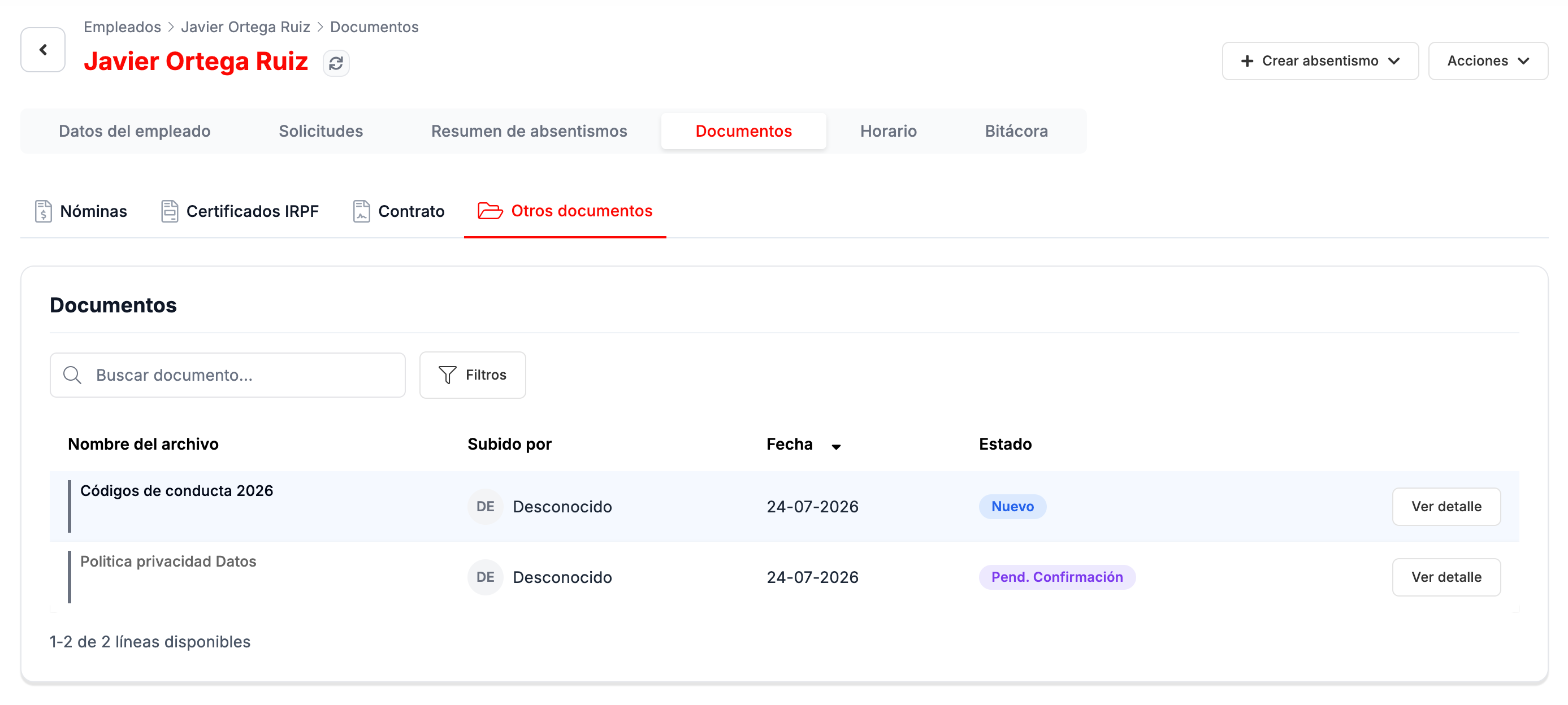
Section titled “Documents”Four sections:
- Nóminas (Payslips): the latest payslip, the history by period and access to the person’s collective agreement.
- Certificados IRPF (Income tax certificates): the latest certificate and the history by tax year.
- Contrato (Contract): the details of the current contract (dates, duration, recognized seniority, working hours, job position, work center, applicable agreement) and its documentation, such as the original and the signed contract.
- Otros documentos (Other documents): the person’s other documents, with who uploaded them, the date and the status, for example pending confirmation.
Schedule
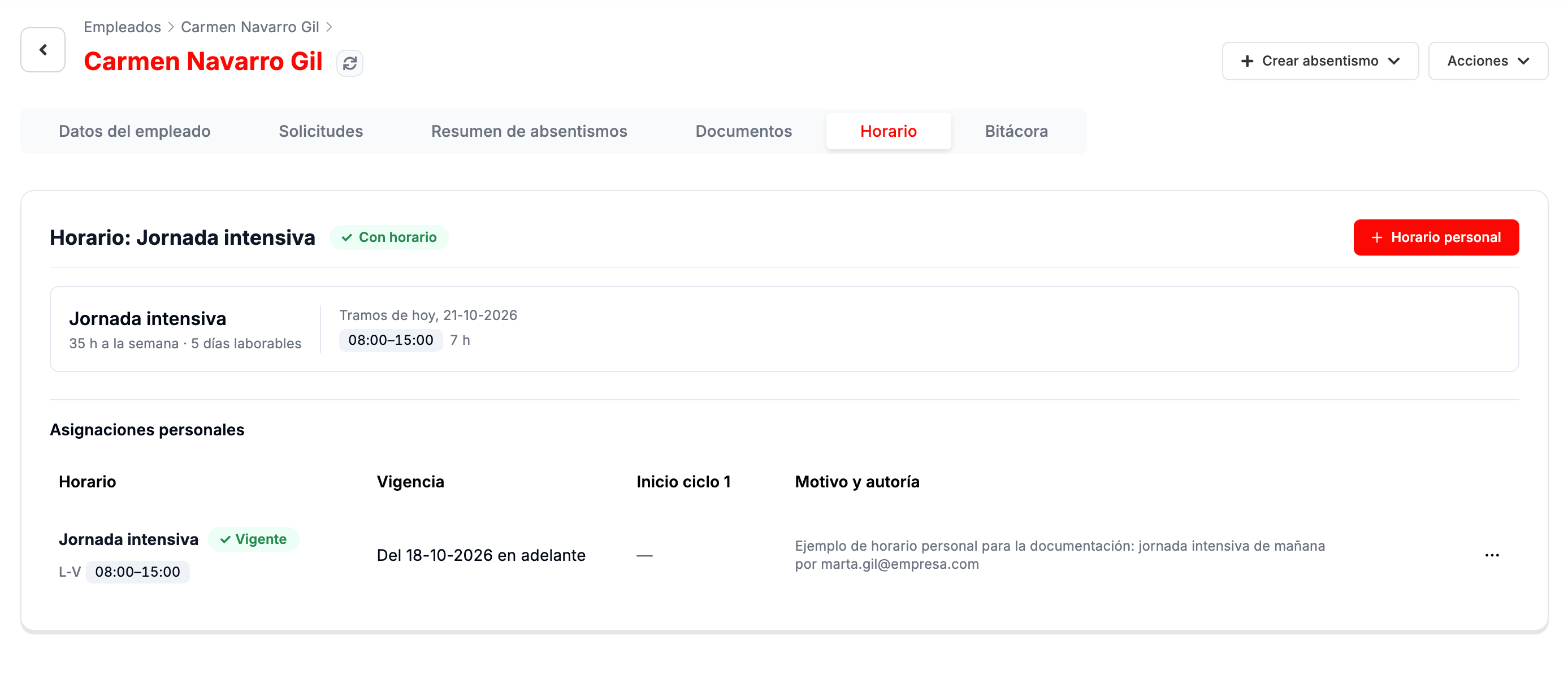
Section titled “Schedule”The schedule the person has today, their time slots for the day and their personal assignments. How they are assigned is explained in Time tracking. If the person works less than full time, or full time with an adjustment reason, the Jornada (Working hours) block also shows their working-day type, their hours and their reduced or adjusted working hours reason, read-only.
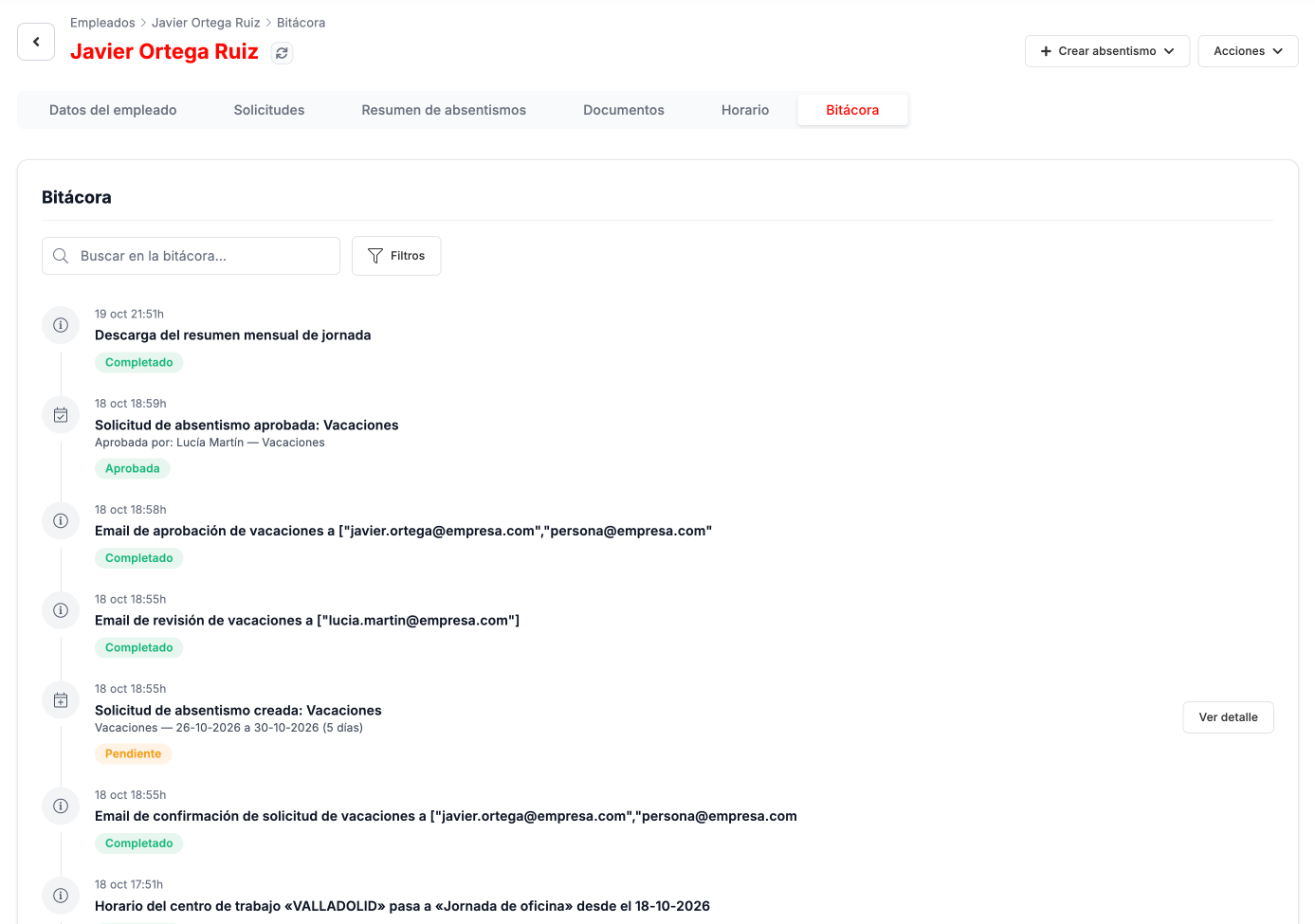
The log is the record of what has happened to the employee record: requests created, approved or rejected and who did it, emails sent, schedule changes, downloads and updates to details or to the photo. You can search and filter, and open the details of each entry.
Creating an absence on the person’s behalf
Section titled “Creating an absence on the person’s behalf”Crear absentismo records an absence on the person’s behalf. Each form says so at the top: «Creando en nombre de…» (Creating on behalf of…).
| Option | What it asks for |
|---|---|
| Vacaciones (Vacation) | From and to dates, and an optional reason. It shows the available days. |
| Permiso (Leave) | Absence type, whether it is for a full day or by hours, dates, optional reason and supporting documentation (PDF, JPG or PNG, up to 5 MB). |
| Baja médica (Sick leave) | Type of sick leave, start date and end date if there is one, optional reason and the medical certificate, which is required. HR reviews the documentation. |
| Excedencia (Leave of absence) | Type of leave of absence, dates, optional reason and supporting document, and two confirmations: that the leave of absence is unpaid and that Social Security contributions are lost during the period, with some exceptions. |
Editing details and terminating
Section titled “Editing details and terminating”In Acciones:
- Editar datos del empleado (Edit employee details) first asks when to apply the changes: Aplicar ahora (Apply now), on the record, or Programar para el… (Schedule for…) a date, in which case they are saved as a pending request and applied automatically on that day. Then they are edited in three tabs: contract details, employee details and company details. The contract details also record the reduced or adjusted working hours reason: a reduction with less than full-time hours and an adjustment with any working hours.
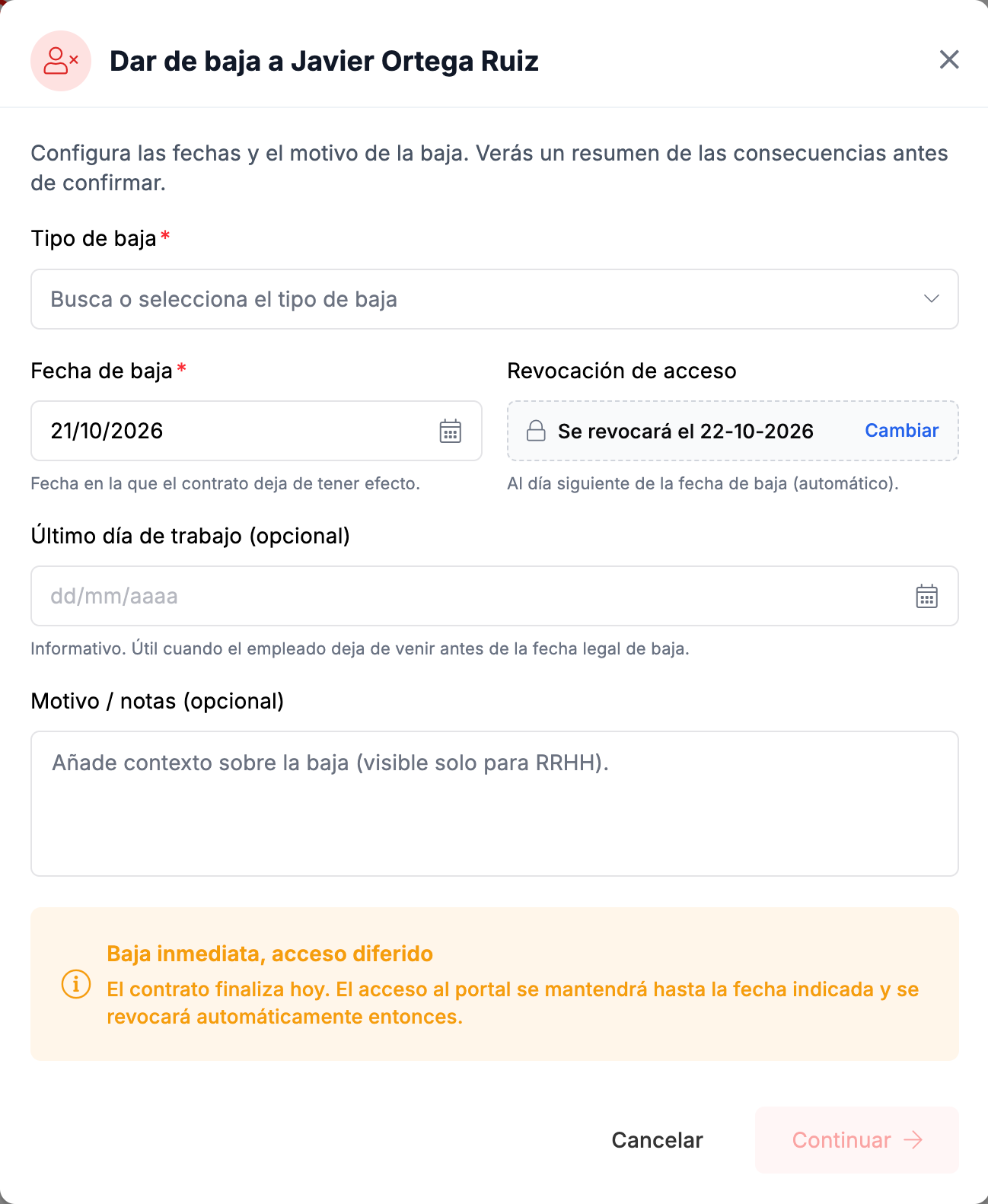
- Dar de baja (Terminate) asks for the termination type and the date on which the contract ceases to have effect. Access to the portal is revoked the day after the termination, although you can change that date. You can also indicate the last working day, if it was earlier, and a reason that only HR sees. Before confirming you will see a summary of the consequences.
Troubleshooting
Section titled “Troubleshooting”- You want to know what has happened to a person. The Bitácora tab of their record collects their requests, the emails sent to them and the schedule changes, with date and time.
- You are worried about making a mistake in a bulk termination. Each row of the file is validated in the Revisar step before being submitted, so errors show up before any termination is applied.