
Requests
From Mis Solicitudes you request your absences and your expenses, and follow the status of each request.
How to view your requests
Section titled “How to view your requests”-
Go to Mis Solicitudes › Solicitudes. It opens on the Pendientes (Pending) tab.
-
Switch tabs to see Todas (All), Aprobadas (Approved) or Rechazadas (Rejected). Each row shows the type, the date you requested it, how long is left and its status.
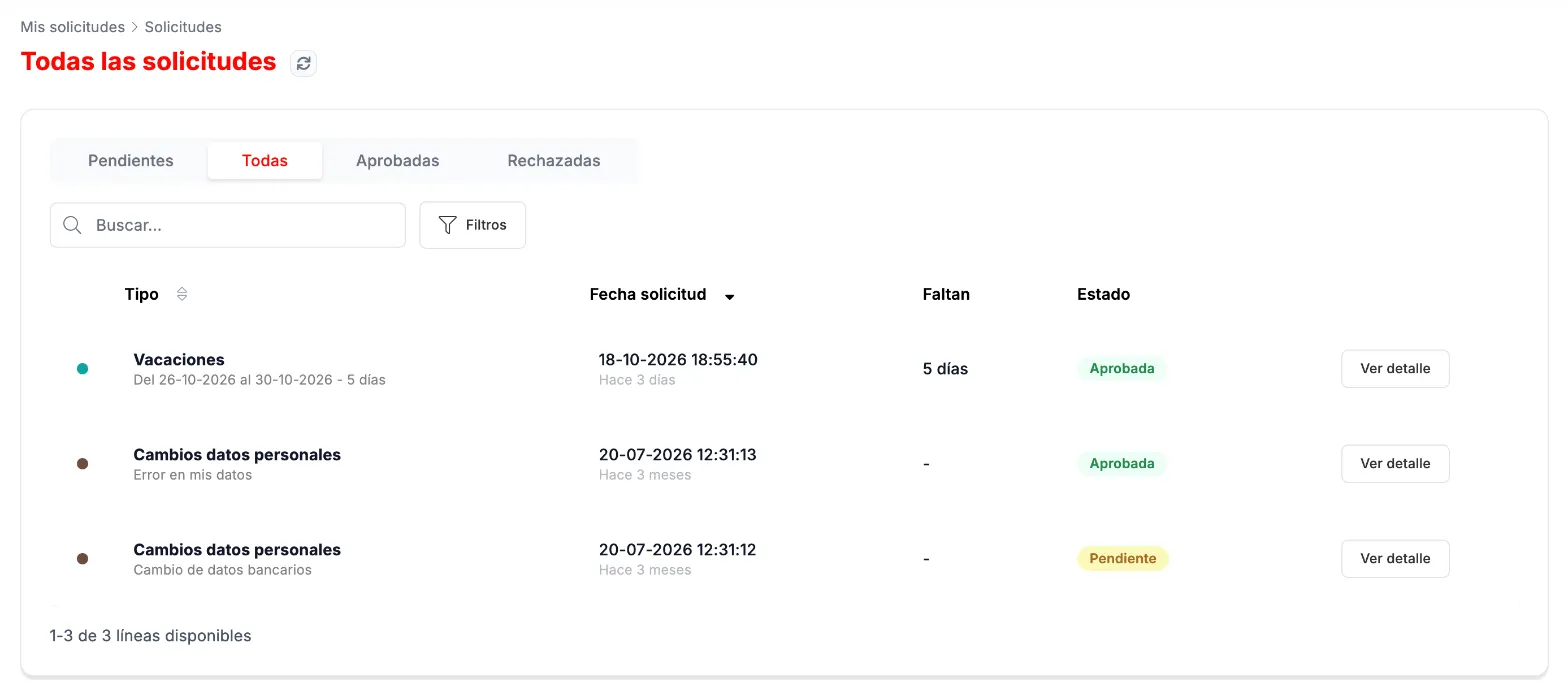
All your requests, with their status. -
Ver detalle (View details) opens the request.
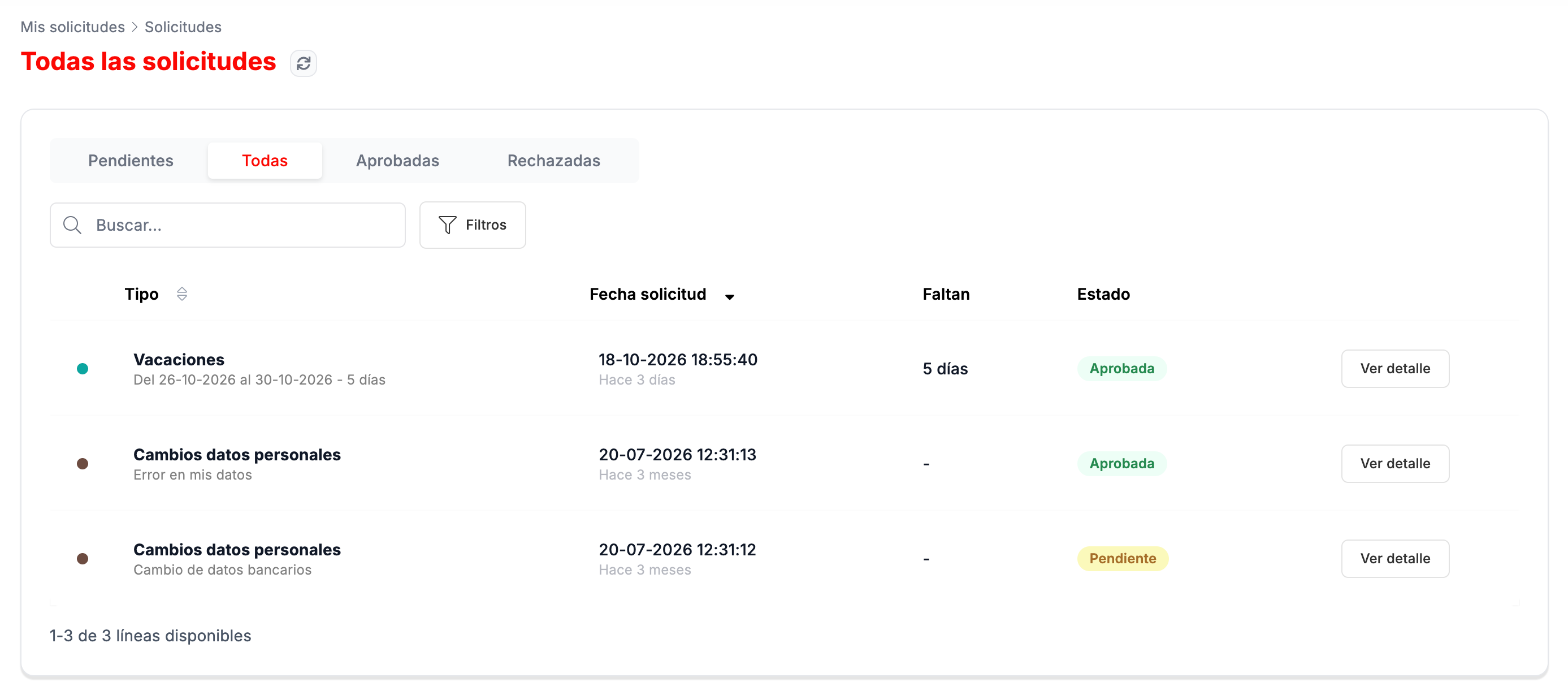
How to request vacation
Section titled “How to request vacation”-
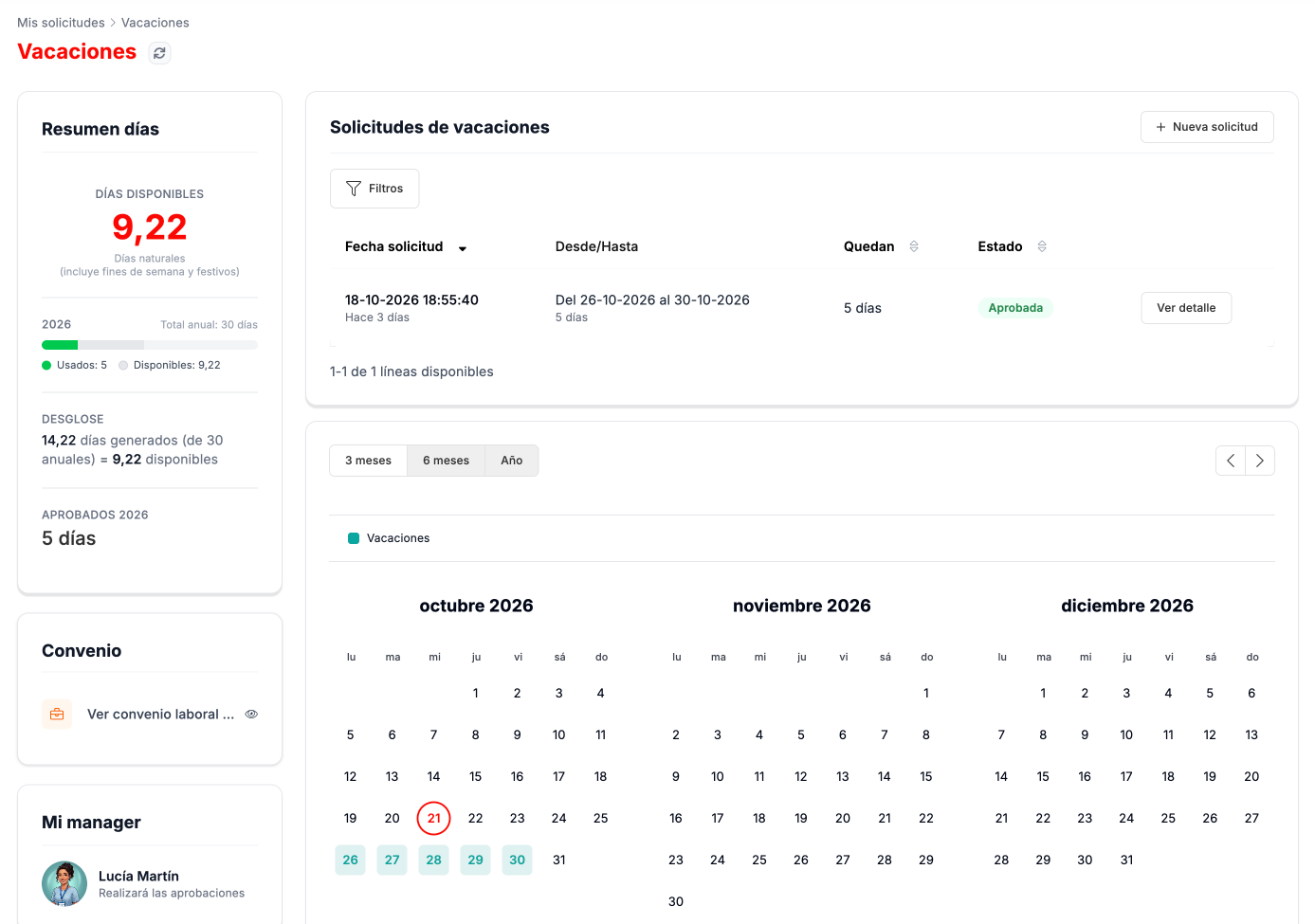
Go to Mis Solicitudes › Vacaciones. On the left you have your days summary; on the right, your vacation requests and the Nueva solicitud (New request) button; below, a calendar of several months.
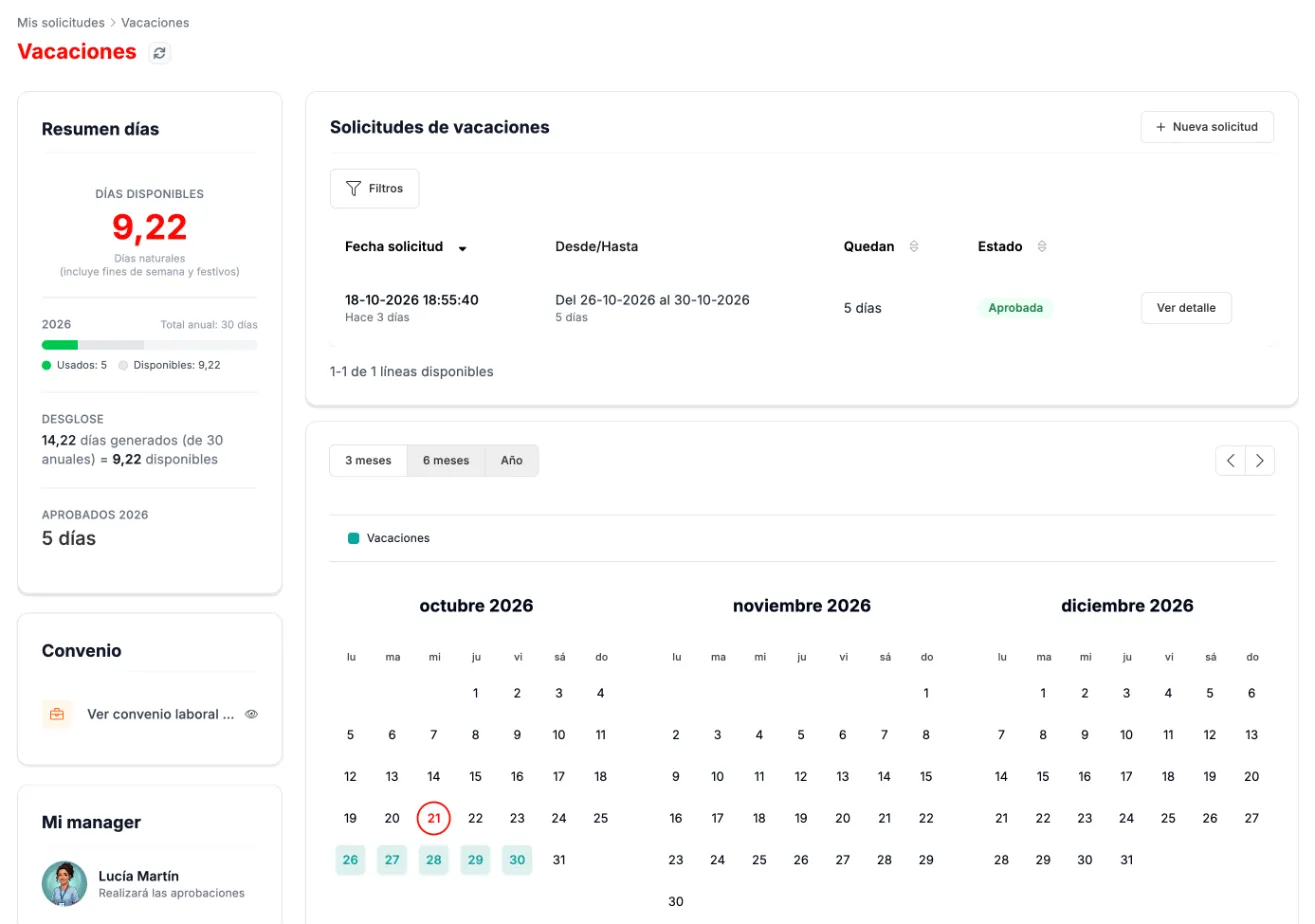
Vacation: your days summary, your requests and the calendar. -
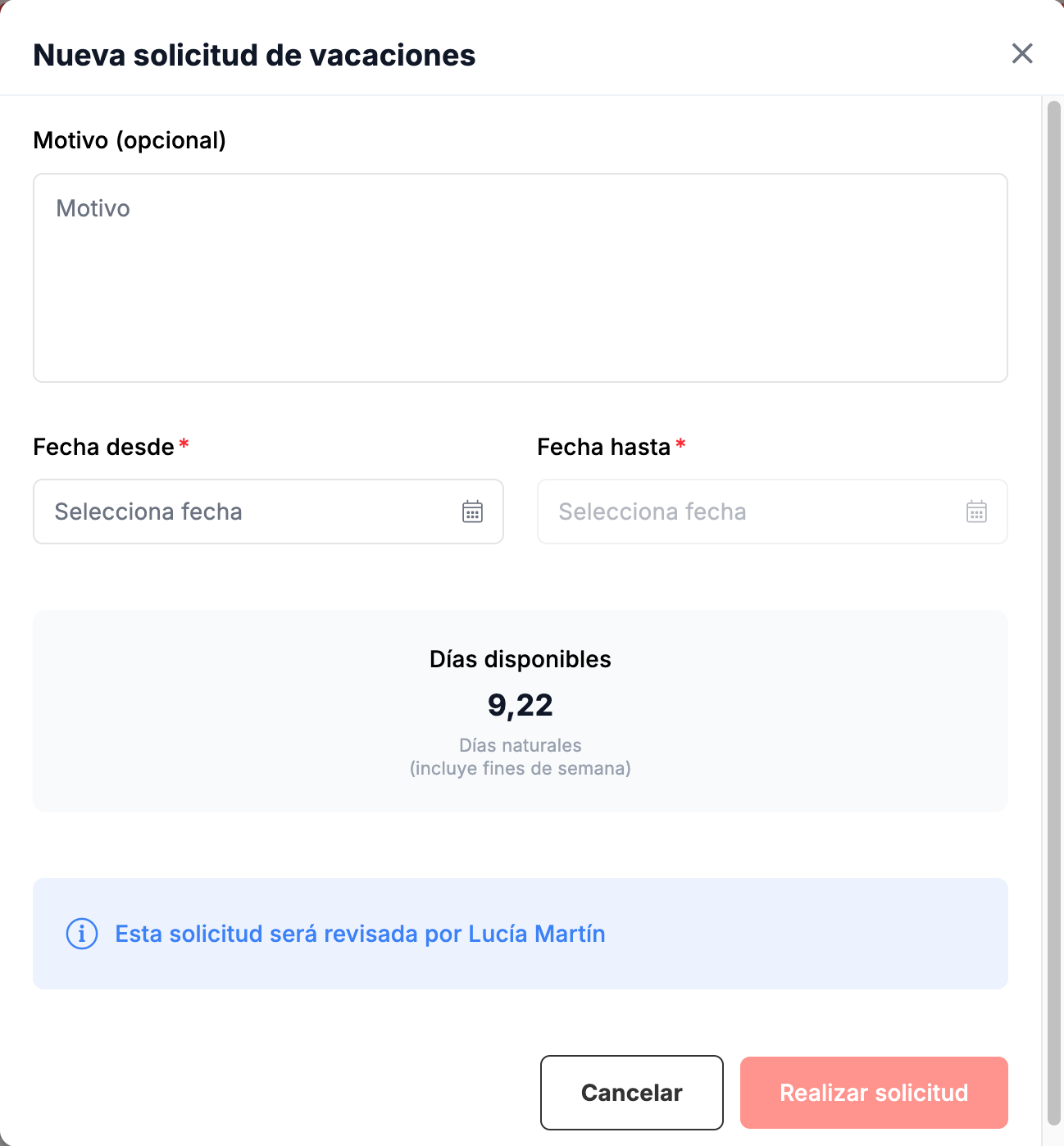
Request the vacation with Nueva solicitud. In the form you choose the Fecha desde (From date) and the Fecha hasta (To date) and, if you like, a Motivo (Reason). It shows your available days and who will review the request.
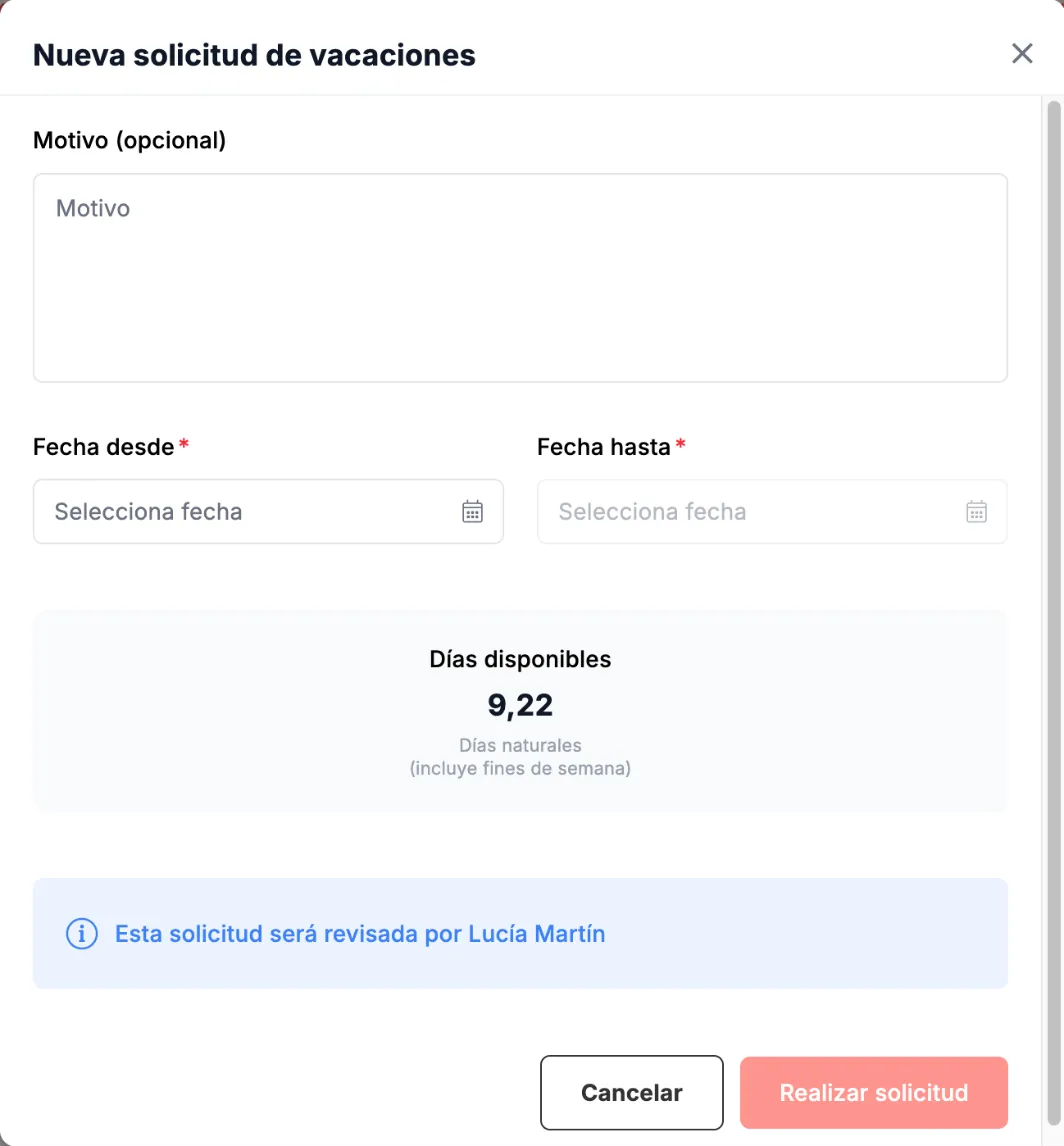
New vacation request. -
Click Realizar solicitud (Submit request).
How to request leave
Section titled “How to request leave”-
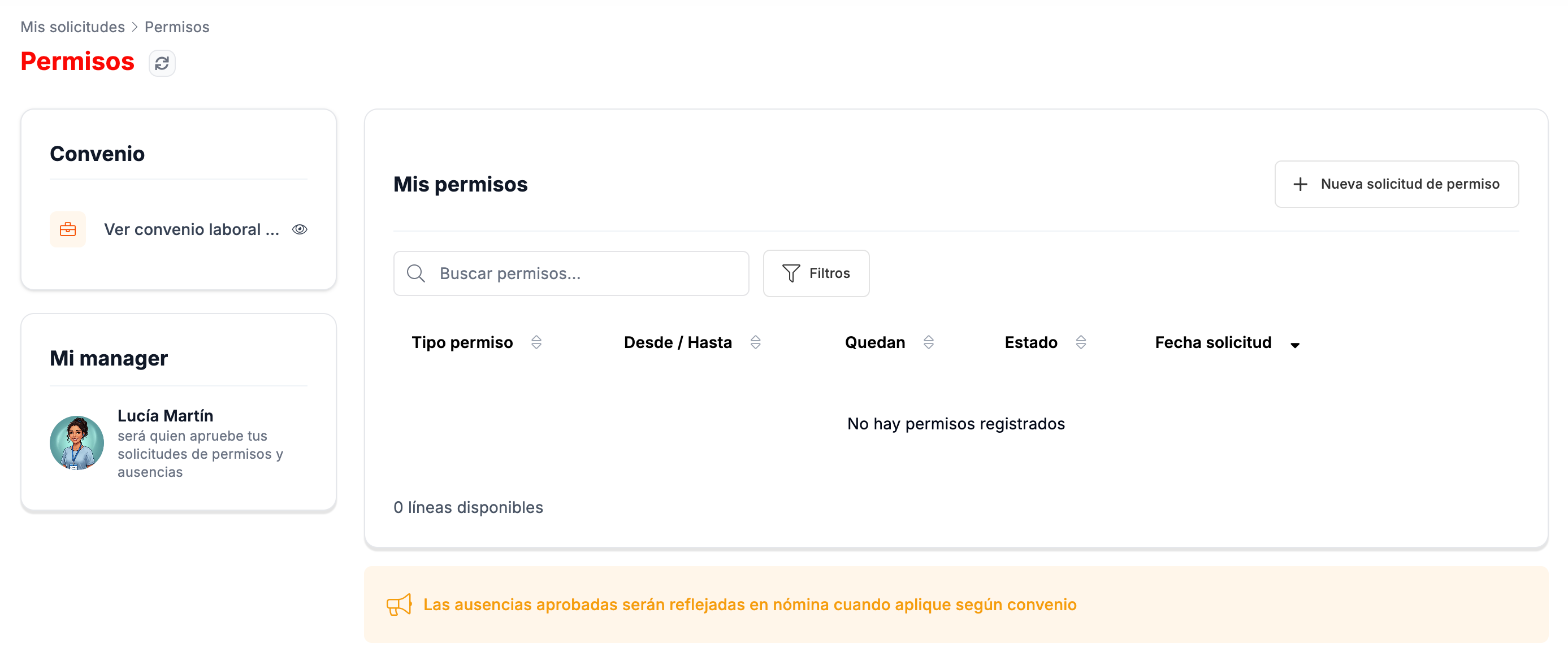
Go to Mis Solicitudes › Permisos. You see the link to your collective agreement, your manager, who will approve your leave and absences, and the list of your leave requests.
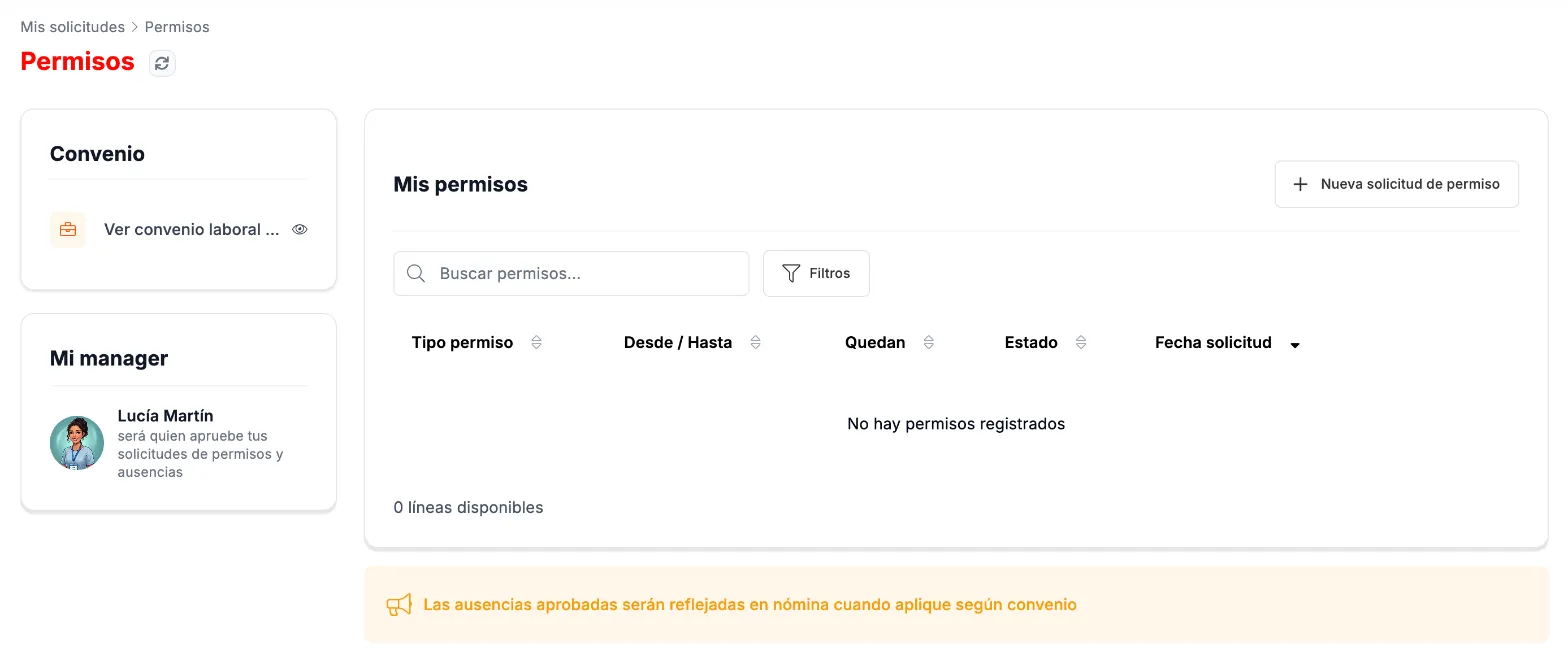
Leave, with who approves it. -
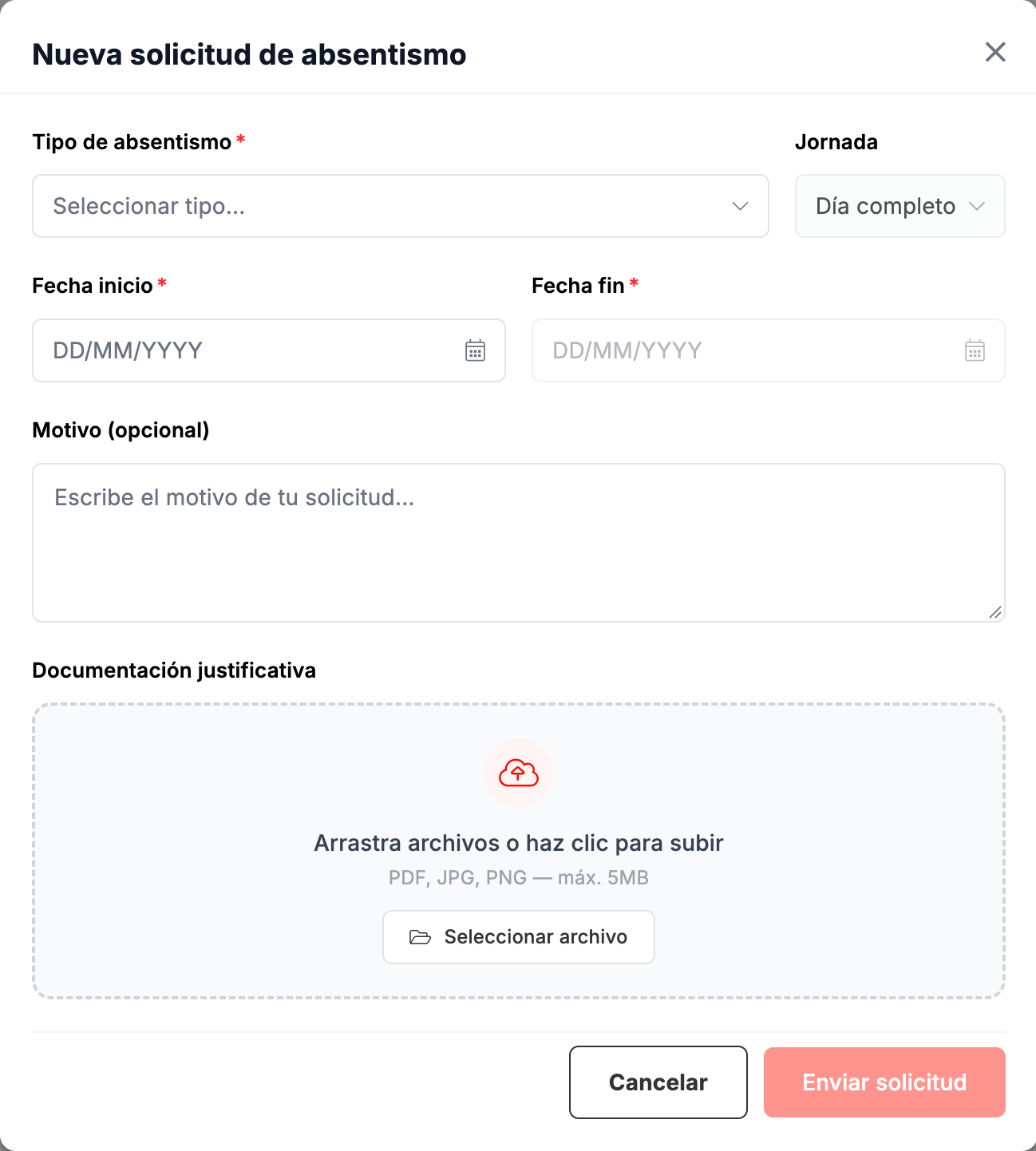
Click Nueva solicitud de permiso (New leave request) and fill in the form:
- Tipo de absentismo (Absence type), from a searchable list: for example, marriage or registered partnership, birth or adoption, or personal matters.
- Jornada (Working day): by default, Día completo (Full day).
- Fecha inicio (Start date) and Fecha fin (End date).
- Motivo (Reason), optional, and Documentación justificativa (Supporting documentation: PDF, JPG or PNG, up to 5 MB).
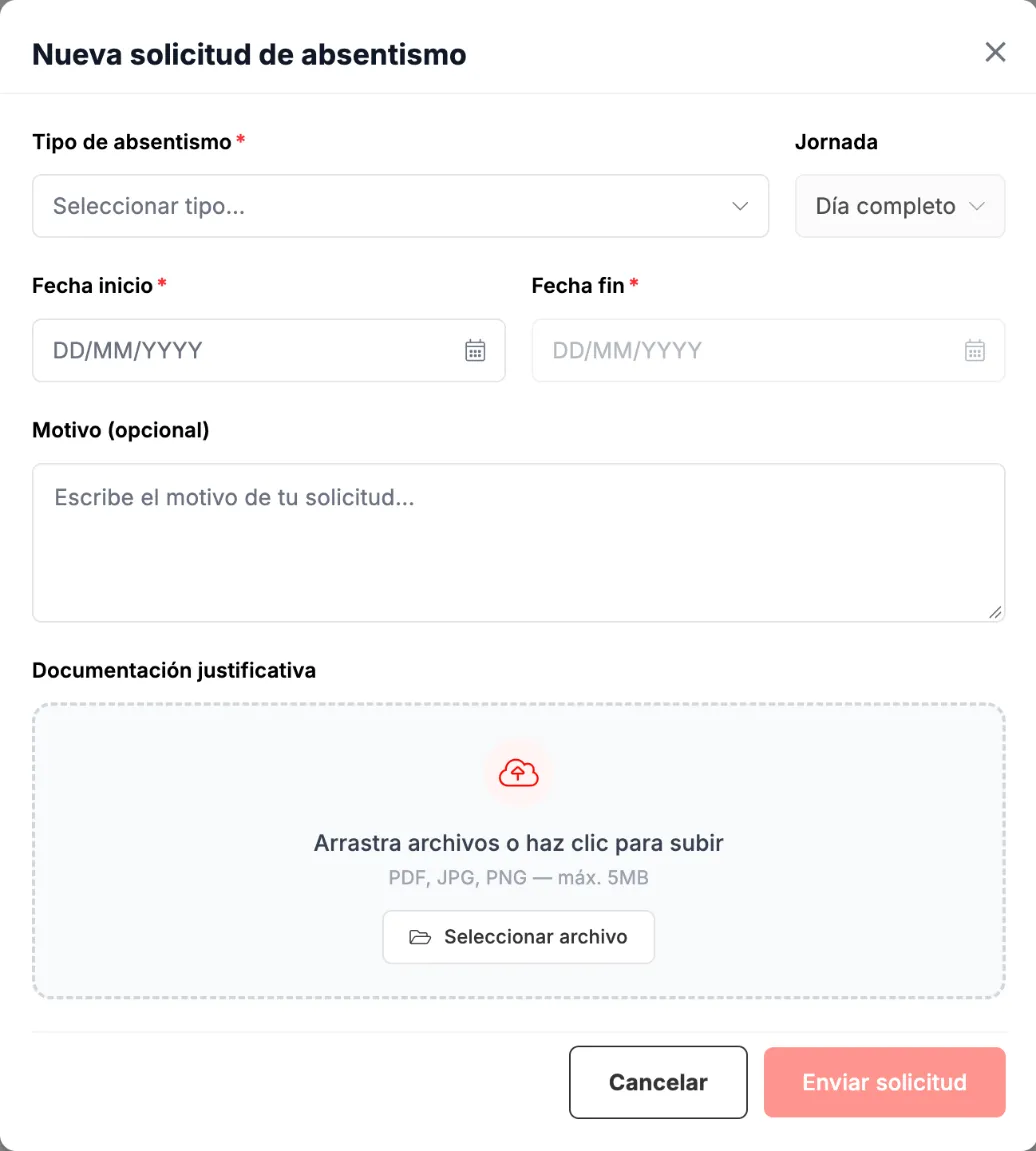
New leave request. -
Click Enviar solicitud (Send request).
Approved absences are reflected in payroll where applicable under the collective agreement.
How to submit an expense report
Section titled “How to submit an expense report”-
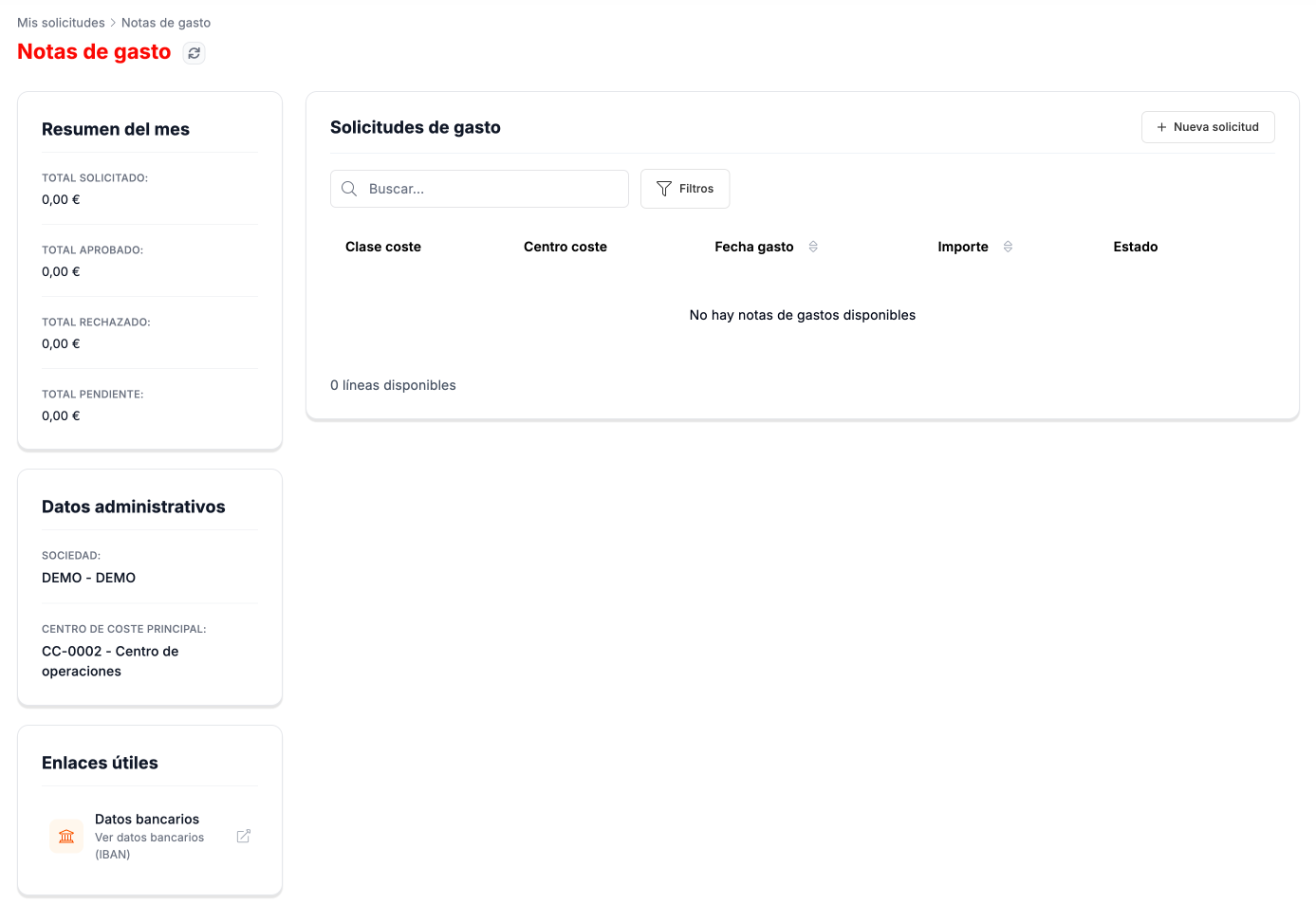
Go to Mis Solicitudes › Notas de Gasto. You see the month summary (total requested, approved, rejected and pending), your administrative details, the link to your bank details and the list of your expenses.
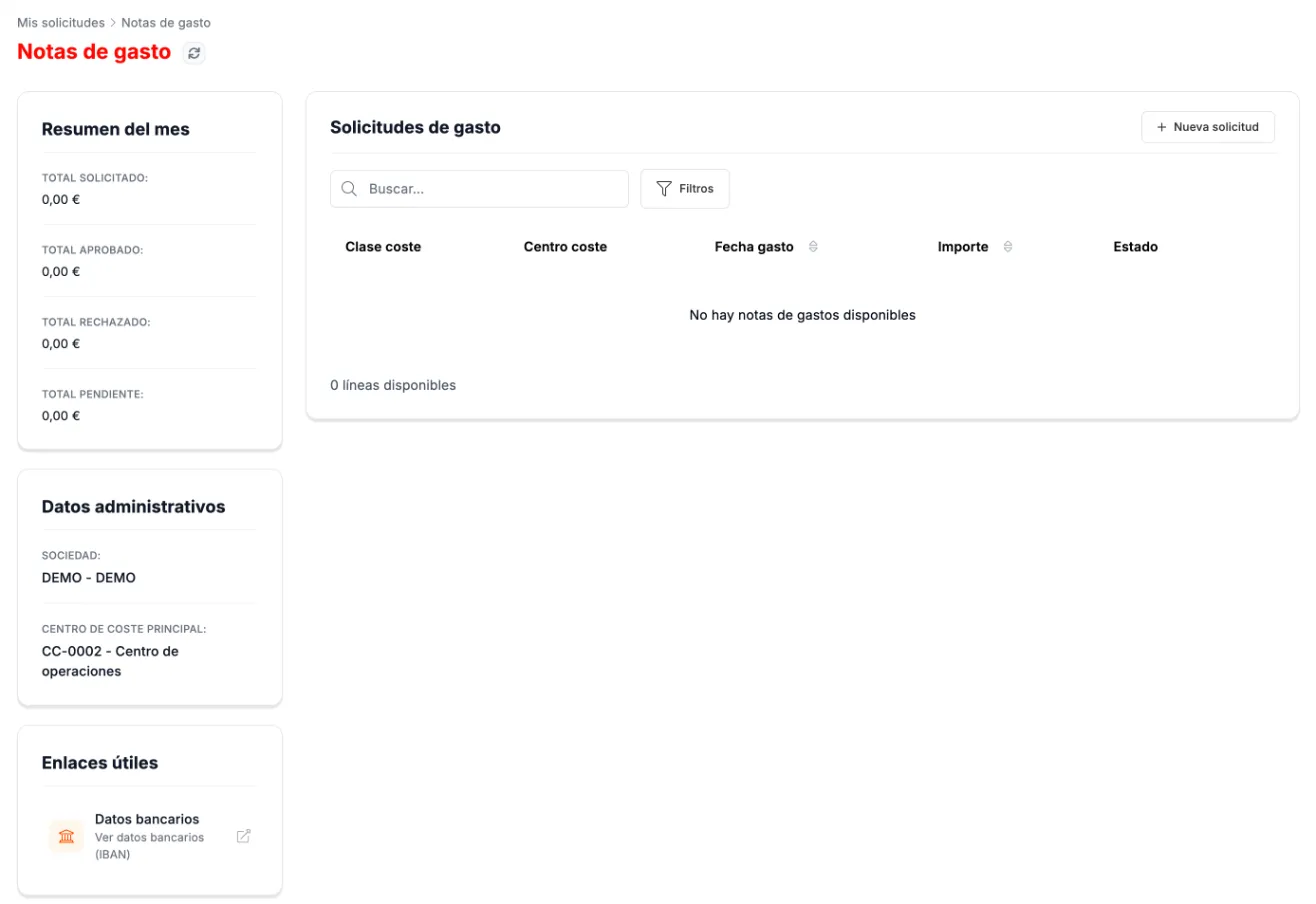
Expense reports. -
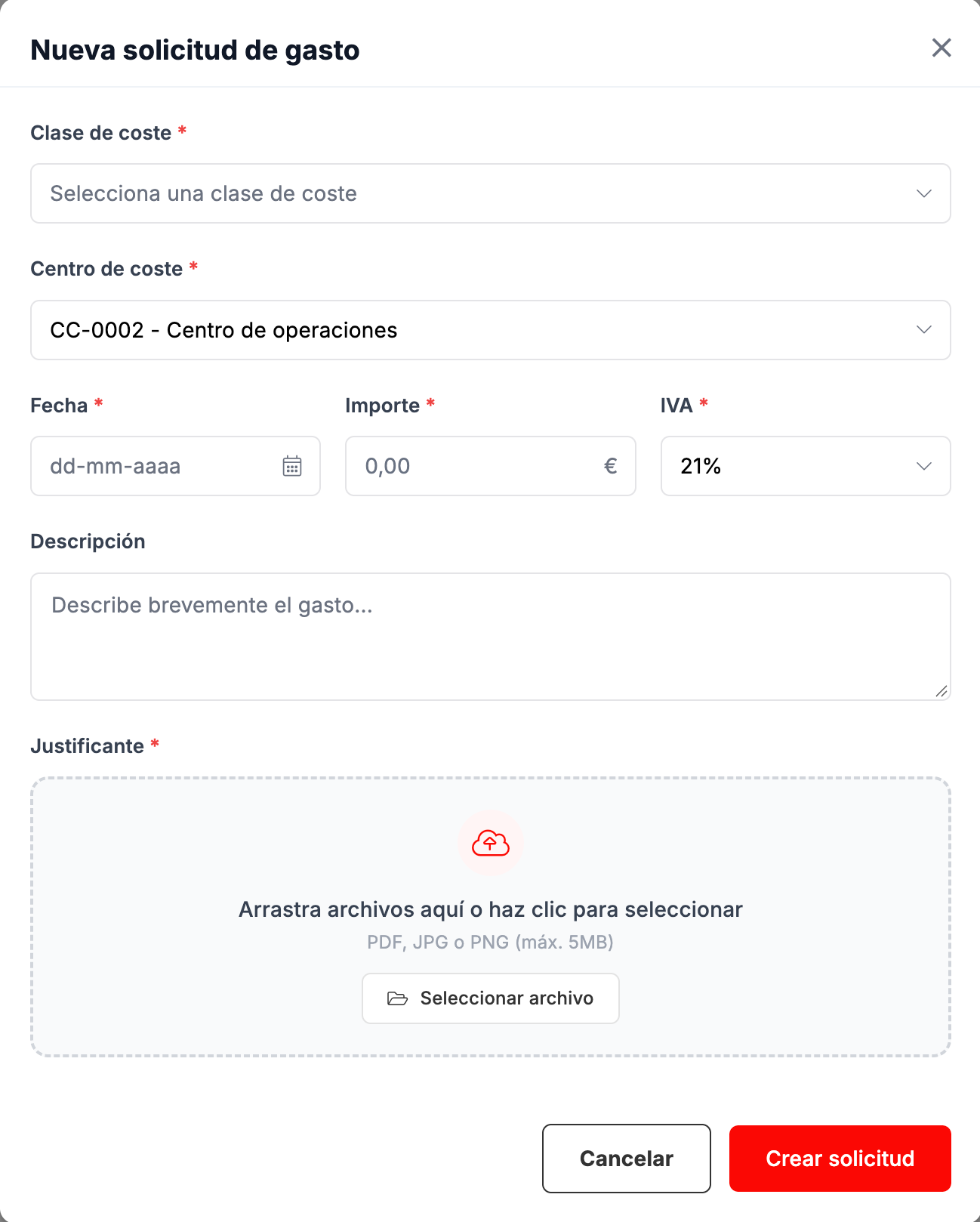
Click Nueva solicitud (New request) and enter the Clase de coste (Cost class), the Centro de coste (Cost center, yours appears), the Fecha (Date), the Importe (Amount), the IVA (VAT) and, if you like, a description. Attach the Justificante (Receipt: PDF, JPG or PNG, up to 5 MB), which is required.
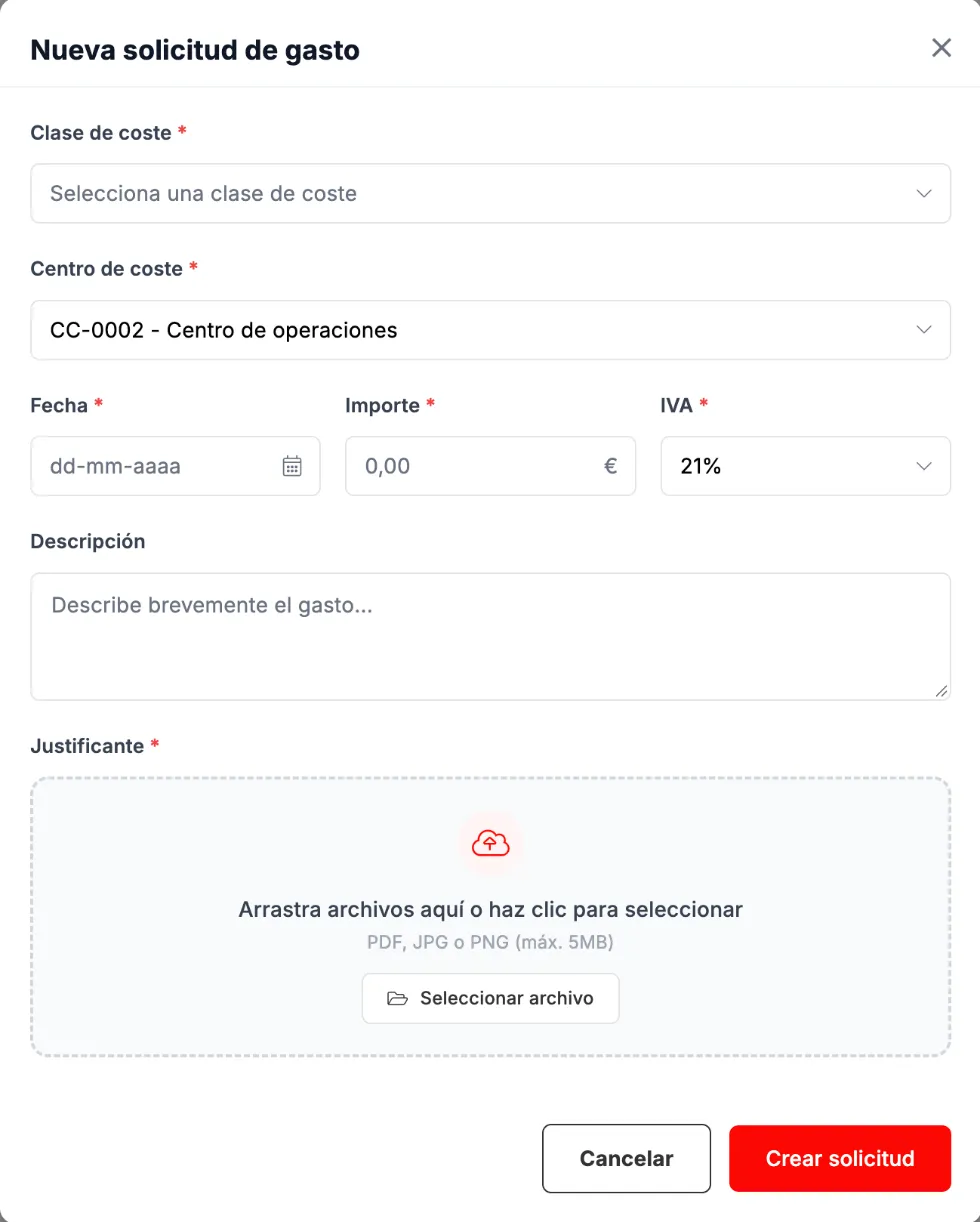
New expense request. -
Click Crear solicitud (Create request).
How to check your sick leave
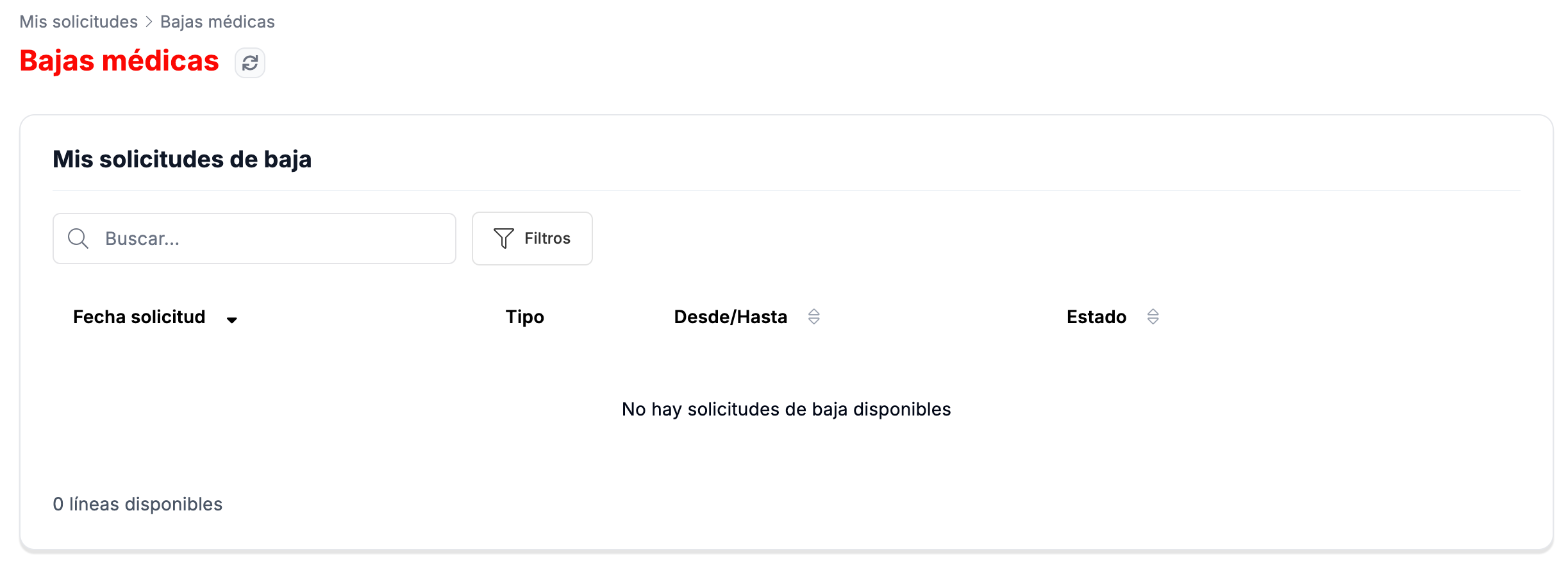
Section titled “How to check your sick leave”In Mis Solicitudes › Bajas médicas you see your sick leave, with the request date, the type, the dates and the status. This screen is view-only: it has no button to request sick leave.
How to request a leave of absence
Section titled “How to request a leave of absence”-
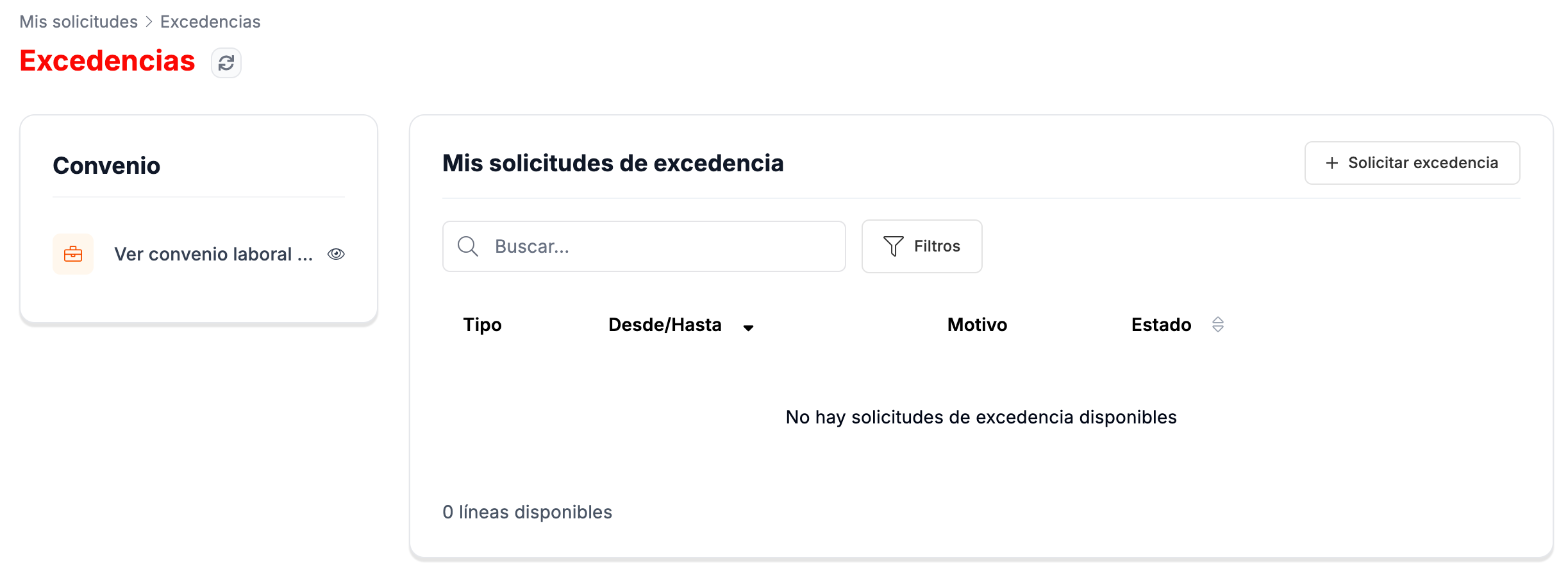
Go to Mis Solicitudes › Excedencias and click Solicitar excedencia (Request leave of absence), at the top right of the list.
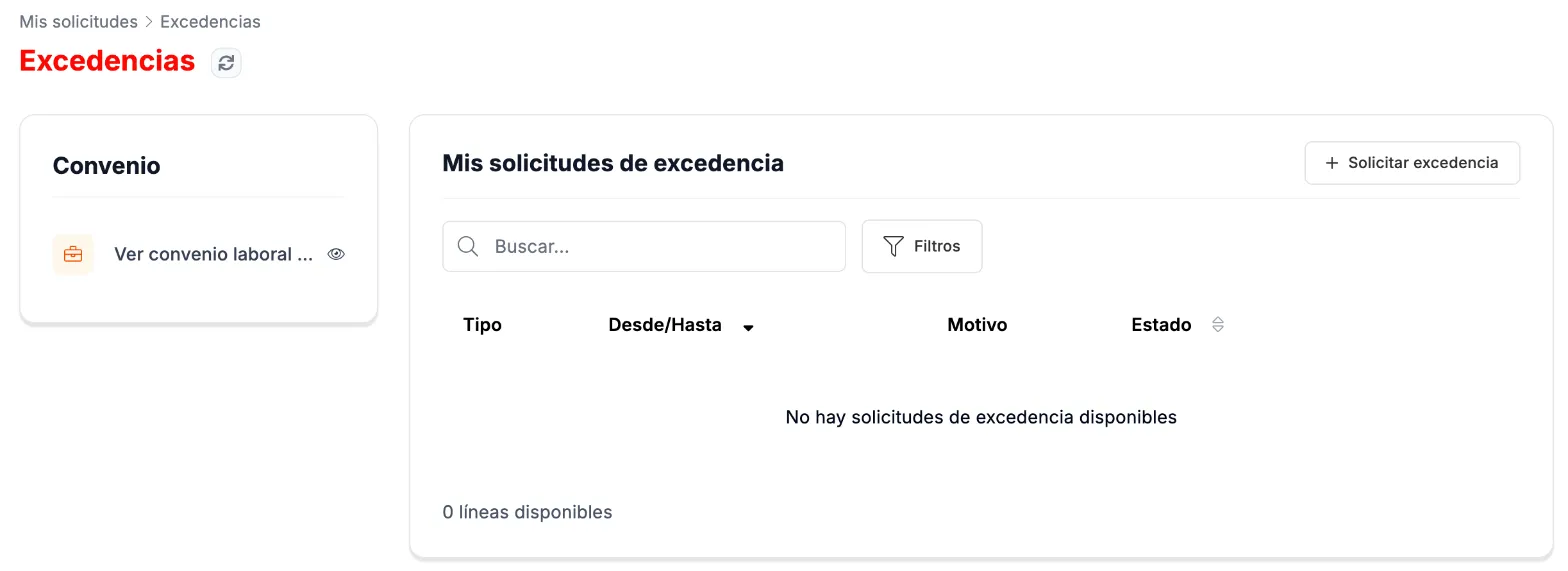
Leaves of absence. -
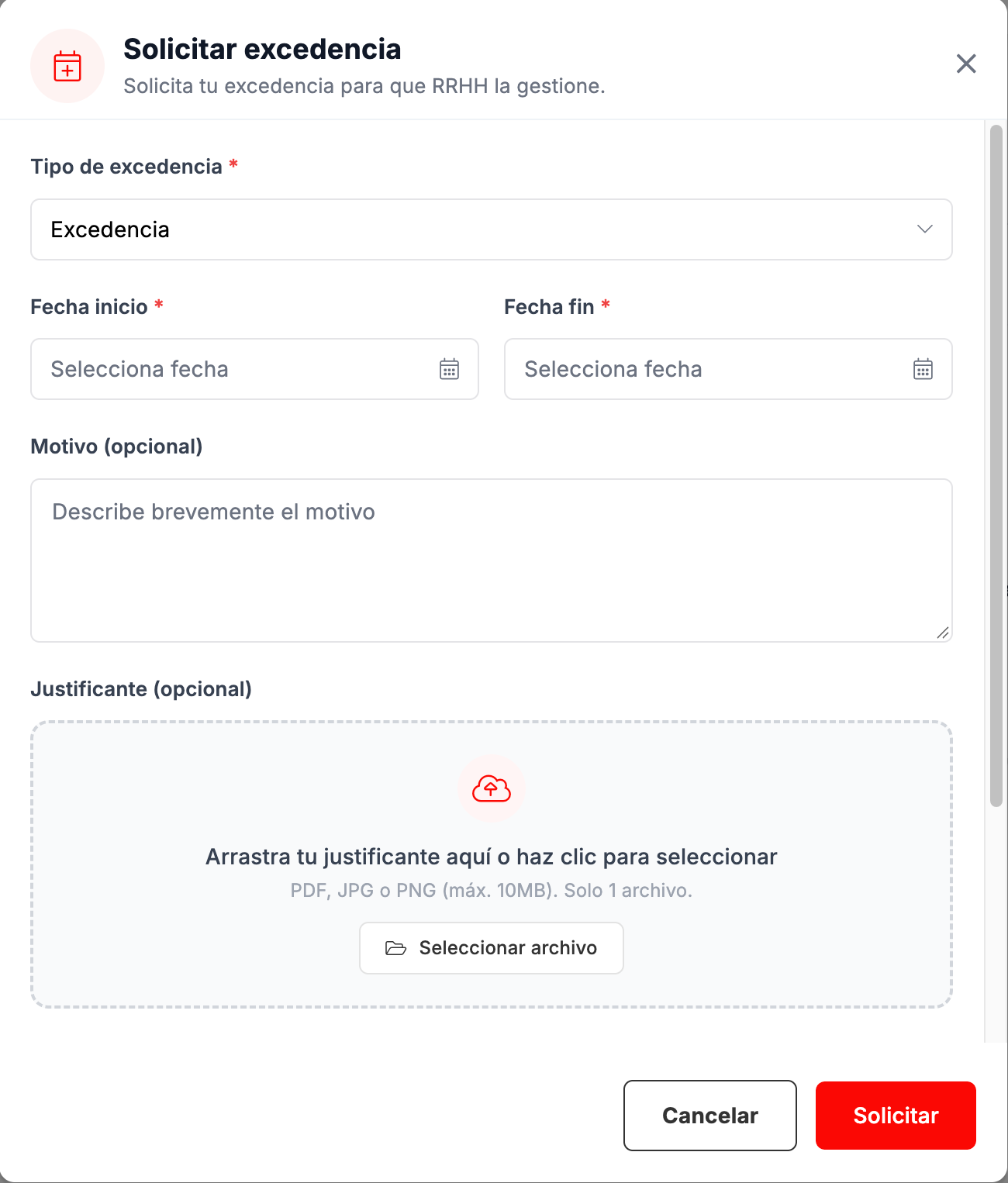
Choose the Tipo de excedencia (Type of leave of absence), the Fecha inicio and the Fecha fin, which are required. If you like, add a Motivo and a Justificante (PDF, JPG or PNG, up to 10 MB).
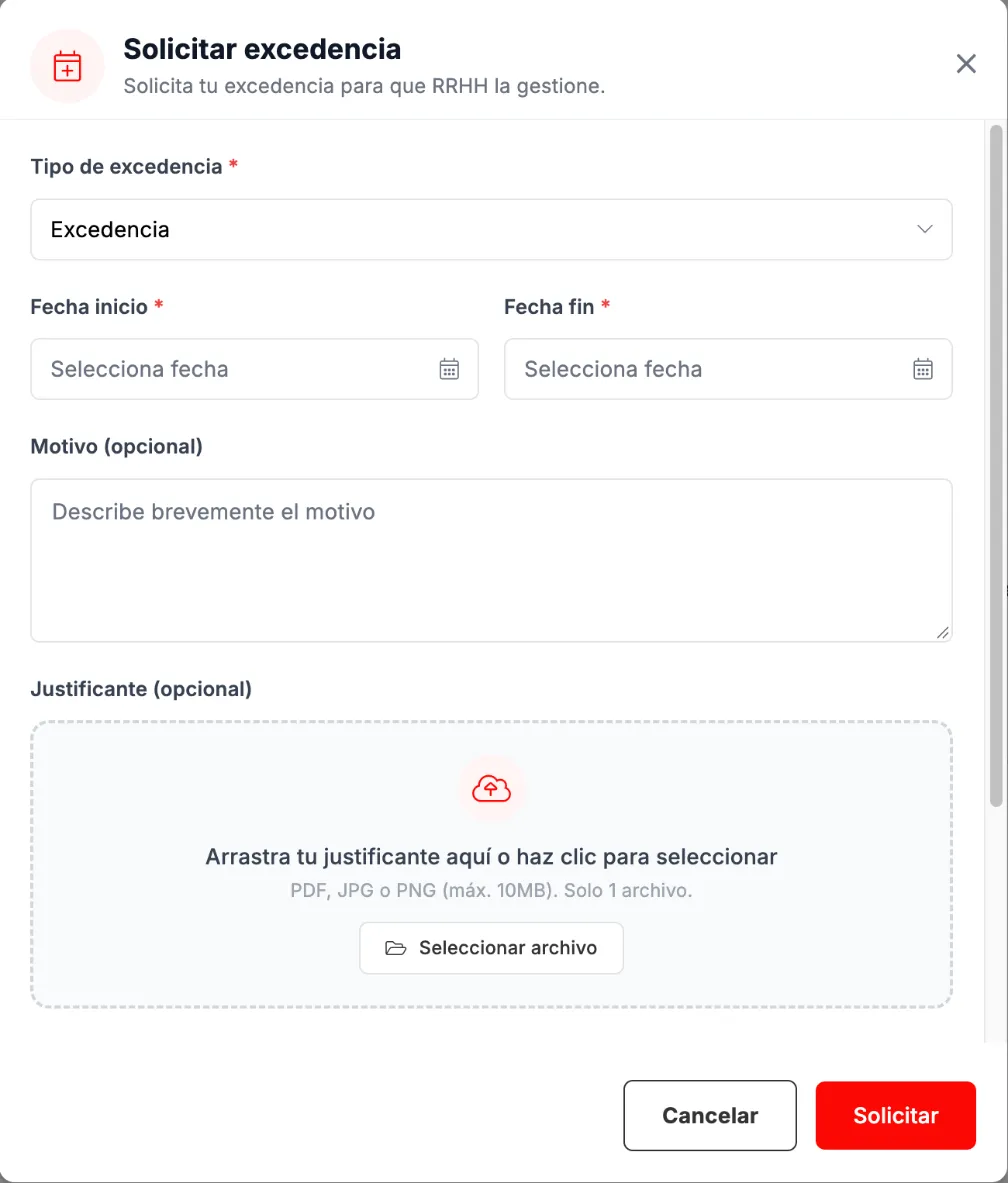
Requesting a leave of absence. -
Click Solicitar (Request). The request is handled by HR.
Troubleshooting
Section titled “Troubleshooting”- You do not know who will approve a request. In Permisos, the Mi manager (My manager) block tells you; so does the vacation form.
- You want to know whether something has been approved. Check it in Solicitudes, on the Aprobadas and Rechazadas tabs.