
Clocking in and out
Clocking in and out means recording every day when you start, when you stop and when you finish. Afterwards you validate each day, confirming the hours you actually worked, and at the end of the month you give your sign-off on the summary.
You can clock in and out in two ways. Both save the same record:
- From the top bar. The clocking button is at the top right, next to your photo, on every screen.
- From the Mi jornada screen. As well as clocking, you see the clock and the day’s entries.
How to clock in from the top bar
Section titled “How to clock in from the top bar”The text on the clocking button tells you where you are in your working day:
| Button text | What it means |
|---|---|
| Fichar (Clock in) | You have not started your working day yet or you have already clocked out. |
| Trabajando (Working) and a time | You are working. The time is how long you have worked today. |
| En pausa (On break) and a time | You are on a break. The time is how long you have worked today. |
Clicking the button opens a panel with:
- the status of your working day and the time worked today;
- the buttons to clock in and out, which change depending on the status;
- links to your working day screens;
- the Marcajes de hoy (Today’s entries) list.
To close the panel without clocking, click the ×.
Clocking in
Section titled “Clocking in”-
Click Fichar in the top bar.
-
Click Fichar entrada (Clock in). If you have not clocked in today yet, the panel shows Jornada cerrada (Working day closed) and 0 min.
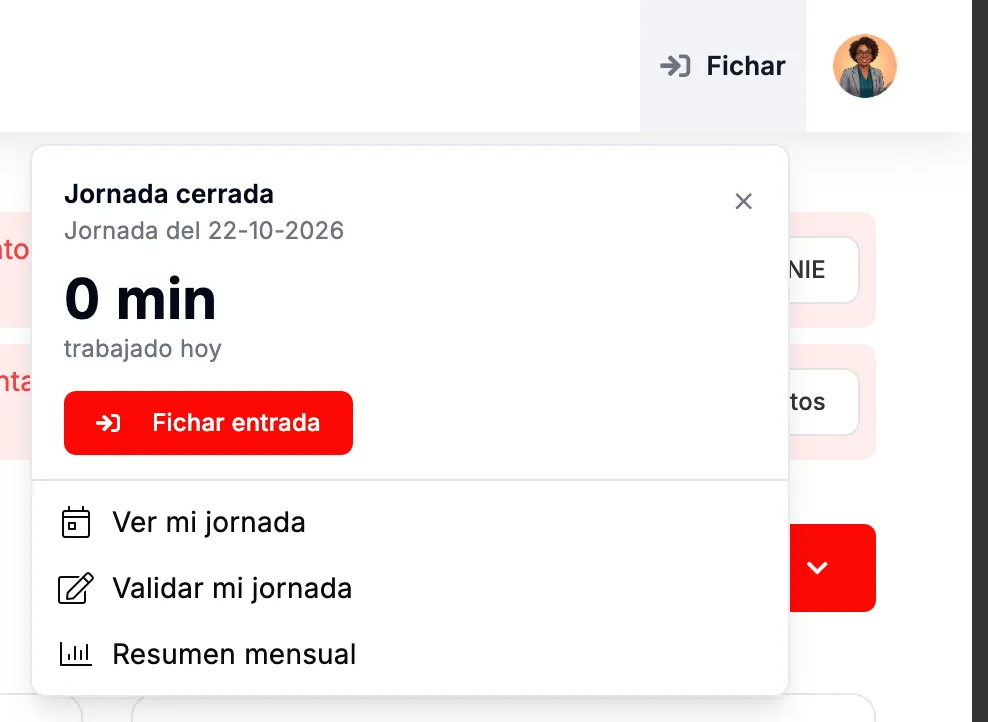
The panel before the first clock-in of the day. -
Check that the button says Trabajando and that the clock-in appears in Marcajes de hoy.
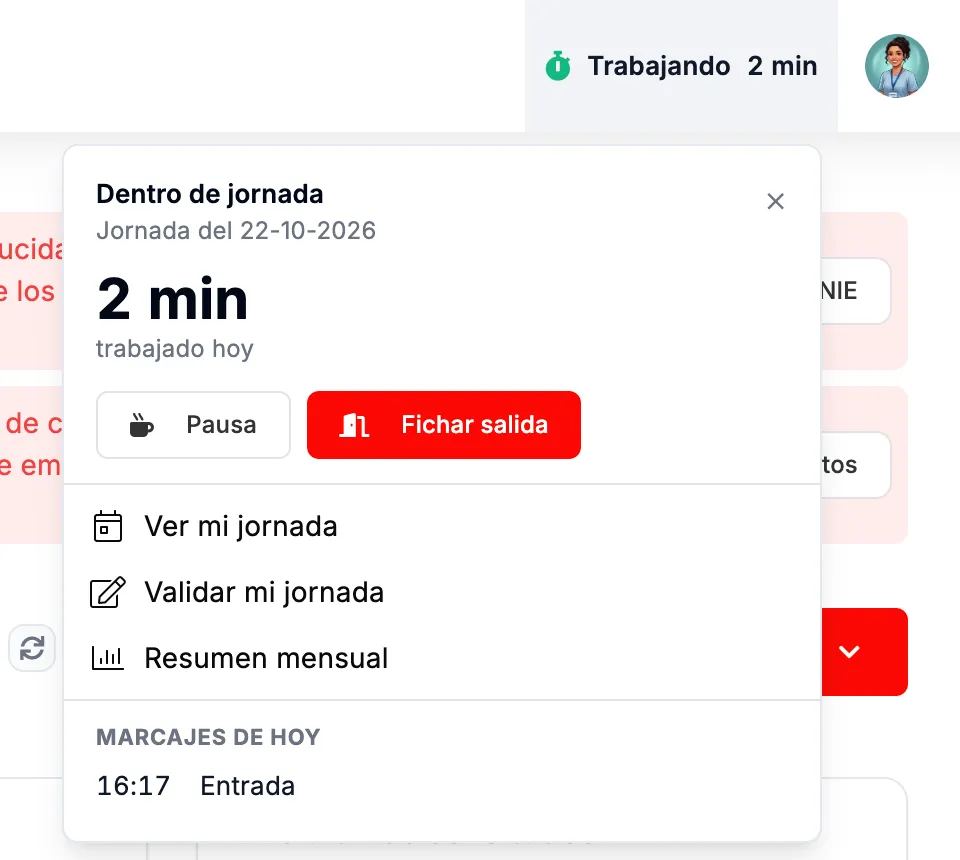
Clock-in recorded.
Taking a break
Section titled “Taking a break”-
Open the panel and click Pausa (Break).
-
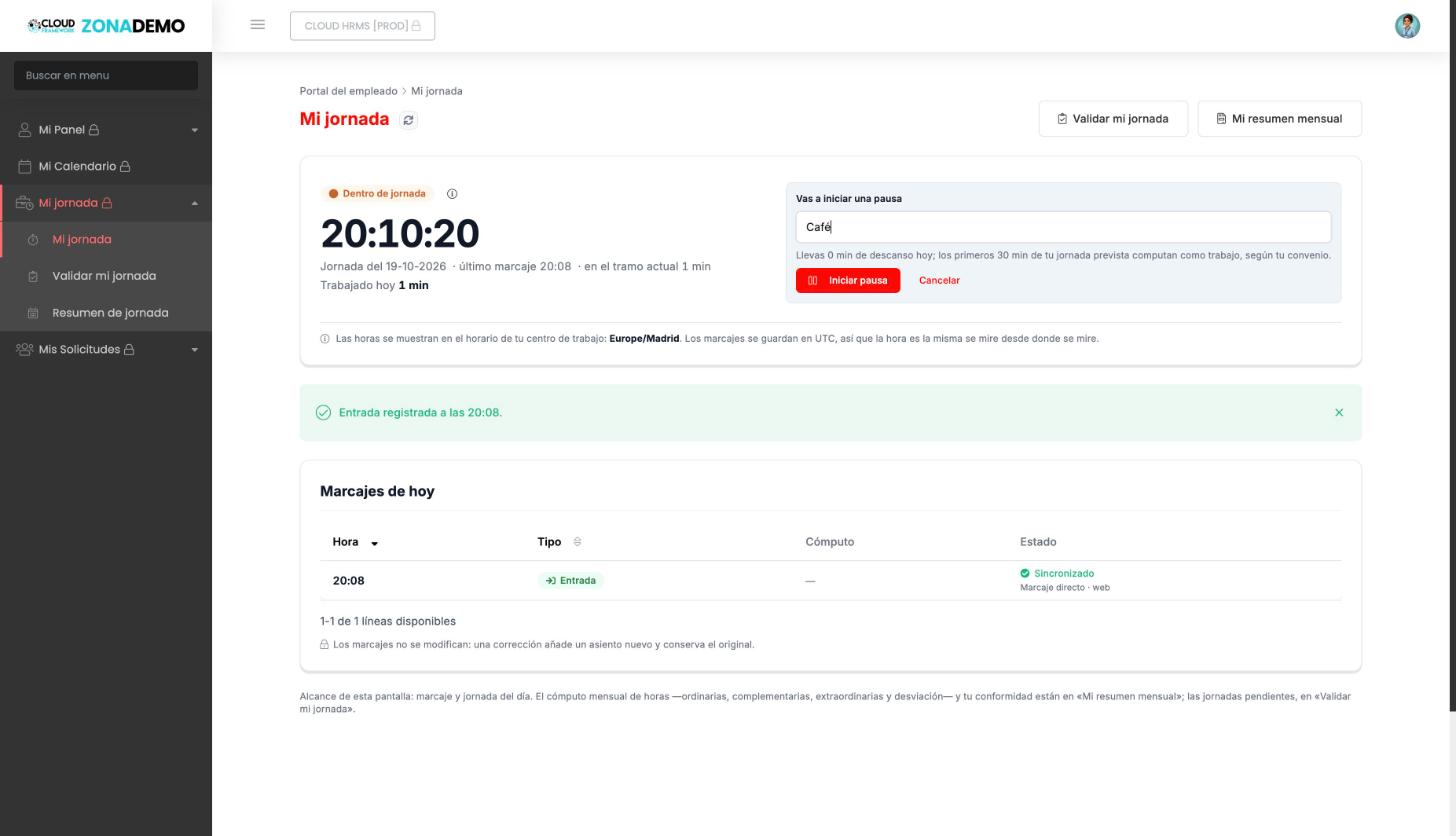
If you like, enter a description, for example «Café» (Coffee). The box also tells you how much rest you have taken today and, if your collective agreement provides for it, how many minutes of break count as work.
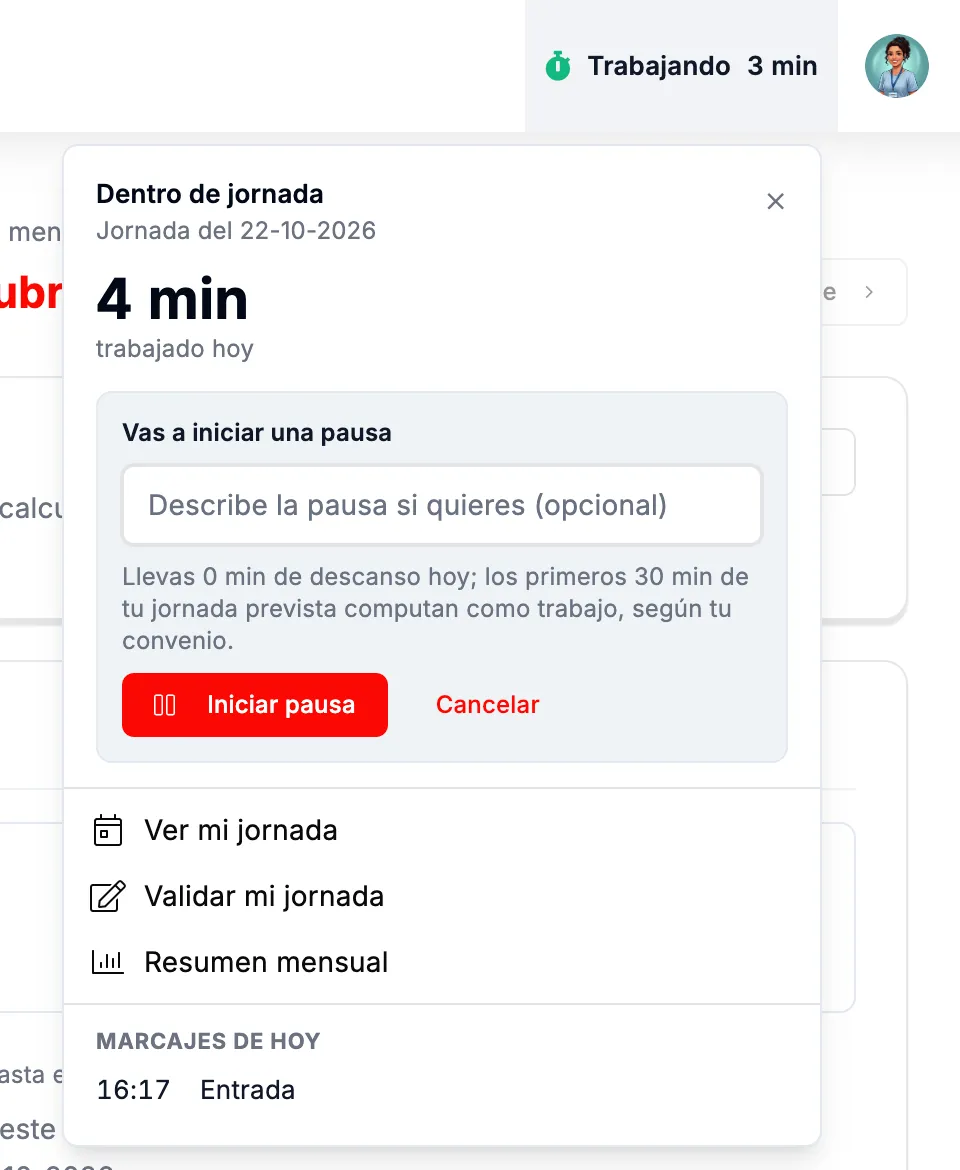
Before starting the break. -
Click Iniciar pausa (Start break). The button changes to En pausa and the start of the break appears in Marcajes de hoy. If you decide not to take it after all, click Cancelar (Cancel).
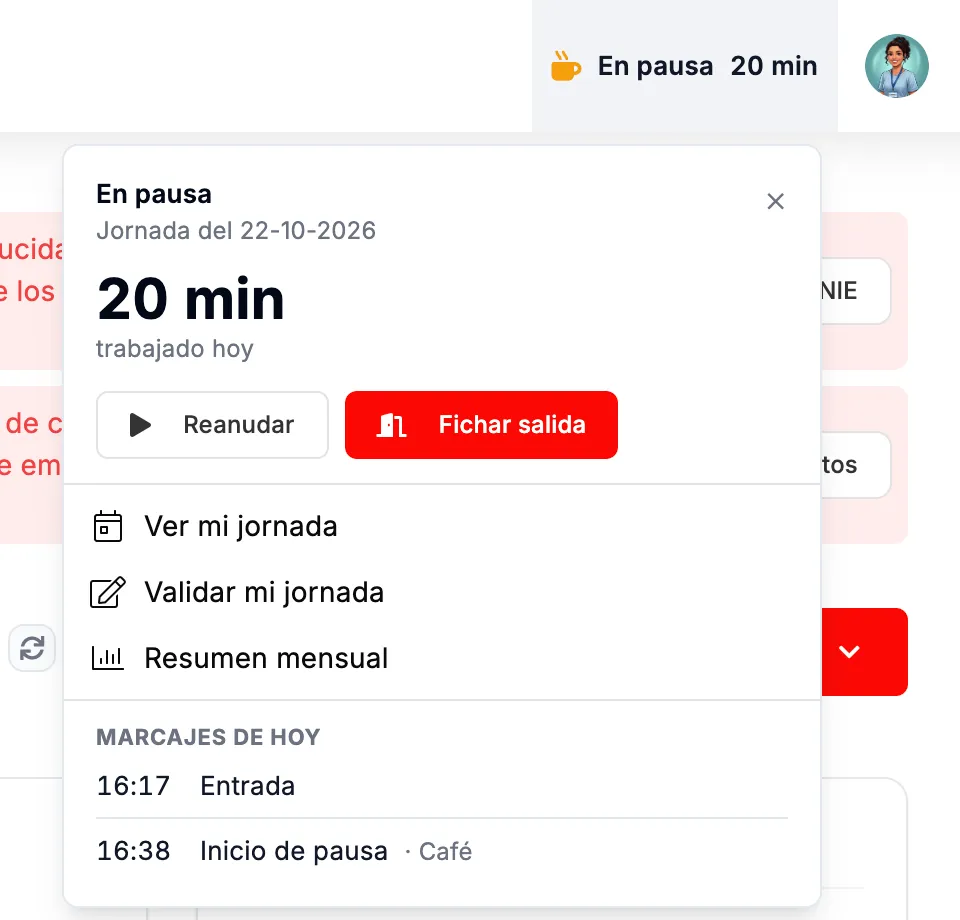
Break in progress. -
When you are back, click Reanudar (Resume). The end of the break is recorded and the button goes back to Trabajando.
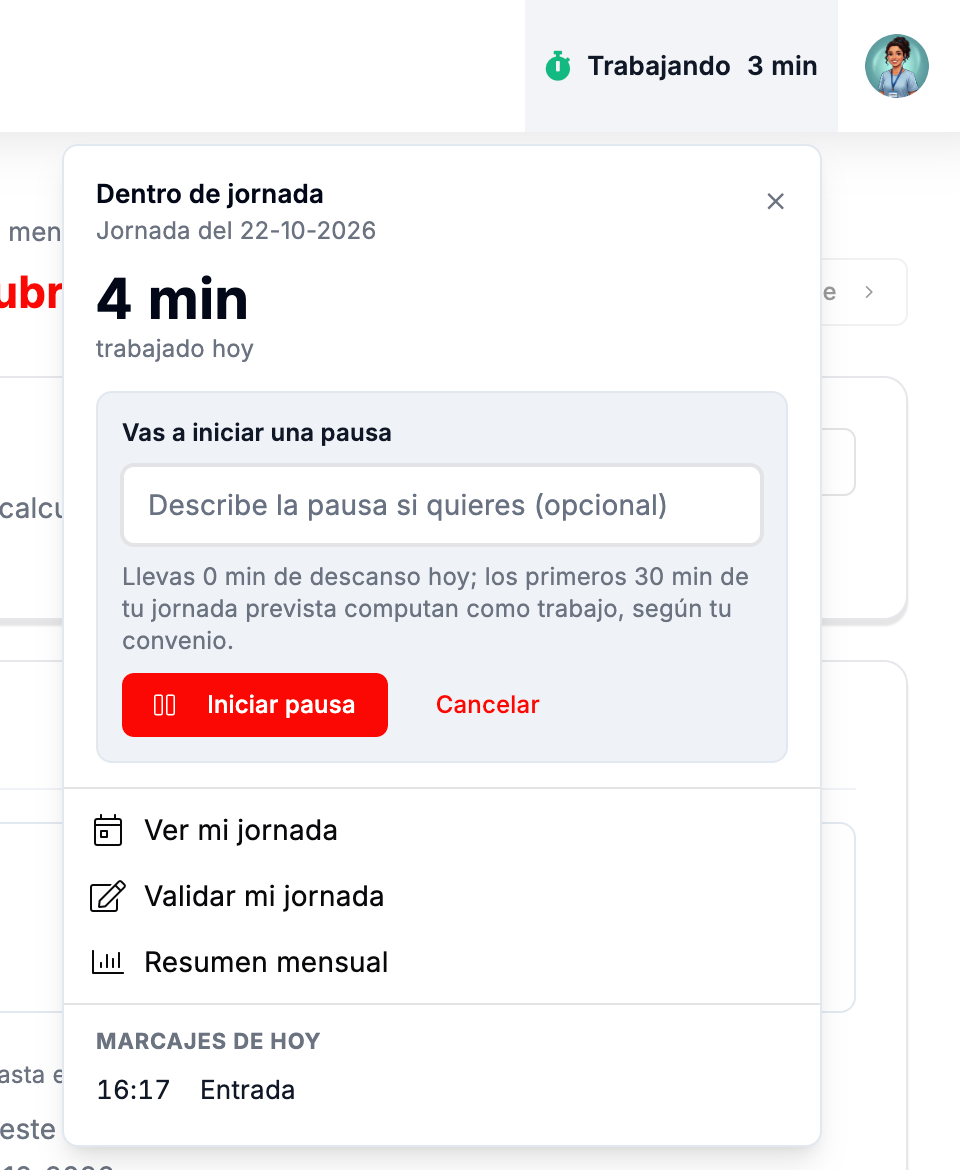
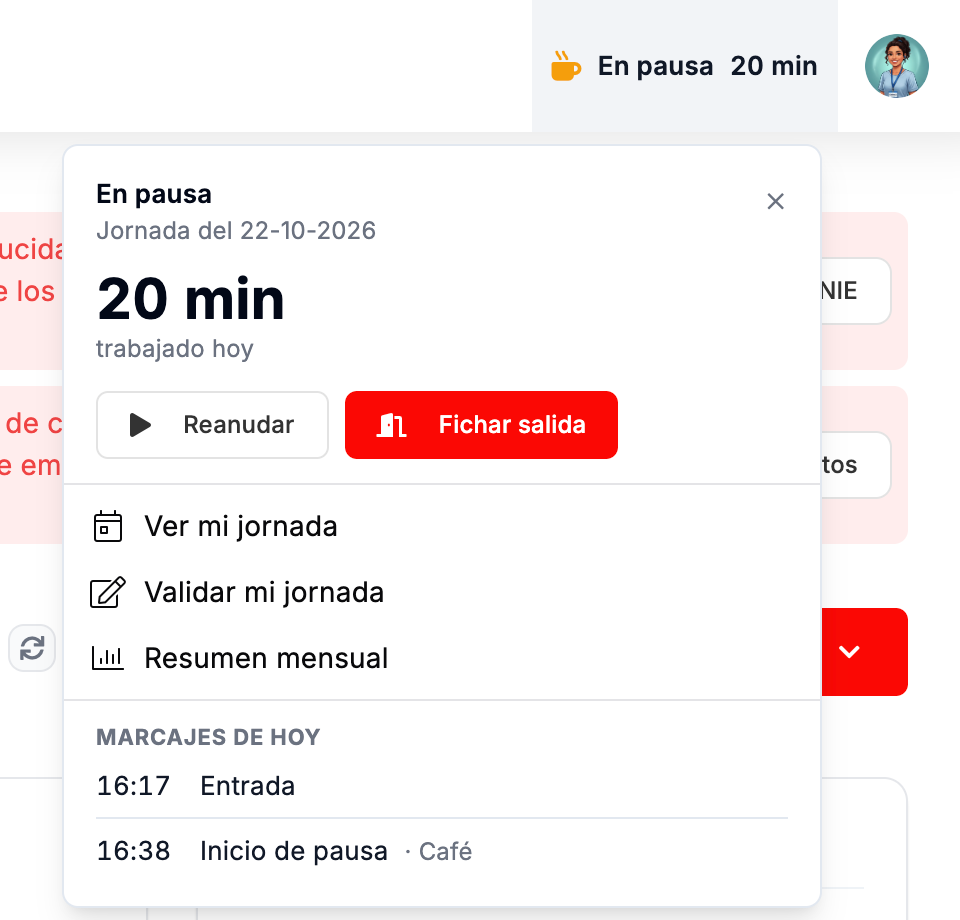
If you finish your working day during the break, there is no need to resume: clock out directly.
Clocking out
Section titled “Clocking out”-
Open the panel and click Fichar salida (Clock out).
-
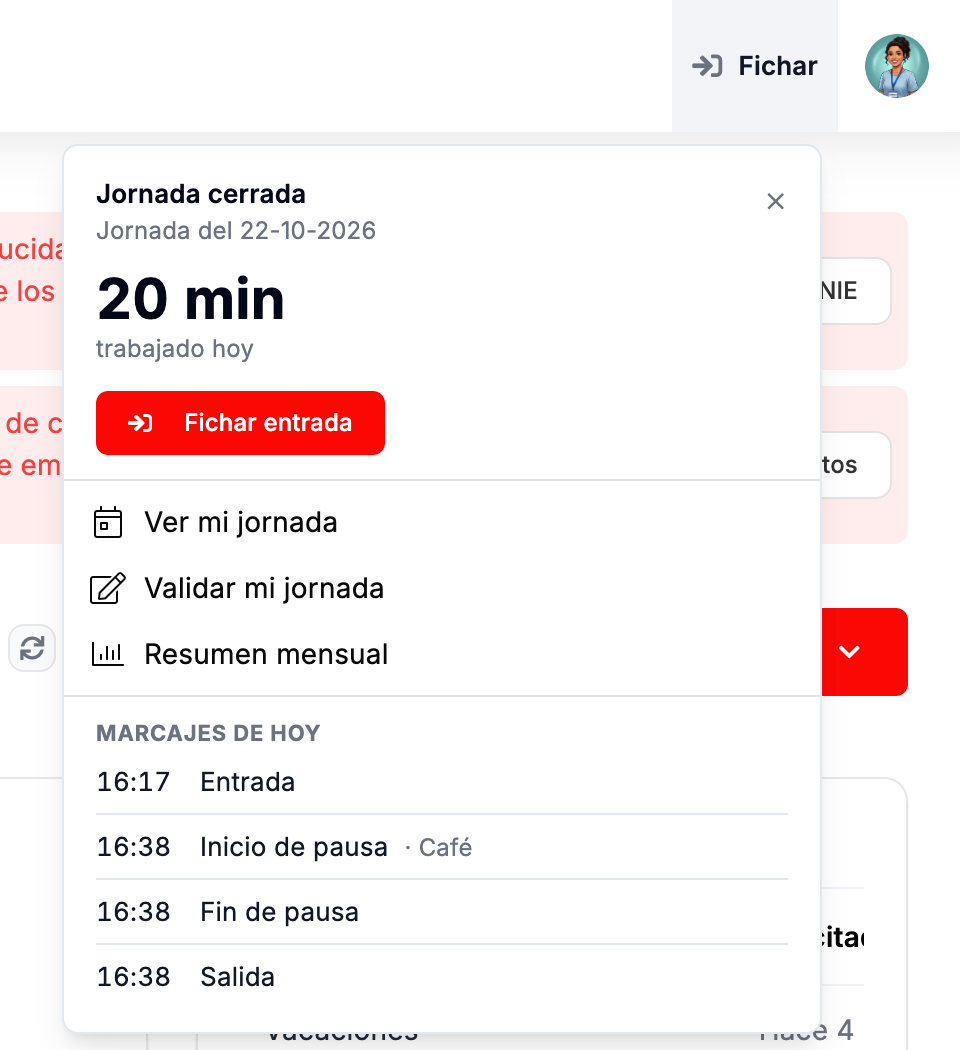
The button goes back to Fichar and the panel shows all the day’s entries.
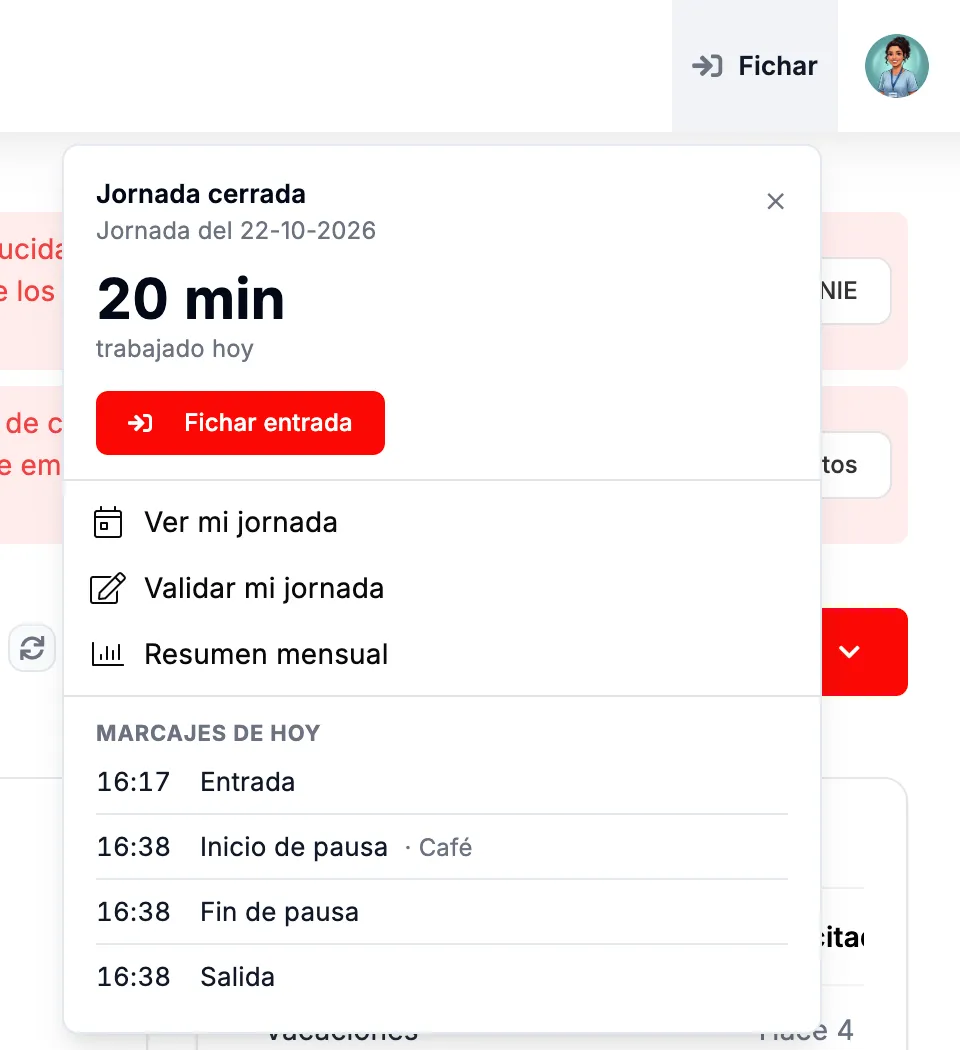
Working day closed with all the day's entries.
If you go back to work later, clock in again with Fichar entrada.
Going to your working day screens
Section titled “Going to your working day screens”From the panel you can also open:
- Ver mi jornada (View my working day): the Mi jornada screen, with the clock and today’s entries.
- Validar mi jornada: to confirm the pending days.
- Resumen mensual (Monthly summary): the Resumen de jornada screen, with the month’s total and your sign-off.
How to clock in from the Mi jornada screen
Section titled “How to clock in from the Mi jornada screen”-
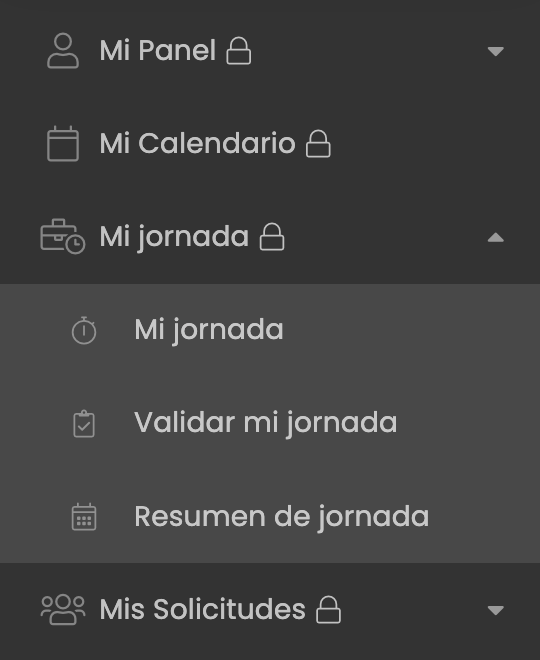
In the left menu, expand Mi jornada and click Mi jornada, the first of its three options.
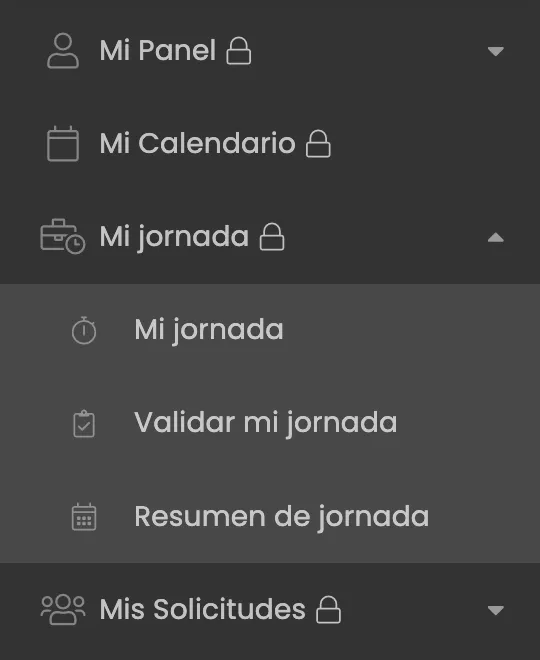
Menu › Mi jornada › Mi jornada. -
The Mi jornada screen opens. You see the time, the day’s working day, how long you have worked today and the Marcajes de hoy table, still empty.
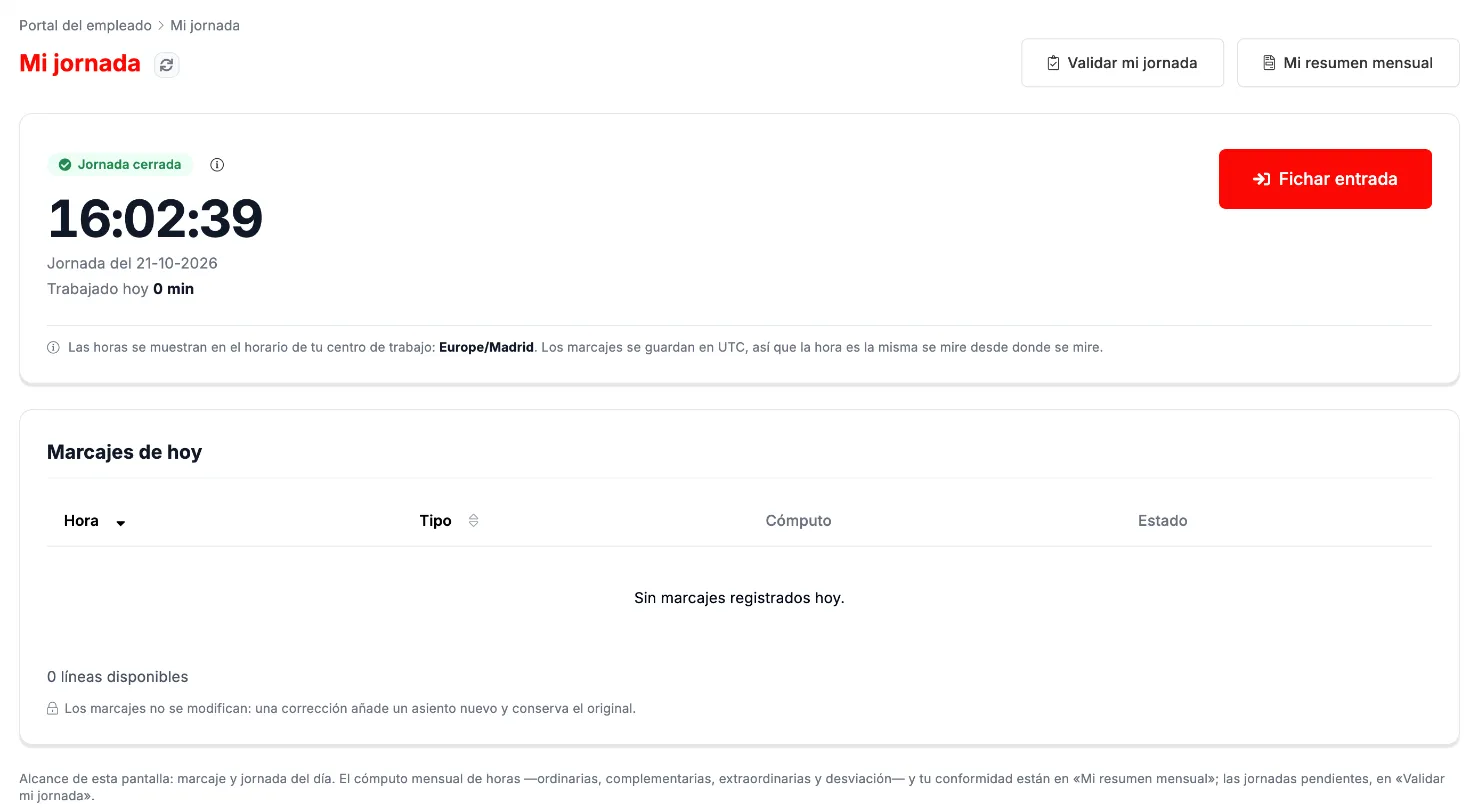
My working day before clocking in. -
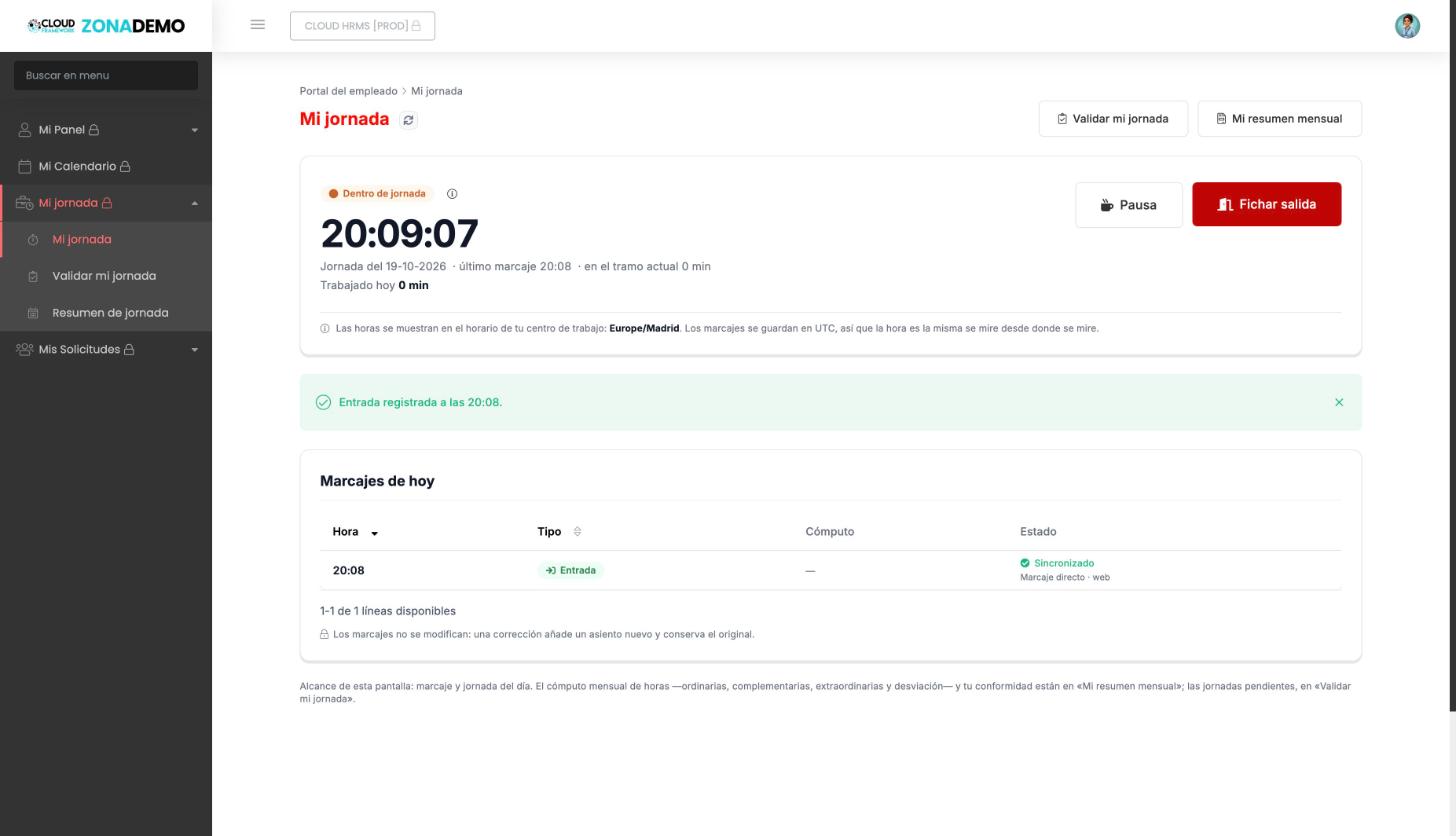
Click Fichar entrada. The status changes to Dentro de jornada (On the clock) and the entry appears in the table.
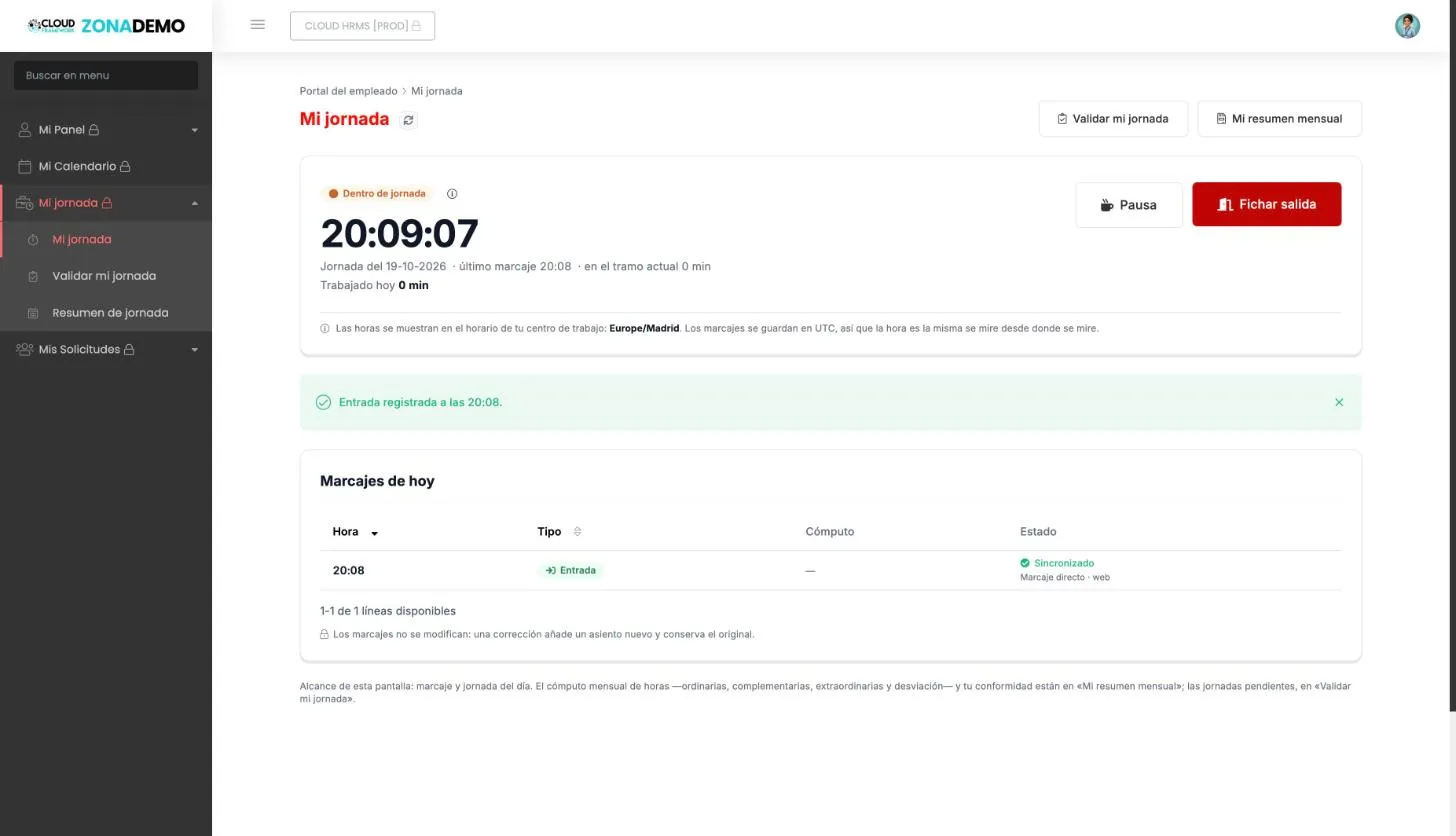
My working day while you are on the clock. -
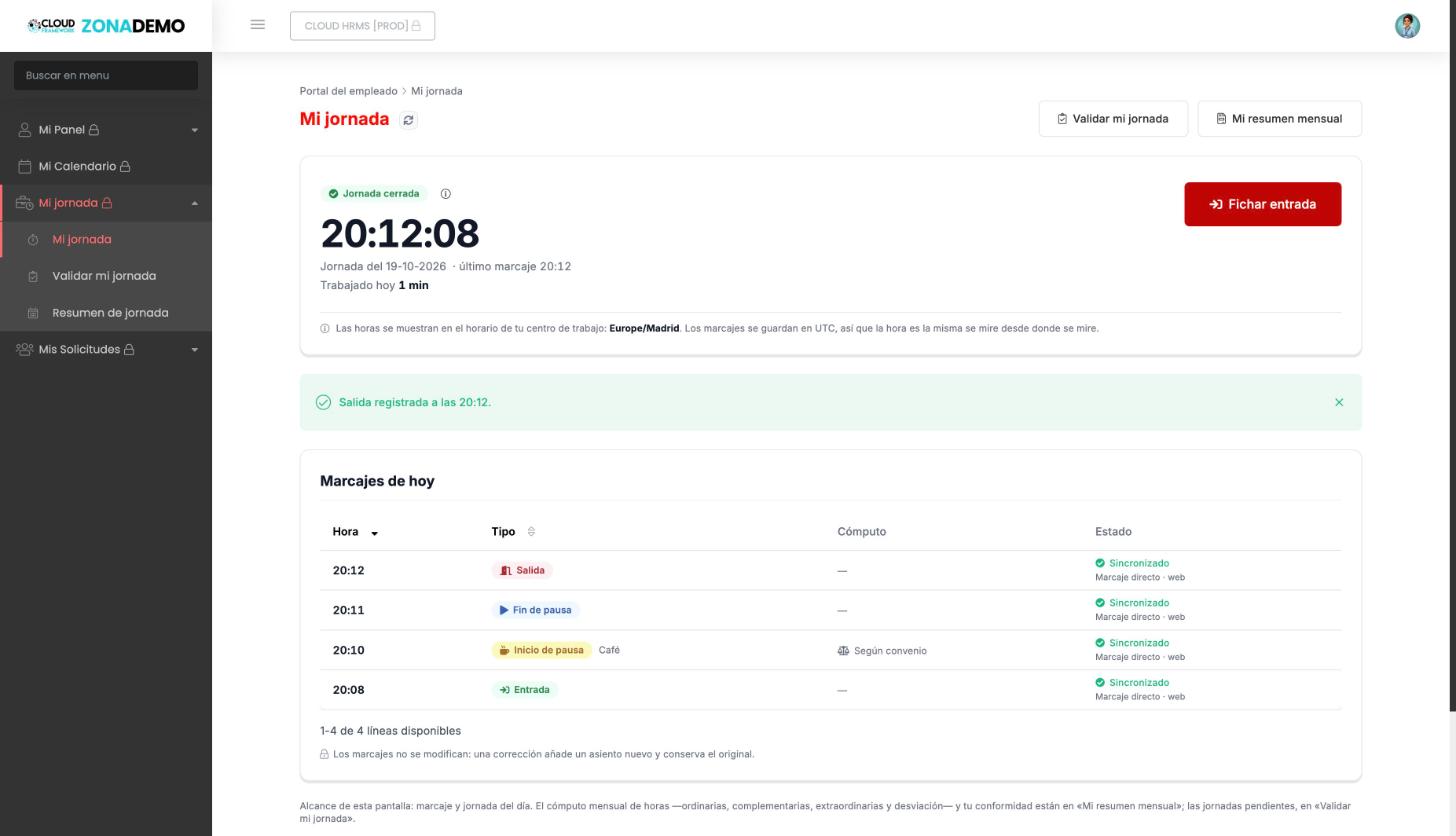
At the end of the day, click Fichar salida. The status changes to Jornada cerrada.
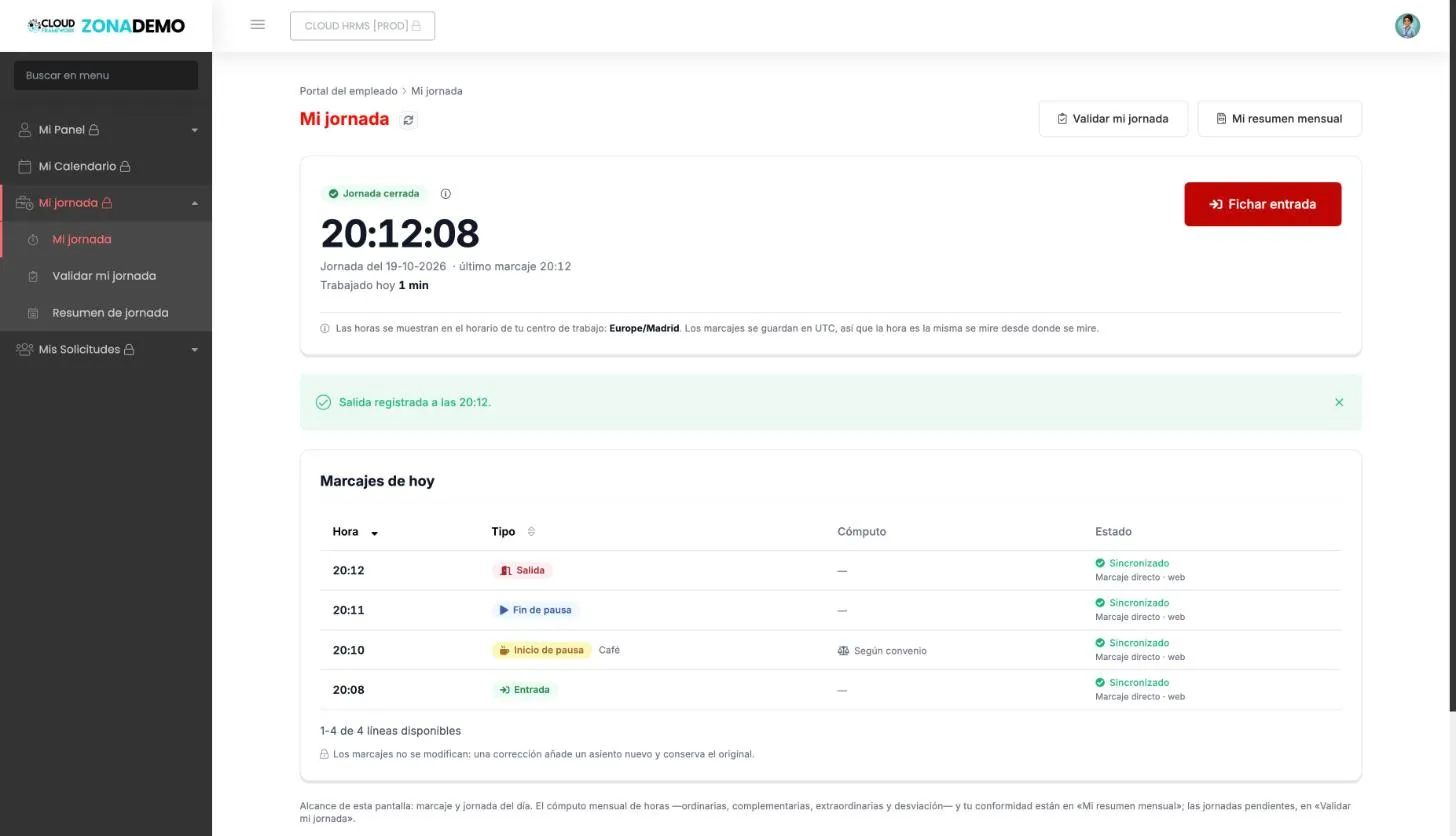
Working day closed with its four entries. -
If you come back later, clock in again with the same button.
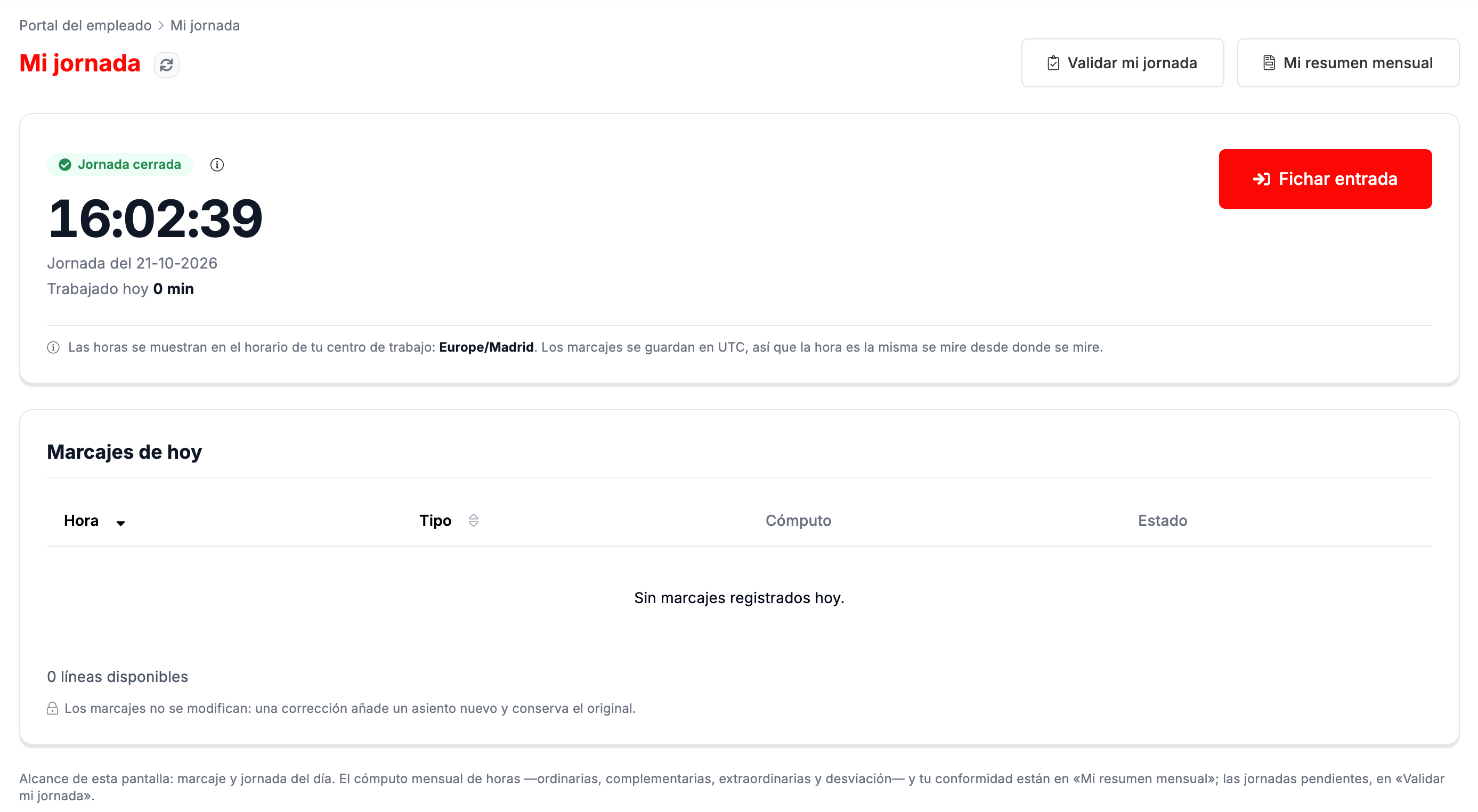
Times are shown in the time zone of your work center, which appears below the clock. Entries are stored in universal time, so the time is the same wherever it is viewed from.
How to take a break
Section titled “How to take a break”-
Click Pausa. A box opens where you can write what kind of break it is, for example «Café». It is optional. Below, you will see how much rest you have taken today and, if your collective agreement provides for it, how many minutes of break count as work.
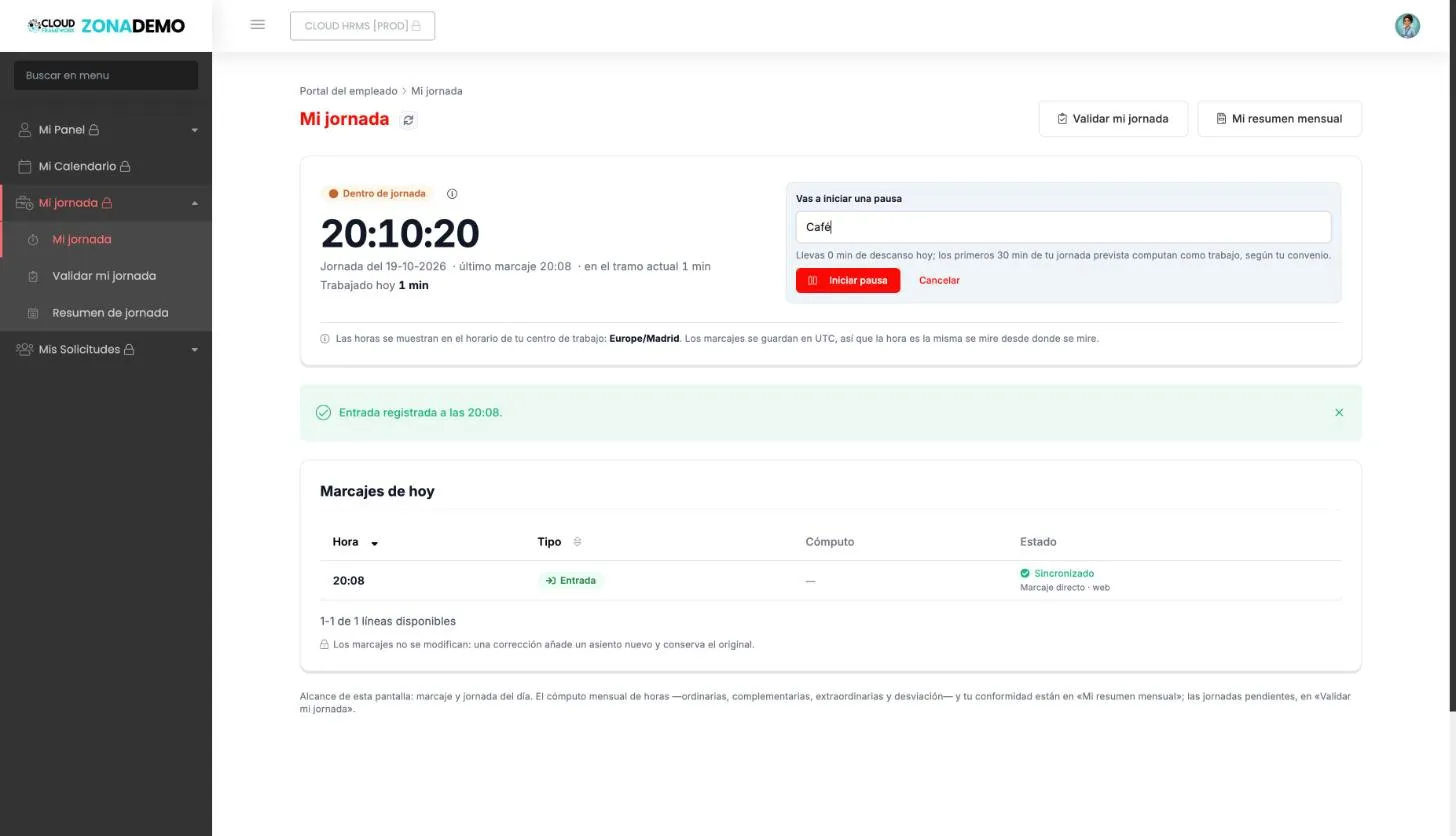
Starting a break with its description. -
Click Iniciar pausa. The status changes to En pausa and you will see the description next to the status.
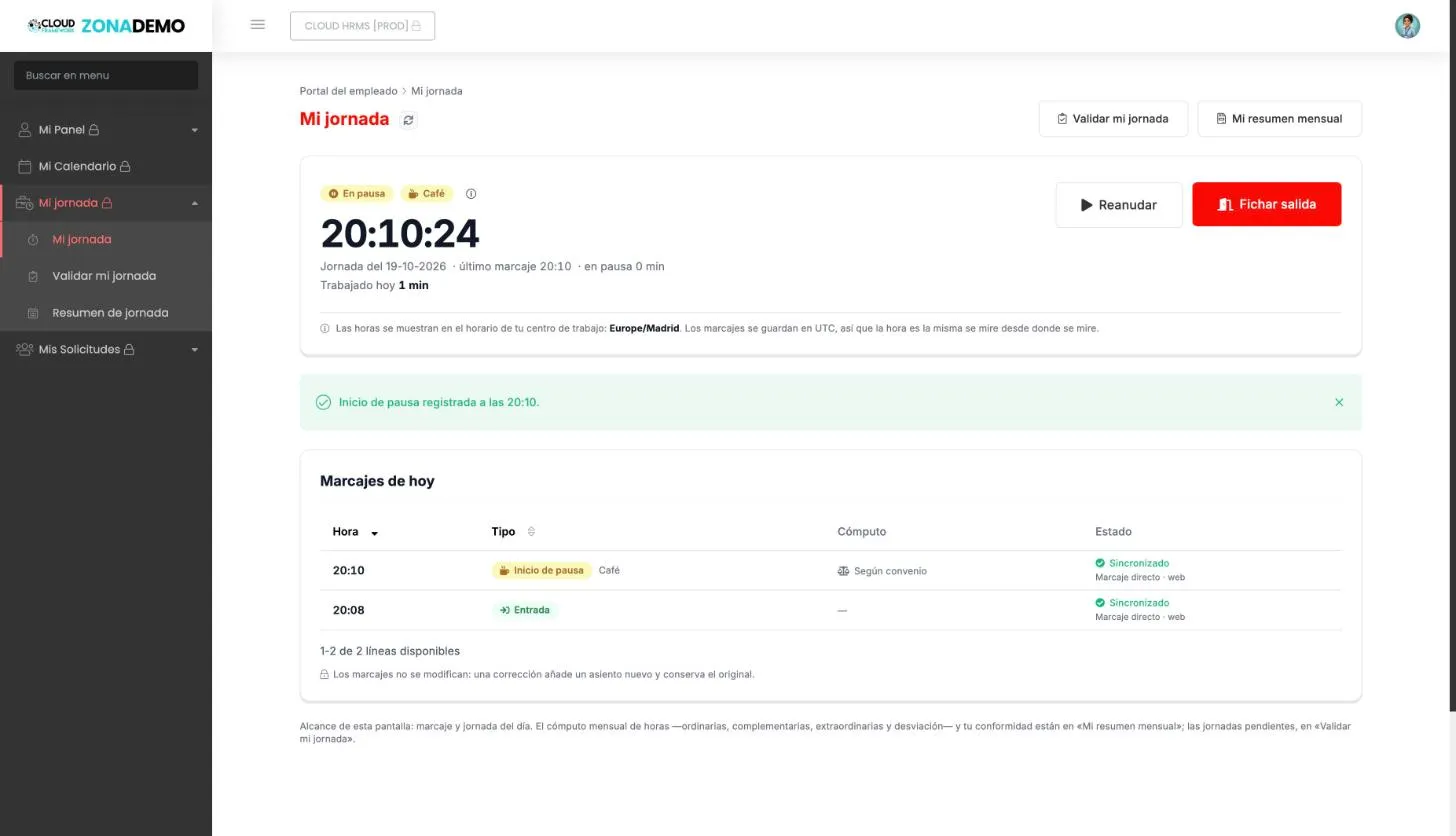
My working day during a break. -
When you are back, click Reanudar. If you finish the day during the break, you can click Fichar salida directly.
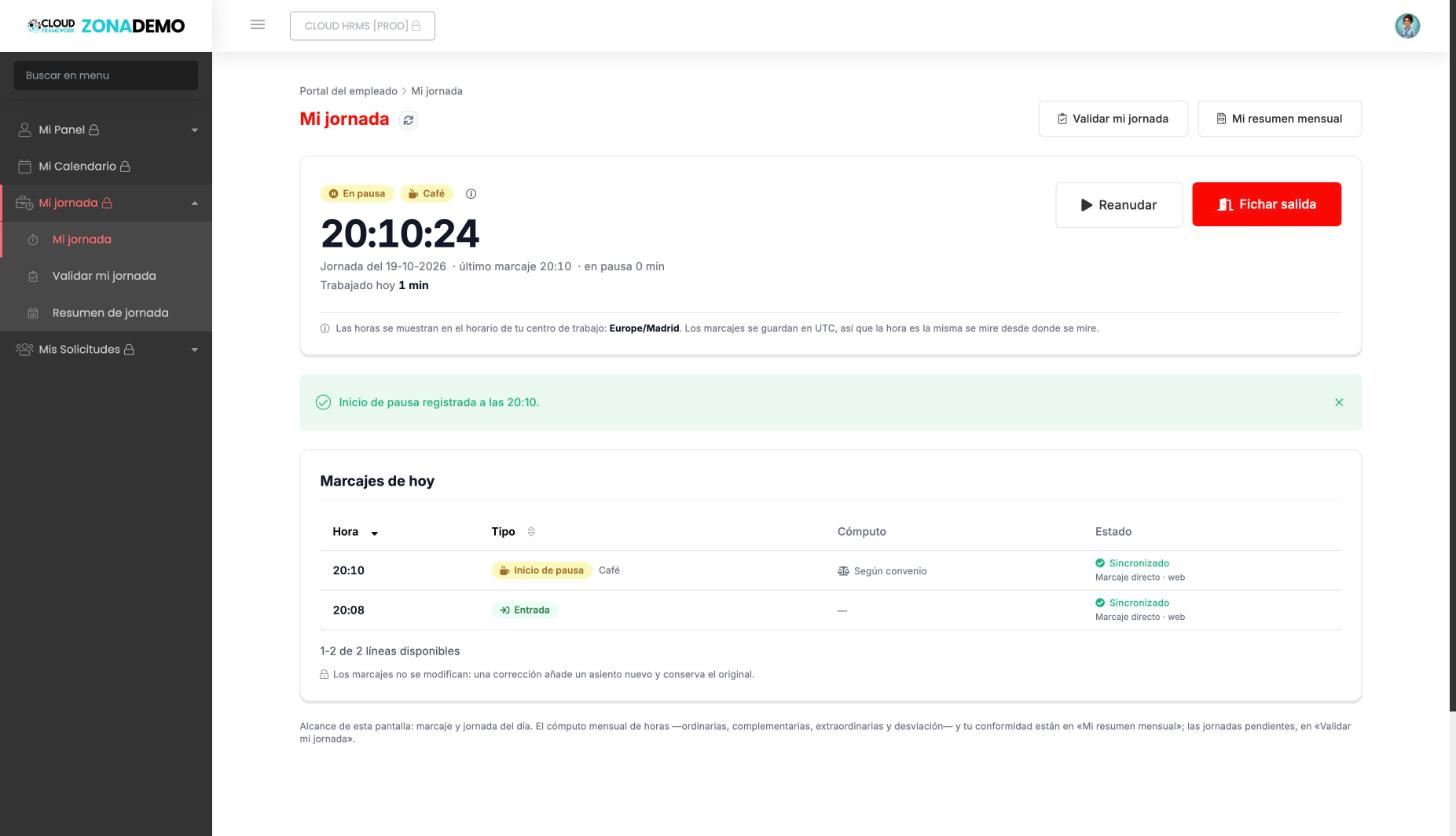
In the table, the Cómputo (Counting) column shows how each break counts. Según convenio (Per agreement) means that your collective agreement’s break rules apply.
How to validate your days
Section titled “How to validate your days”Validating means confirming the hours you actually worked each day, not the planned ones.
-
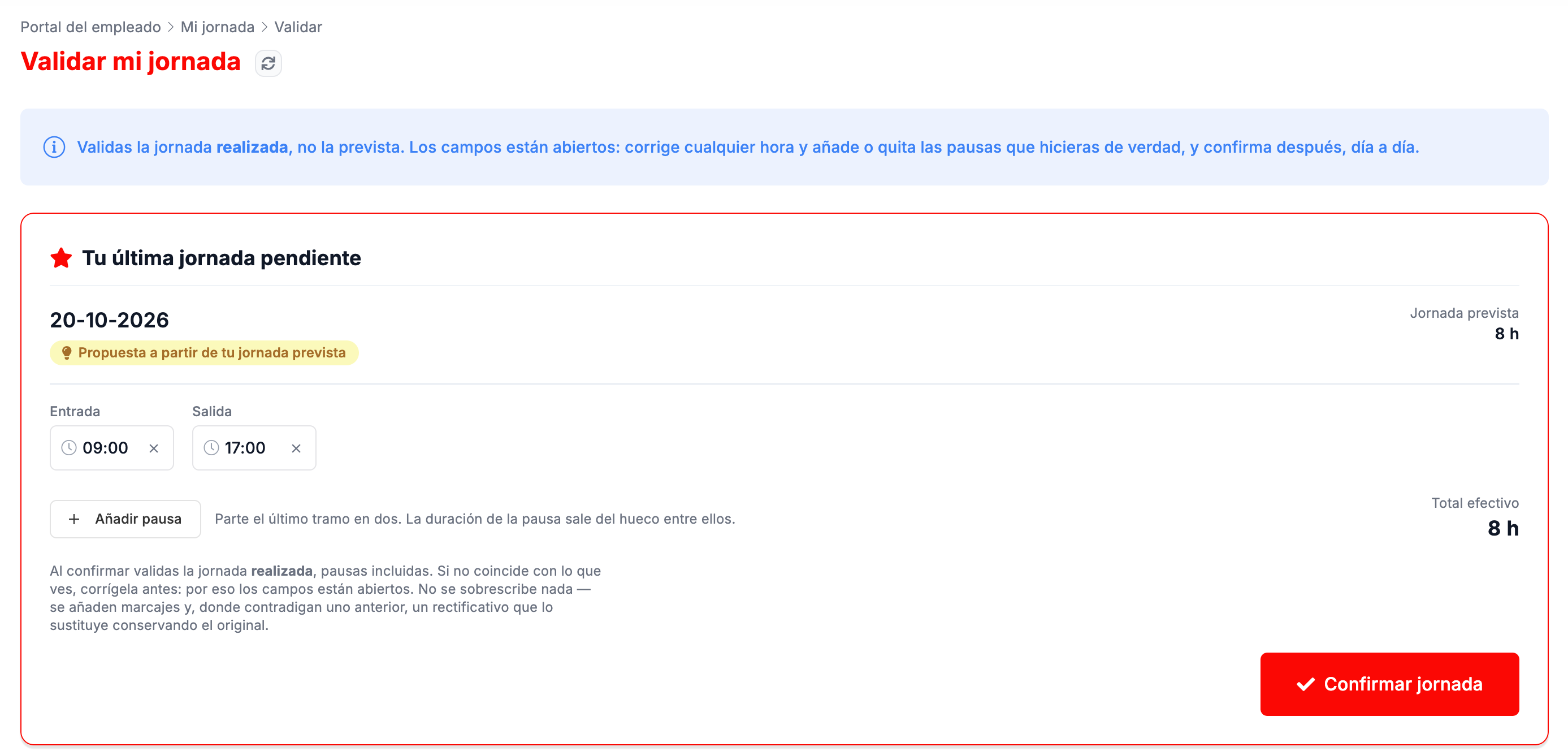
Go to Validar mi jornada. Your latest pending working day appears at the top; you open any other pending day from the list, with Revisar y validar (Review and validate).
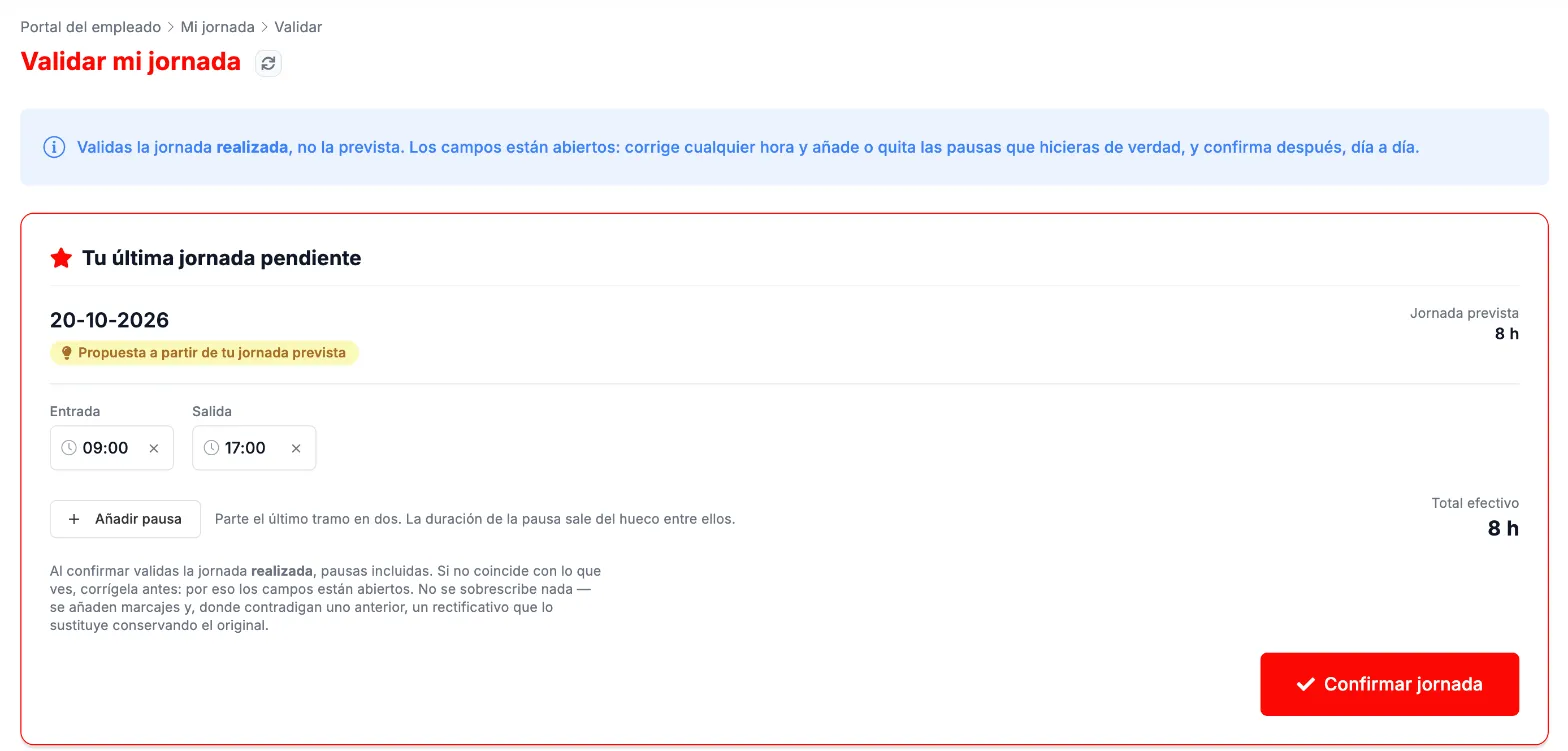
Pending working day with the proposal based on the planned working day. -
Review the proposal. If you clocked in and out that day, it starts from your entries; if you did not, it starts from your planned working day.
-
Correct whatever does not match what you did:
- change the Entrada (Clock-in) or Salida (Clock-out) time;
- Añadir pausa (Add break) splits the last slot in two, and the length of the break comes from the gap between the two slots;
- Quitar pausa (Remove break) joins the slots again.
Total efectivo (Effective total) is recalculated with each change.
-
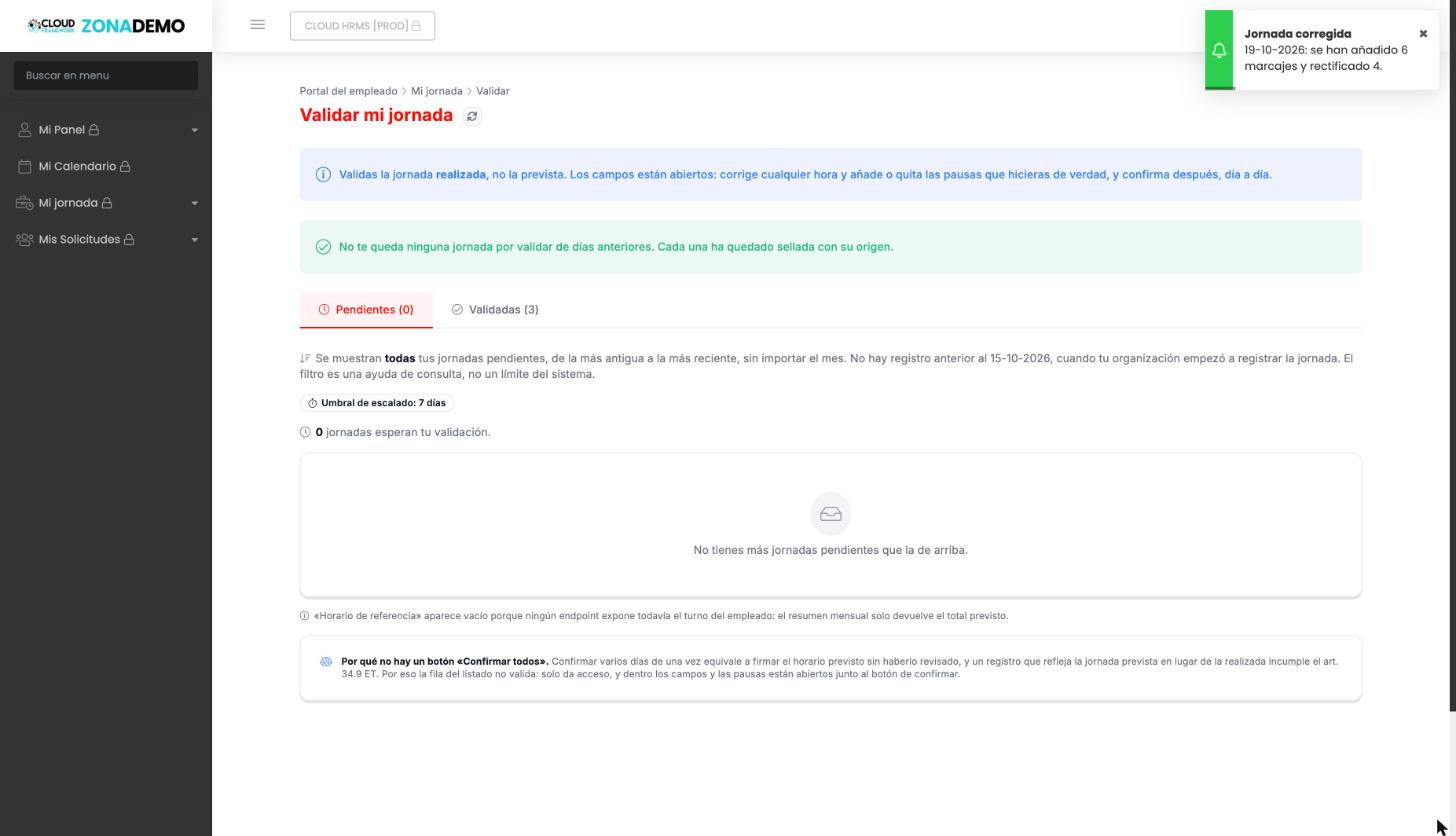
Click Confirmar jornada (Confirm working day), or Confirmar jornada corregida (Confirm corrected working day) if you changed anything. A notice tells you how many entries have been added and how many have been amended.
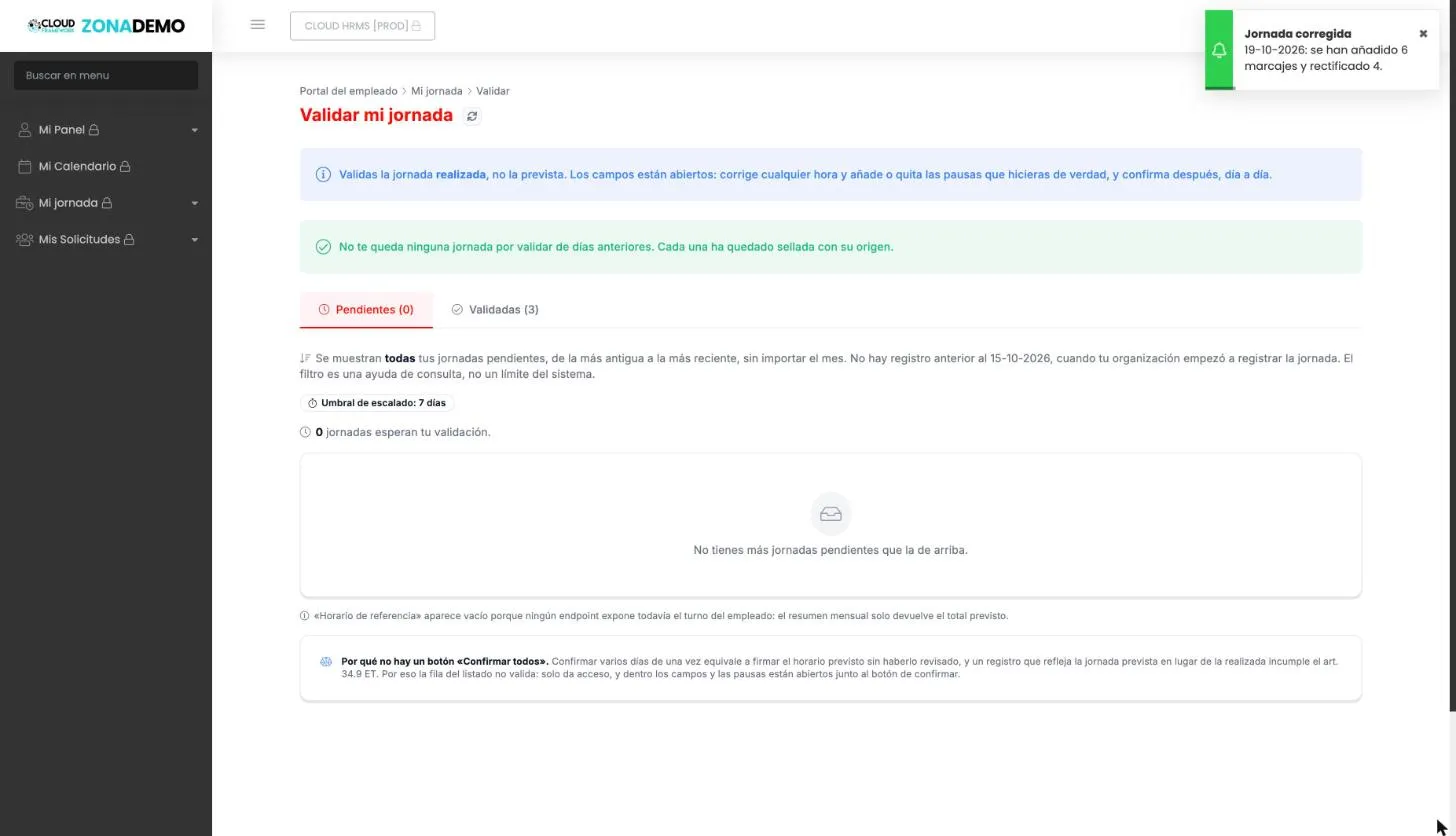
Validate my working day after confirming.
Pending working days and escalation
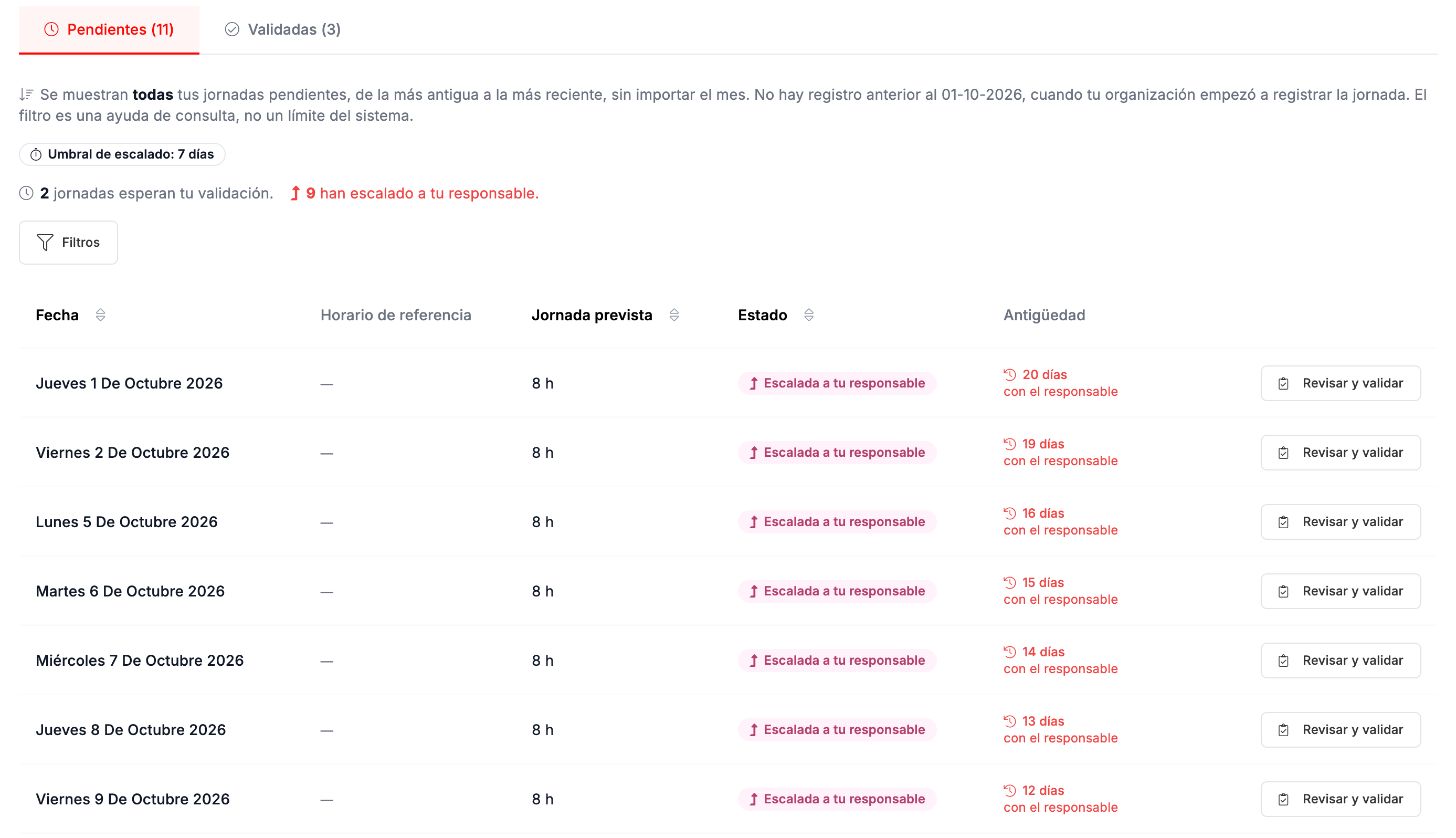
Section titled “Pending working days and escalation”Below, under Pendientes (Pending) and Validadas (Validated), you have all your working days, from the oldest to the most recent, regardless of the month. There are none before the day your organization started recording working hours.
- Above the list you see your organization’s escalation threshold, for example 7 días (7 days), and how many working days are awaiting your validation and how many have been escalated to your manager.
- If a working day goes unvalidated for more days than the threshold, it appears as Escalada a tu responsable (Escalated to your manager). The Antigüedad (Age) column shows how many days it has been escalated.
- Escalated days are also validated with Revisar y validar.
Example
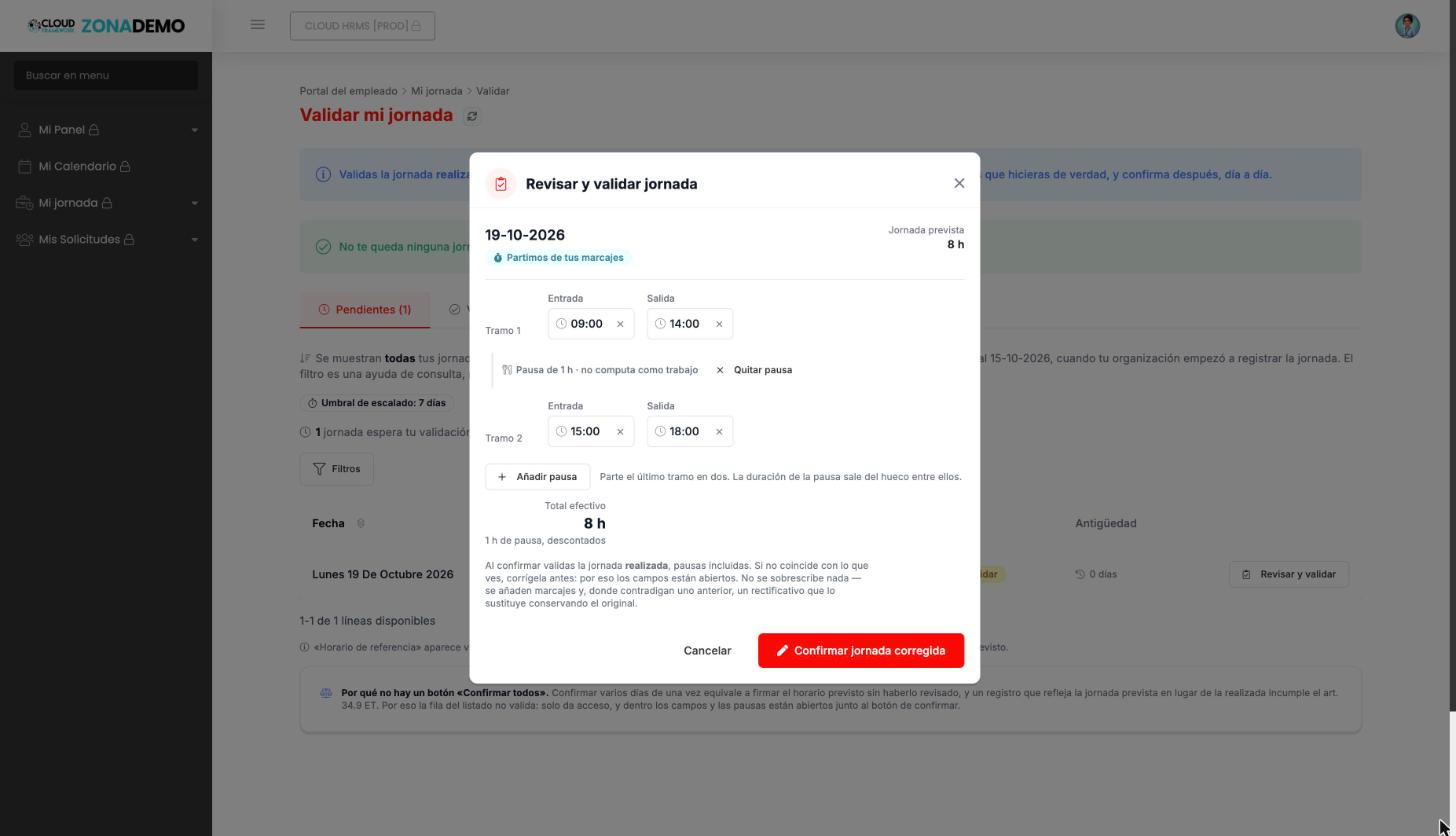
Section titled “Example”Javier has 19-10-2026 pending. The proposal starts from his entries, and he corrects it so that it reflects what he did that day:
- With Añadir pausa, the day is split into two slots, from 09:00 to 14:00 and from 15:00 to 18:00, with a 1-hour break that does not count as work.
- Total efectivo: 5 h + 3 h = 8 h.
- He clicks Confirmar jornada corregida. In his monthly summary, that day appears as Validación corregida (Corrected validation).
What changes and what does not
Section titled “What changes and what does not”- No entry is deleted or edited. The missing ones are added and, where they contradict an earlier one, an amending entry replaces it and keeps the original.
- This way the record of your working hours is reliable for you and for your company.
How to check your summary and give your sign-off
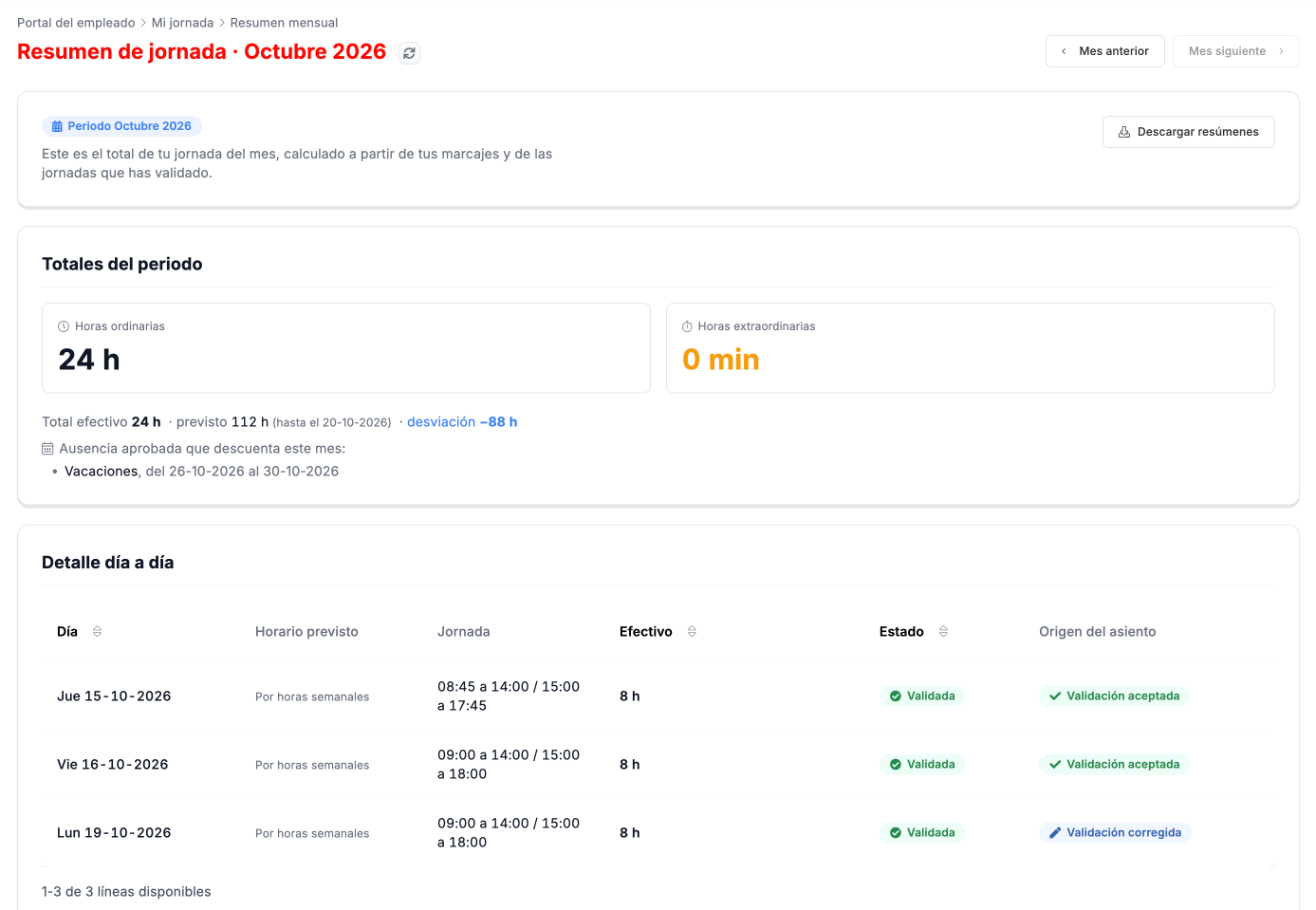
Section titled “How to check your summary and give your sign-off”In Resumen de jornada you see the month’s total, calculated from your entries and the days you have validated:
- Ordinary hours and overtime hours.
- Effective total against what was planned to date, and the deviation.
- The approved absences that are deducted from the month, such as a vacation.
- The day-by-day detail, with the working day, the effective time, the status and the origin of each entry: for example, Marcaje directo (Direct entry) if it comes from your clocking, Validación aceptada (Accepted validation) if you confirmed the proposal as it was and Validación corregida if you changed it.
With Mes anterior (Previous month) and Mes siguiente (Next month) you change month.
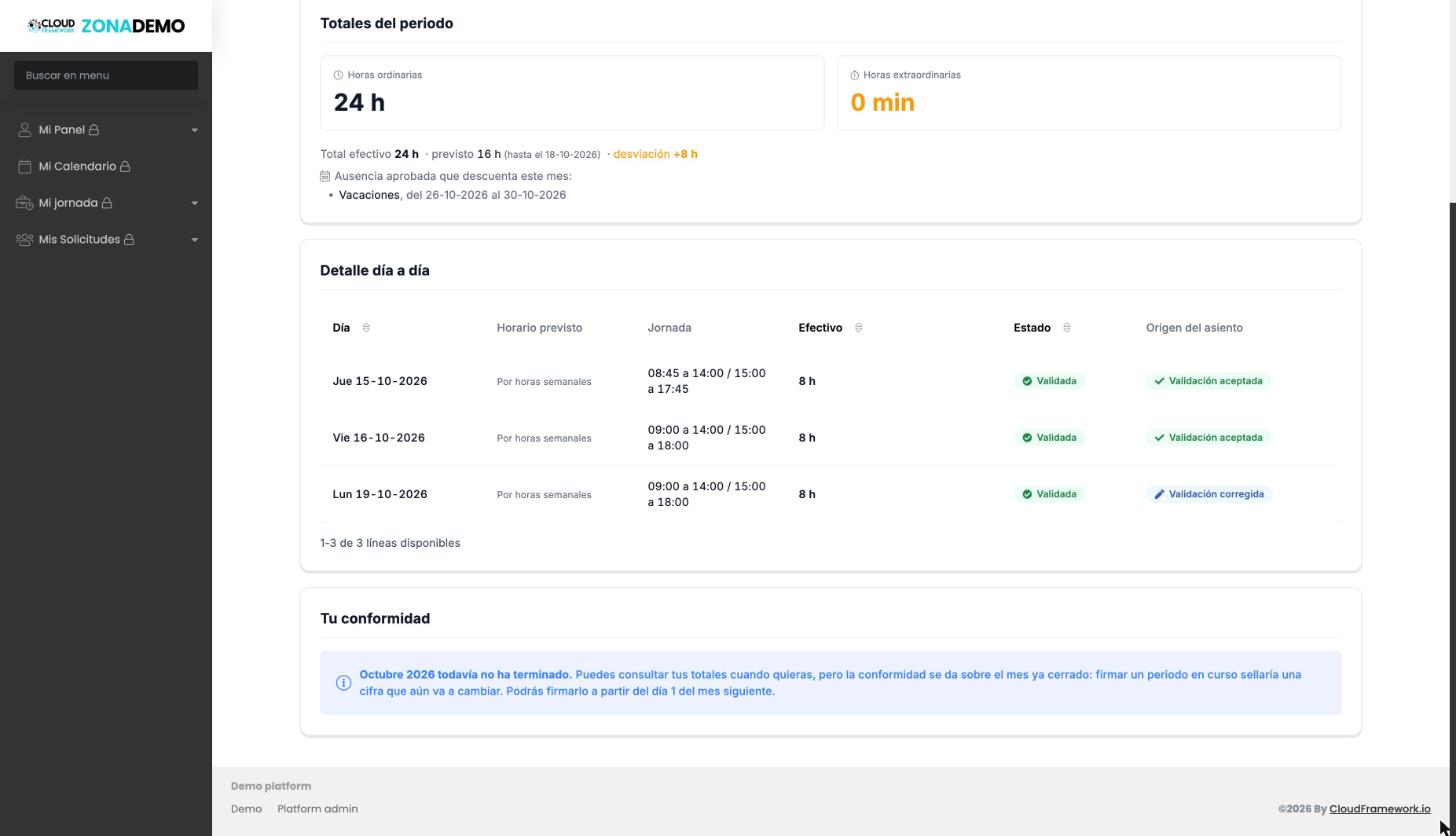
At the end is Tu conformidad (Your sign-off). It is given on a month that has already closed: while the month is in progress, you can view the totals but not sign them.
How to download your record
Section titled “How to download your record”In Resumen de jornada, the Descargar resúmenes (Download summaries) button offers four downloads for the month you are viewing: Resumen del mes (PDF) (Month summary, PDF), Resumen del mes (CSV) (Month summary, CSV), Asientos del mes (Excel) (Month entries, Excel) and Asientos del mes (CSV) (Month entries, CSV).
- The PDF summary is the copy of your monthly working hours summary: hours worked, planned and deviation; ordinary and overtime hours; approved absences; the detail by day and the status of your sign-off.
- The CSV entries are all your entries for the month, one per line: date, type, local time and universal time, origin and channel, whether it is current, which entry it amends or amends it, and who recorded it.
Troubleshooting
Section titled “Troubleshooting”- You do not see Mi jornada in the menu. Ask HR whether your organization has time tracking turned on.
- You do not see the clocking button in the top bar. Clock in from Mi jornada, in the menu. If you do not have it there either, ask HR whether you need to record your working hours.
- You made a mistake when clocking. The entry cannot be deleted, but you correct it when you validate that day: change the time in Validar mi jornada and confirm the corrected working day.
- You cannot sign the sign-off. The month has not ended yet: you will be able to sign it from the 1st of the following month.
- You have working days marked «Escalada a tu responsable». They have gone unvalidated for longer than your organization’s threshold: open them with Revisar y validar and confirm them.
- When signing, it warns you about unvalidated days. Those days count with the hours the system calculated. You can sign anyway, but it is better to validate them first so you sign on the hours you actually worked.