Documents and announcements
Employee documents
Section titled “Employee documents”CLOUD HRMS › Gestión de Empleados › Documentos holds all the documents HR has made available to the workforce. At the top, the totals: documents, pending confirmation, confirmed, signed and featured. For each document, the list shows who it is for (one person or a number of recipients), its scope, its category and subcategory, its status and its date.
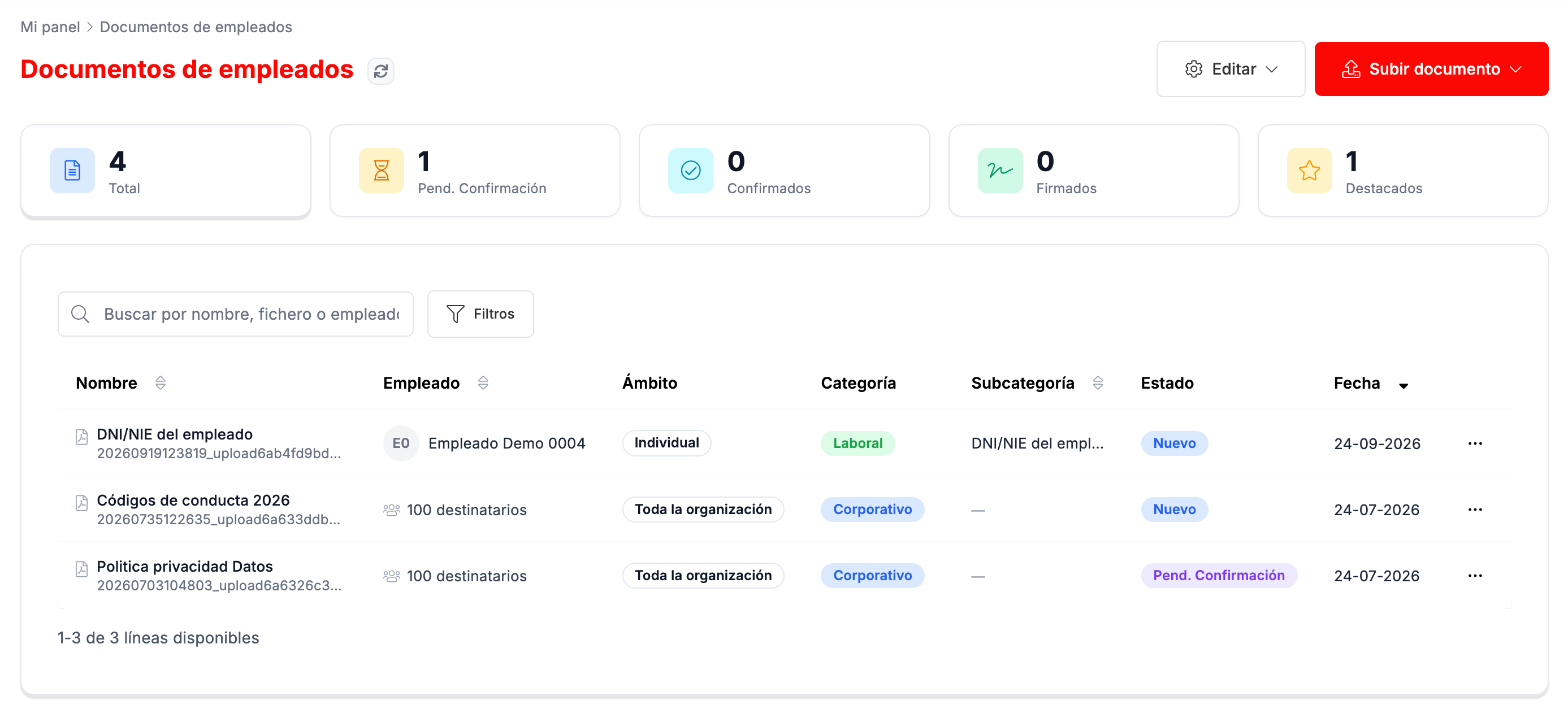
From Editar (Edit) you manage the document categories and subcategories. The ⋯ menu on each row has Ver detalle (View details) and Eliminar (Delete).
Uploading a document
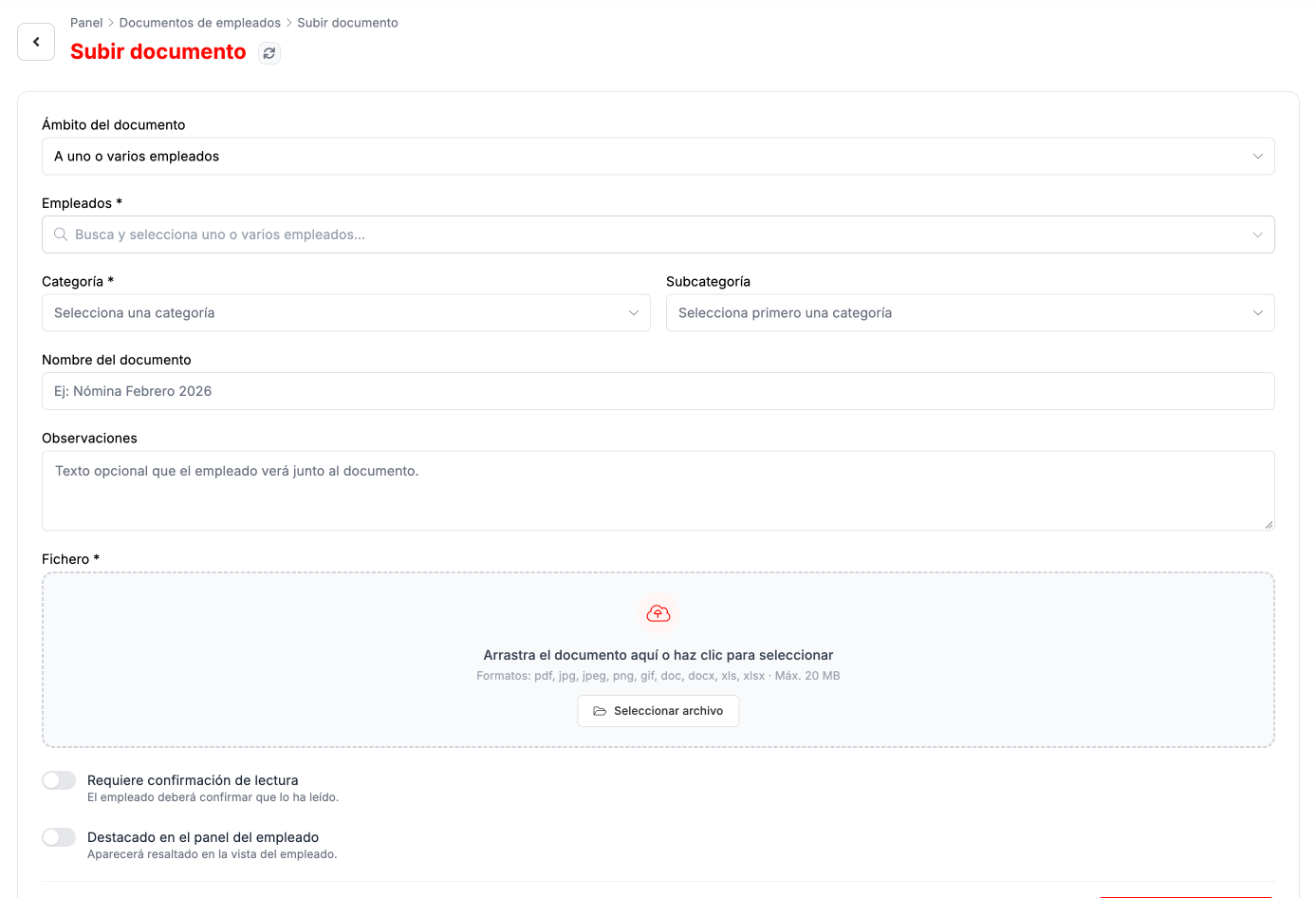
Section titled “Uploading a document”Subir documento › Otro tipo de documento (Upload document › Other document type) opens the form:
- Ámbito (Scope): to one or more employees, by department or to the whole organization. Depending on what you choose, you indicate who it is for.
- Categoría (Category, required) and subcategoría (subcategory).
- Nombre del documento (Document name) and optional observaciones (notes) that the person will see next to the document.
- Fichero (File, required): PDF, images, Word or Excel, up to 20 MB.
- Requiere confirmación de lectura (Requires read confirmation): the person will have to confirm they have read it.
- Destacado en el panel del empleado (Featured on the employee dashboard): it will appear highlighted in their portal.
Uploading a signed contract
Section titled “Uploading a signed contract”Subir documento › Subir contrato del empleado (Upload the employee’s contract) is for a contract that is already signed: uploading it does not send anything for electronic signature. You choose the person, upload the PDF and, if you like, the signature date (if you leave it empty, today’s date is used). The new contract replaces the current one, and the previous one is archived.
Tracking a document
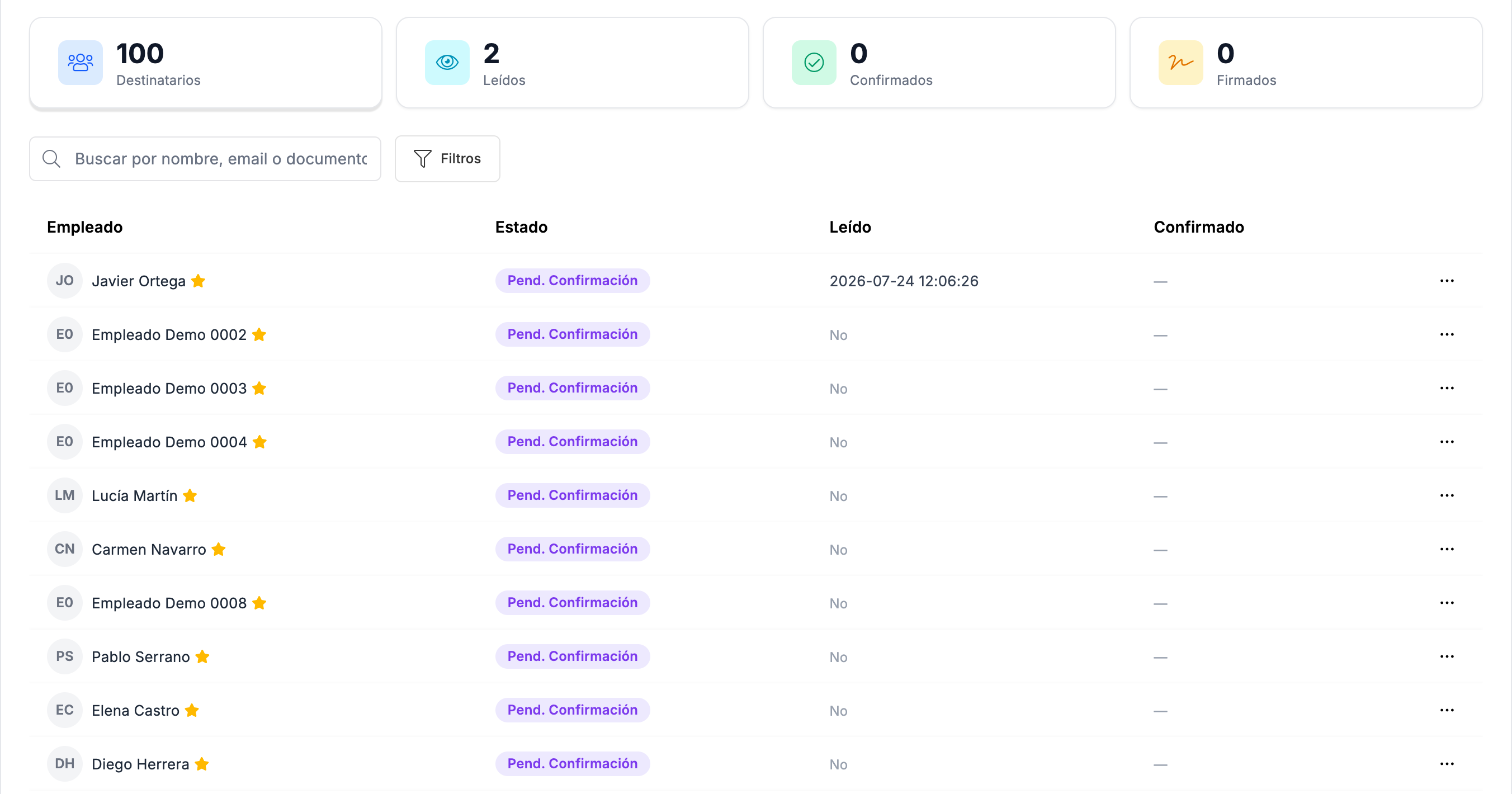
Section titled “Tracking a document”Ver detalle shows the document and, below, how many recipients it has and how many have read, confirmed and signed it, with the list person by person. From there you can Descargar (Download) the document, Añadir destinatarios (Add recipients) or delete the sending with Borrar batch (Delete batch).
Announcements
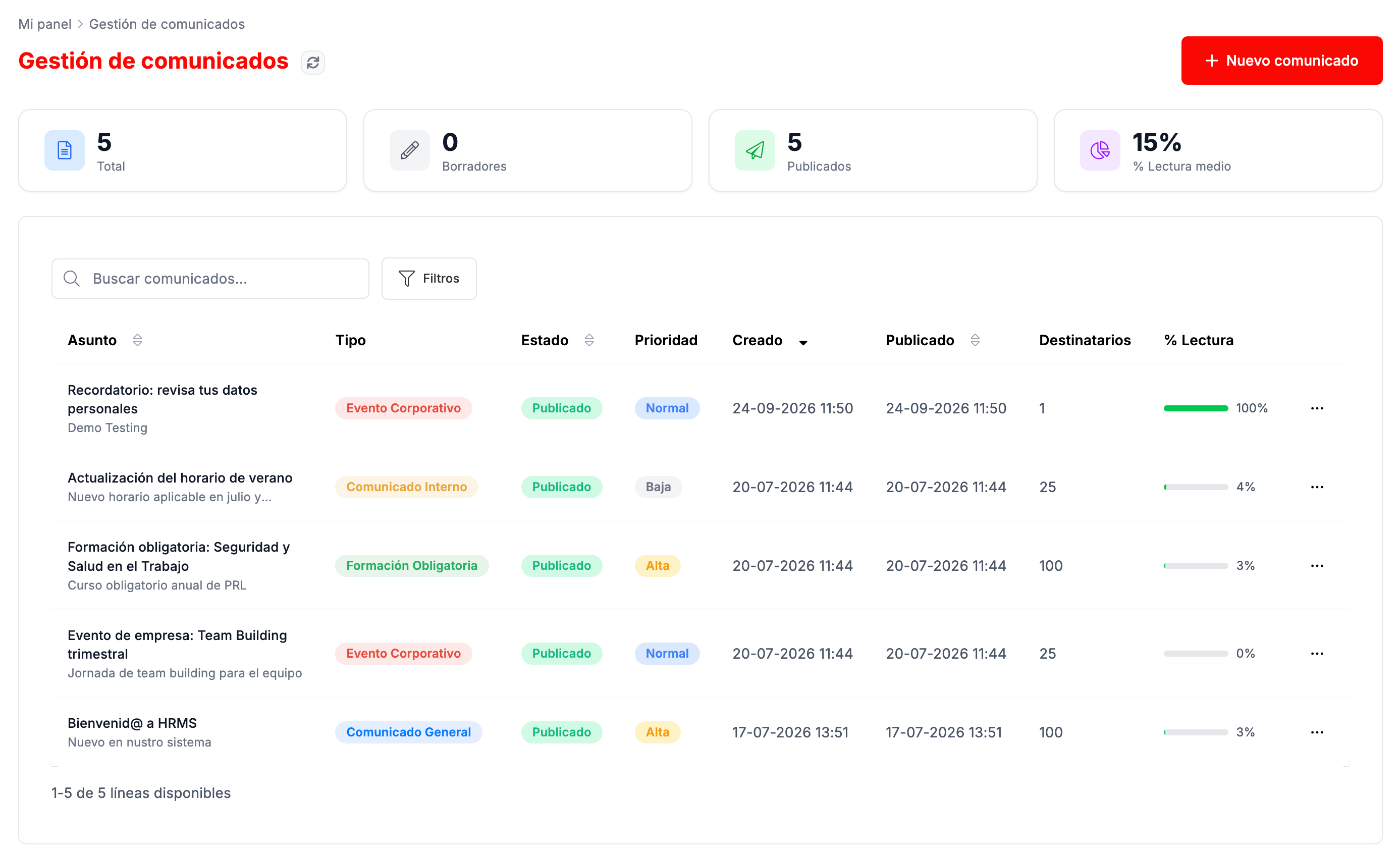
Section titled “Announcements”In CLOUD HRMS › Comunicaciones › Comunicados you manage the organization’s announcements: notices, events, training sessions. At the top you see the total, the drafts, the published ones and the average read rate. The list shows each one’s type, status, priority, dates, recipients and read rate.
New announcement
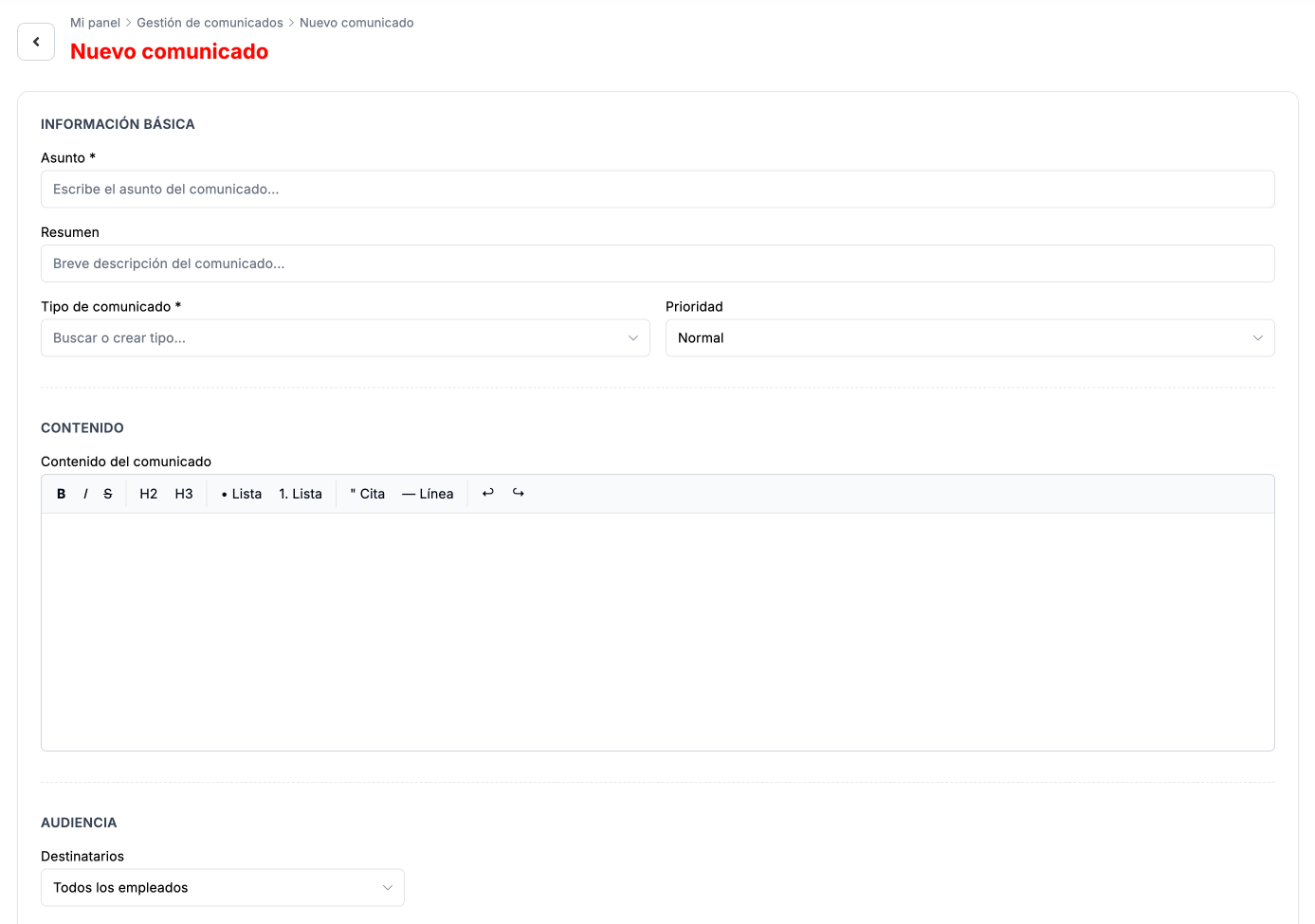
Section titled “New announcement”Nuevo comunicado (New announcement) has these sections:
- Basic information: subject (required), summary, announcement type (you can choose one or create a new one) and priority.
- Content, with a text editor offering bold, headings, lists and quotes.
- Audience: all employees, by department or specific employees.
- Event, optional: date, start and end time and location, if the announcement is an event.
- Read confirmation, if you want each person to confirm they have read it.
- Scheduling: publication date and time. If you leave it empty, you publish it manually.
- Additional information: department and contact email.
At the end you choose Guardar borrador (Save draft) or Publicar ahora (Publish now).
Read tracking
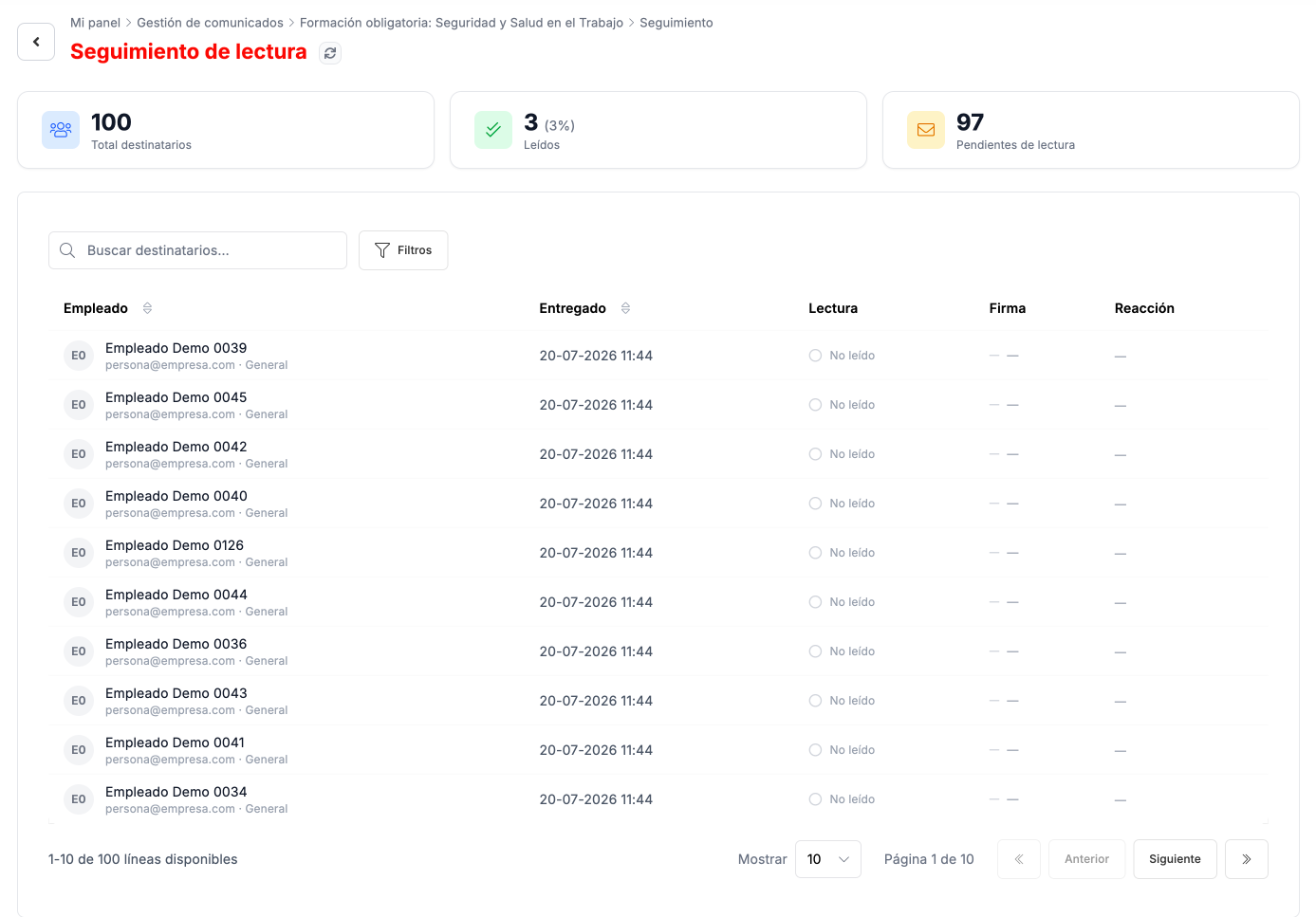
Section titled “Read tracking”The ⋯ menu of each announcement has Ver detalle (View details) and Ver seguimiento (View tracking). Tracking shows how many recipients have read it and how many have not and, person by person, when it was delivered, whether they have read it, whether they have signed it and their reaction.
Troubleshooting
Section titled “Troubleshooting”- You want to know who has not read a document. Open it with Ver detalle: the recipient list shows each person’s status and when they read it.
- An announcement is hardly being read. Ver seguimiento shows who has not read it yet.