Reference guide
What is worth having at hand once installed: what the words you will hear mean, the commands used most in each client and how to handle the terminal. The other guides link here when they need it.
Basic vocabulary
Section titled “Basic vocabulary”Six words that come up everywhere. The definitions are Claude’s; where Copilot uses a different one, it is noted.
MCP (connector)
Section titled “MCP (connector)”Short for Model Context Protocol, the open standard an AI client uses to connect to external tools and data. An MCP server publishes tools (actions the assistant can run) and resources (information it can read). In CloudIA we call them connectors: Documentum, Projects and the rest are MCP servers, and what CloudIA’s installer does is register them in your client. Each client keeps that configuration in its own place; in Claude Code and Copilot CLI, the project’s ones live in a .mcp.json file at the root of the repository. You see them with /mcp.
A specialised assistant, with its own instructions and its own tools, to which the main assistant delegates a specific task: reviewing code, searching the documentation, preparing a deployment. It works in its own context and returns only the result, so the main conversation does not fill up with noise. Claude also calls them subagents. They live in the repository: .claude/agents/ in Claude Code and .github/agents/ in Copilot. You check them with /agents (Claude Code) and /agent (Copilot CLI).
A package of instructions for a type of task, which the assistant loads only when needed: a deployment guide, a review checklist, your team’s workflow. It can carry supporting files. They live in .claude/skills/<name>/SKILL.md; Copilot also reads them from there and from .github/skills/. You list them with /skills in both terminal clients. In Claude Code, a skill called deploy is invoked by typing /deploy.
Command
Section titled “Command”Any instruction starting with a slash, /, that the client runs directly instead of treating it as conversation. There are built-in commands (/help, /mcp…) and commands of the repository itself, defined by your organisation. In Claude Code, custom commands are skills: the old .claude/commands/ folder still works, but today they are written as skills. The tables below list the built-in ones you will use most.
Context and tokens
Section titled “Context and tokens”The context is everything the assistant has in front of it at each moment: the conversation, the files it has read, the project’s instructions and the description of its tools. It is measured in tokens, pieces of text (a word usually takes one or two), and it has a limit: the context window. When it fills up, the assistant summarises what came before and loses detail. That is why in long tasks it is worth looking at it (/context), compacting it (/compact) and starting a new conversation when you change subject (/clear). Usage, what you have consumed of your plan, is shown with /usage in both terminal clients.
Project instructions
Section titled “Project instructions”A text file at the root of the repository that the assistant reads when every conversation starts: what the project is, how work is done, which rules apply. In Claude Code it is CLAUDE.md; Copilot reads .github/copilot-instructions.md and also the AGENTS.md standard. It is how your organisation accompanies you inside the client: the methodology for working with CloudIA lives there. /init creates an initial one; /memory edits it in Claude Code and /instructions shows them in Copilot CLI.
Useful commands
Section titled “Useful commands”They are typed in the conversation itself, at the start of the line. Claude Desktop and the GitHub Copilot desktop application do not need them: there, the account and the connectors are managed from the interface.
Claude Code
Section titled “Claude Code”| Type | What it is for |
|---|---|
/help |
Help and list of commands |
/usage |
Cost of the session and use of your plan. Also /cost and /stats |
/context |
What is taking up the context window |
/compact |
Summarises the conversation to free context |
/clear |
Starts a new conversation |
/mcp |
See and manage the connectors (MCP servers) |
/agents |
Available agents |
/skills |
Available skills |
/model |
Change model |
/status |
Version, model, account and connectivity |
/doctor |
Installation check: diagnoses and suggests fixes |
/resume |
Resume a previous session |
/memory |
Edit the project instructions (CLAUDE.md) |
/init |
Create an initial CLAUDE.md |
/permissions |
Tool permission rules |
/login · /logout |
Sign in to or out of your account |
Copilot CLI
Section titled “Copilot CLI”| Type | What it is for |
|---|---|
/help |
Help and list of commands |
/usage |
Session usage metrics: tokens per model and AI credits |
/context |
Use of the context window |
/compact |
Summarises the conversation to free context |
/clear |
Starts a new conversation. Also /new |
/mcp |
See and manage the MCP servers |
/agent |
Choose an agent |
/skills |
Available skills |
/model |
Change model |
/instructions |
See and enable the instruction files |
/init |
Create the repository’s instructions and configuration |
/plan |
Implementation plan before touching code |
/review |
Code review of the changes |
/update |
Update the CLI |
/user |
Current GitHub user |
/login · /logout |
Sign in to or out of your account |
Your repository’s commands
Section titled “Your repository’s commands”Besides the built-in ones, your repository can bring its own commands, skills and agents, defined by your organisation in the folders you have seen in the vocabulary. You discover them by typing / in Claude Code and with /skills in Copilot CLI.
Your computer
Section titled “Your computer”Two explanations that apply to every step of the guides.
How to open a terminal
Section titled “How to open a terminal”The terminal is a window where commands are typed as text. In the guides you use it to check what you have installed and, if you work with Claude Code or Copilot CLI, to talk to CloudIA: you copy the command, paste it in that window and press Enter.
Press Cmd + Space, type Terminal and press Enter. A window opens with some text and a cursor waiting.
Open the Start menu, type PowerShell and press Enter. The Windows PowerShell that comes with your computer will do; if you also have «PowerShell 7», either of the two works, unless a client explicitly asks for version 7 (Copilot CLI).
How to tell whether a check went well
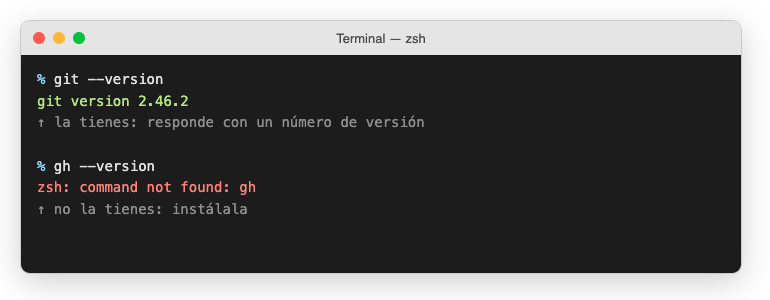
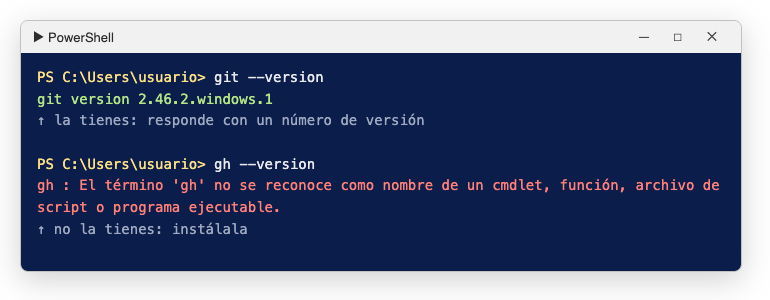
Section titled “How to tell whether a check went well”They all work the same way: if the piece is installed, the command answers with a version number. If not, it answers with an error.
| What you see | What it means |
|---|---|
Something like 2.46.2 or v22.16.0 |
You have it. Go to the next one |
command not found (macOS) |
You do not have it. Install it |
no se reconoce como un comando / is not recognized as a command (Windows) |
You do not have it. Install it |