
Requests and absences
From their portal, people request vacation, leave, leaves of absence, changes to their details or expense reports. Each request reaches whoever has to approve it according to the organization’s approval groups: the direct manager, an HR team or both. The Aprueba (Approves) column of the list says who it is in each case.
Employee requests
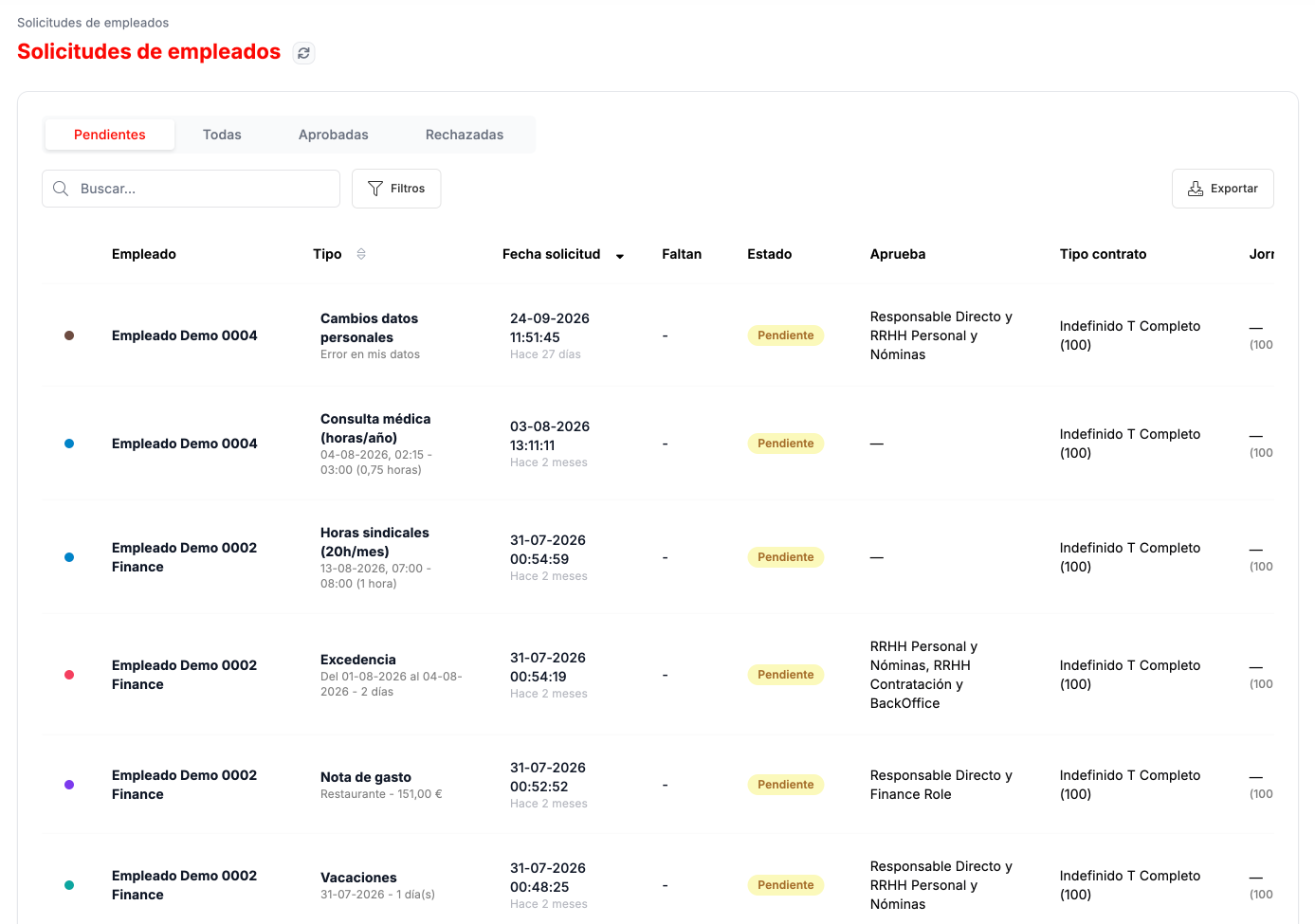
Section titled “Employee requests”In CLOUD HRMS › Gestión de Empleados › Solicitudes de Empleados you find all the requests assigned to you, in four tabs: Pendientes, Todas, Aprobadas and Rechazadas (Pending, All, Approved and Rejected). You can search, filter and export the list.
Each row shows the person, the type and dates of what they are requesting, when they requested it, the status, who approves and the employment details usually needed to decide: contract, working hours, shift, start date, cost center or service, and area.
Approving and rejecting
Section titled “Approving and rejecting”Ver detalle (View details) opens the request. What it shows depends on the type.
Vacation
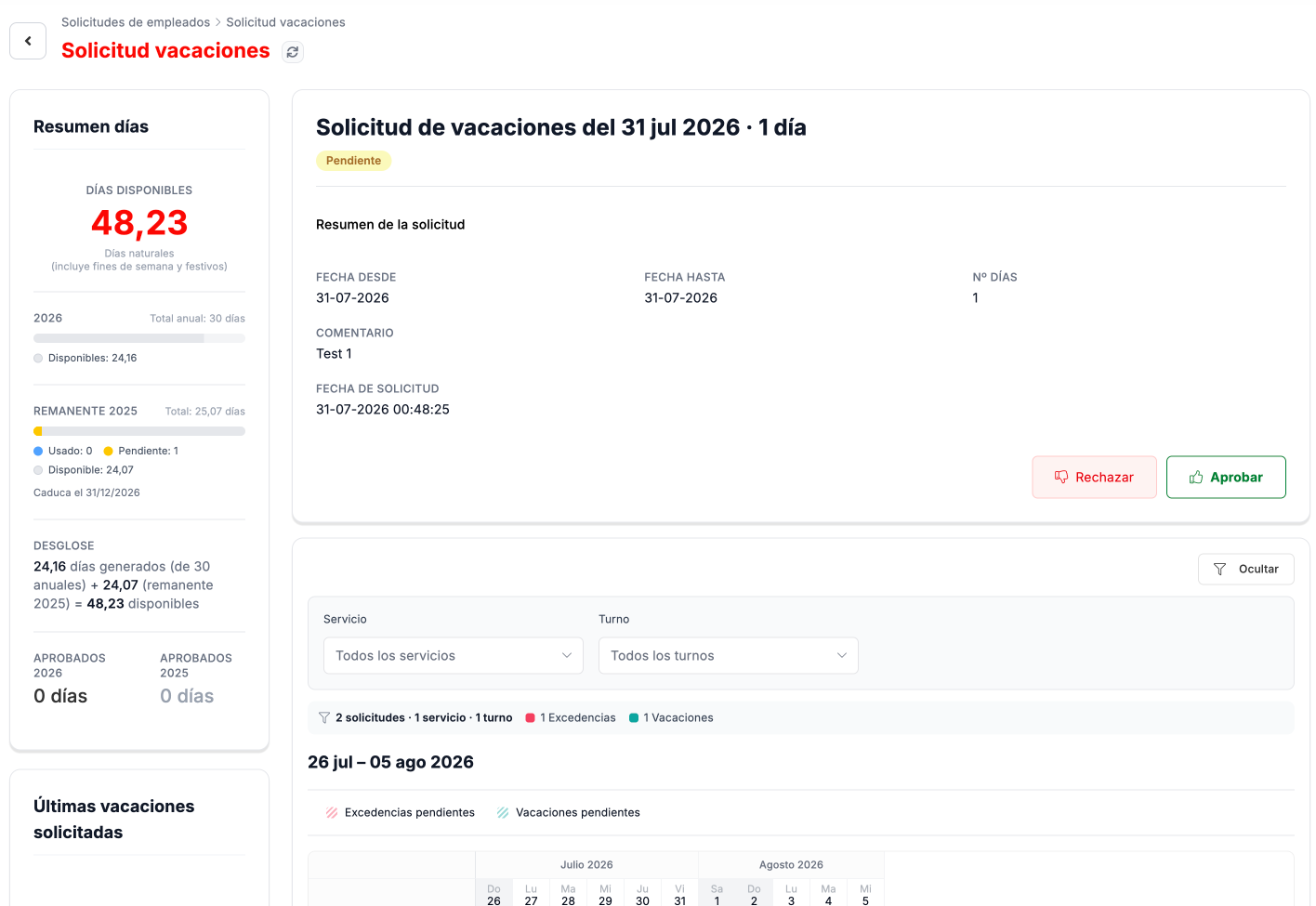
Section titled “Vacation”In a vacation request you will see:
- The person’s days summary: available days, days earned in the year, the carry-over from the previous year with its expiry, and what has been approved.
- The request summary: dates, number of days and comment.
- A calendar with the requests for the same period, which you can filter by service and shift, to see whether it overlaps with other absences.
- Other details of the person: contract, job position, department, working hours, shift, cost center and service.
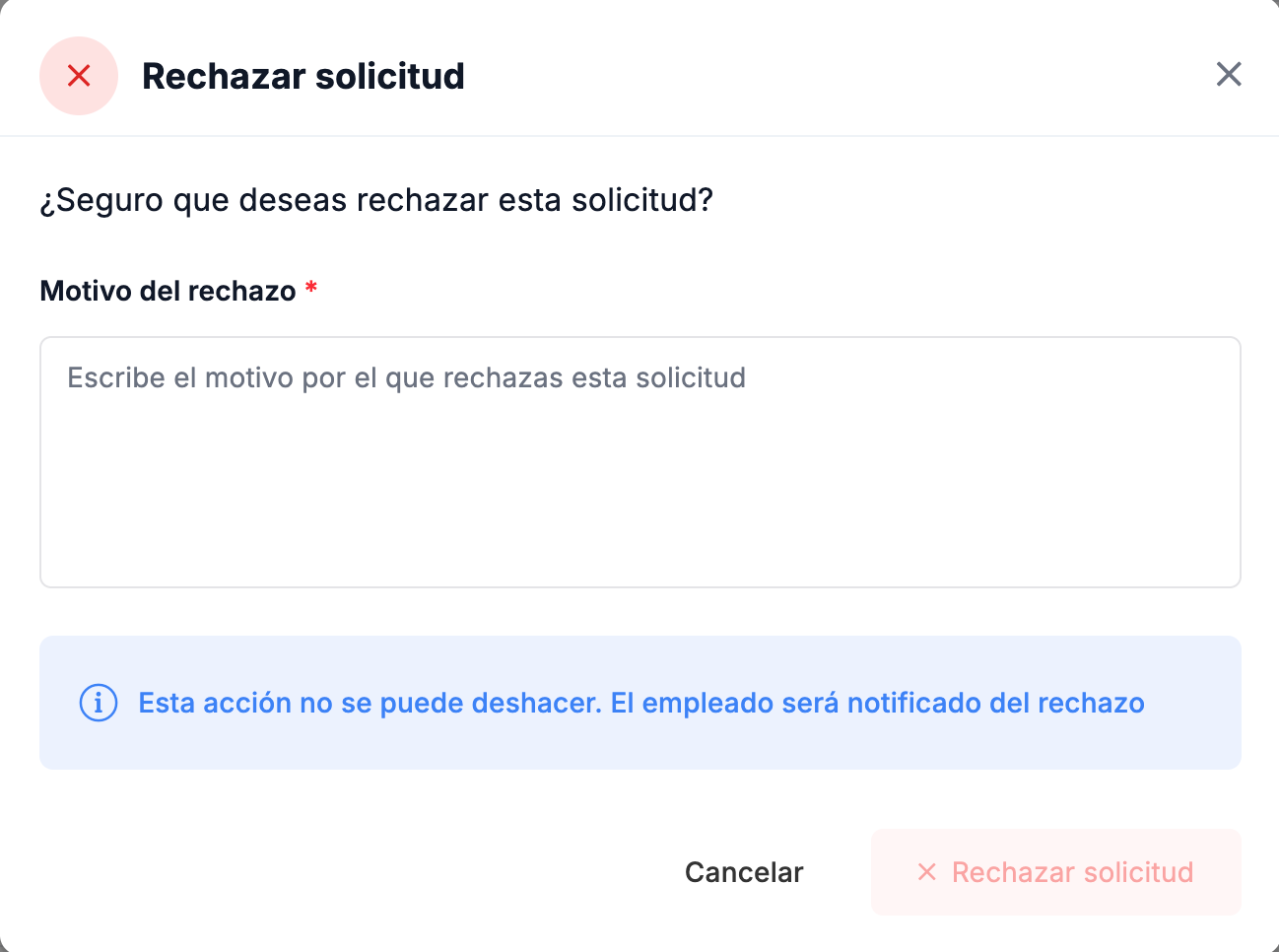
Click Aprobar (Approve) or Rechazar (Reject). To reject, you have to write the reason, and the person receives a notification. A rejection cannot be undone.
Other types
Section titled “Other types”- Change of personal details: the description of the error the person reports, the date, the Aprobar and Rechazar buttons, and their employment details with the Ver ficha del empleado (View employee record) link.
- Leave of absence: the person’s contact details, their previous leaves of absence and the summary (type, dates, days and reason). Here the buttons are Validar (Validate) and No validar, solicitar más información (Do not validate, request more information). The person receives a notification with your decision.
- Expense report: the total amount including VAT, the date and the expense class, the cost center, the description and the attached receipts, with access to the person’s bank details, and the Aprobar and Rechazar buttons.
Workforce absences
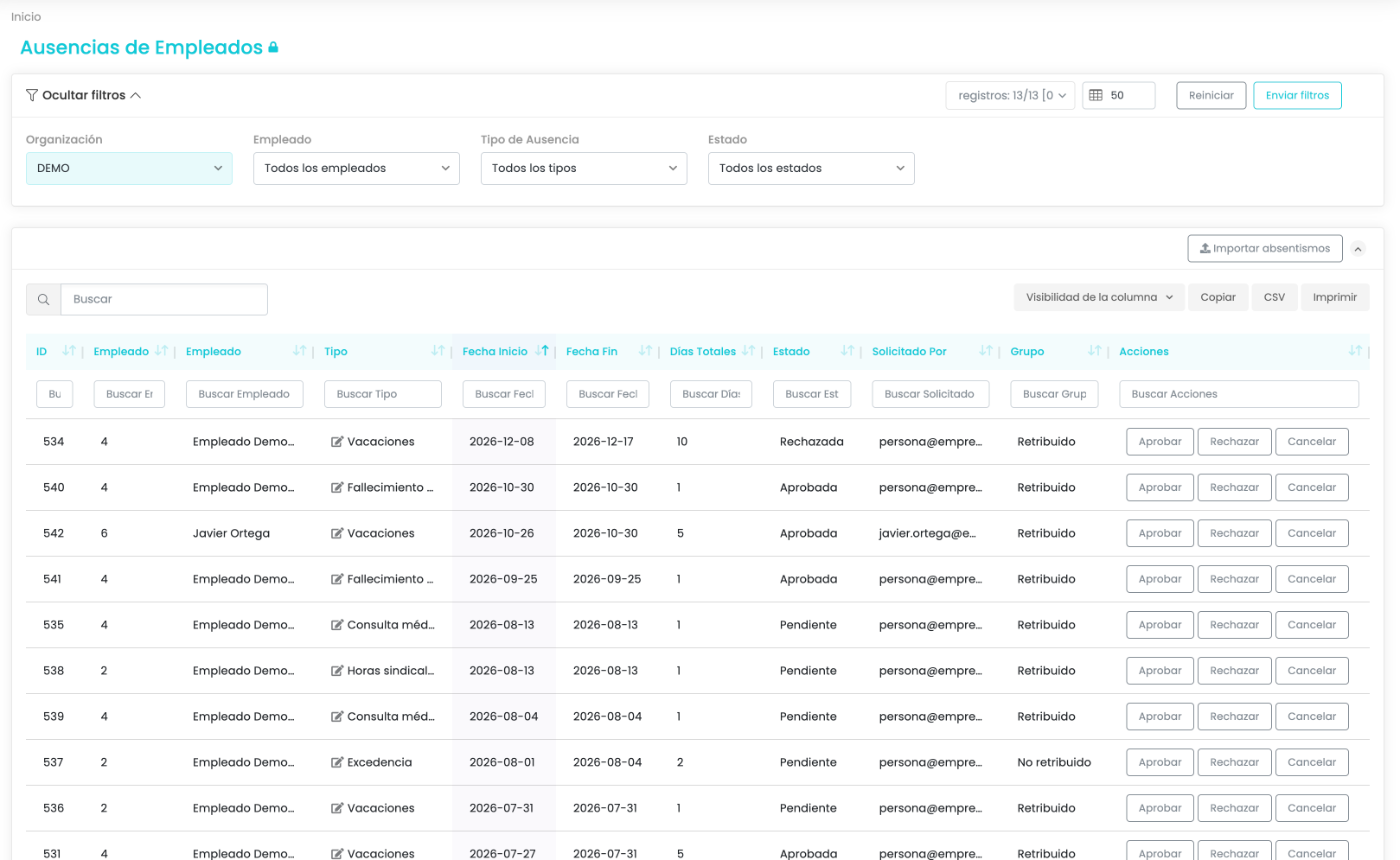
Section titled “Workforce absences”In CLOUD HRMS › Gestión de Empleados › Absentismos you have the record of all the organization’s absences, with their type, dates, days, status, who requested them and whether they are paid. You can filter by organization, employee, type and status, and search any column. Each row has the Aprobar, Rechazar and Cancelar (Cancel) buttons, and the table can be copied, downloaded as CSV or printed.
Back-office dashboard
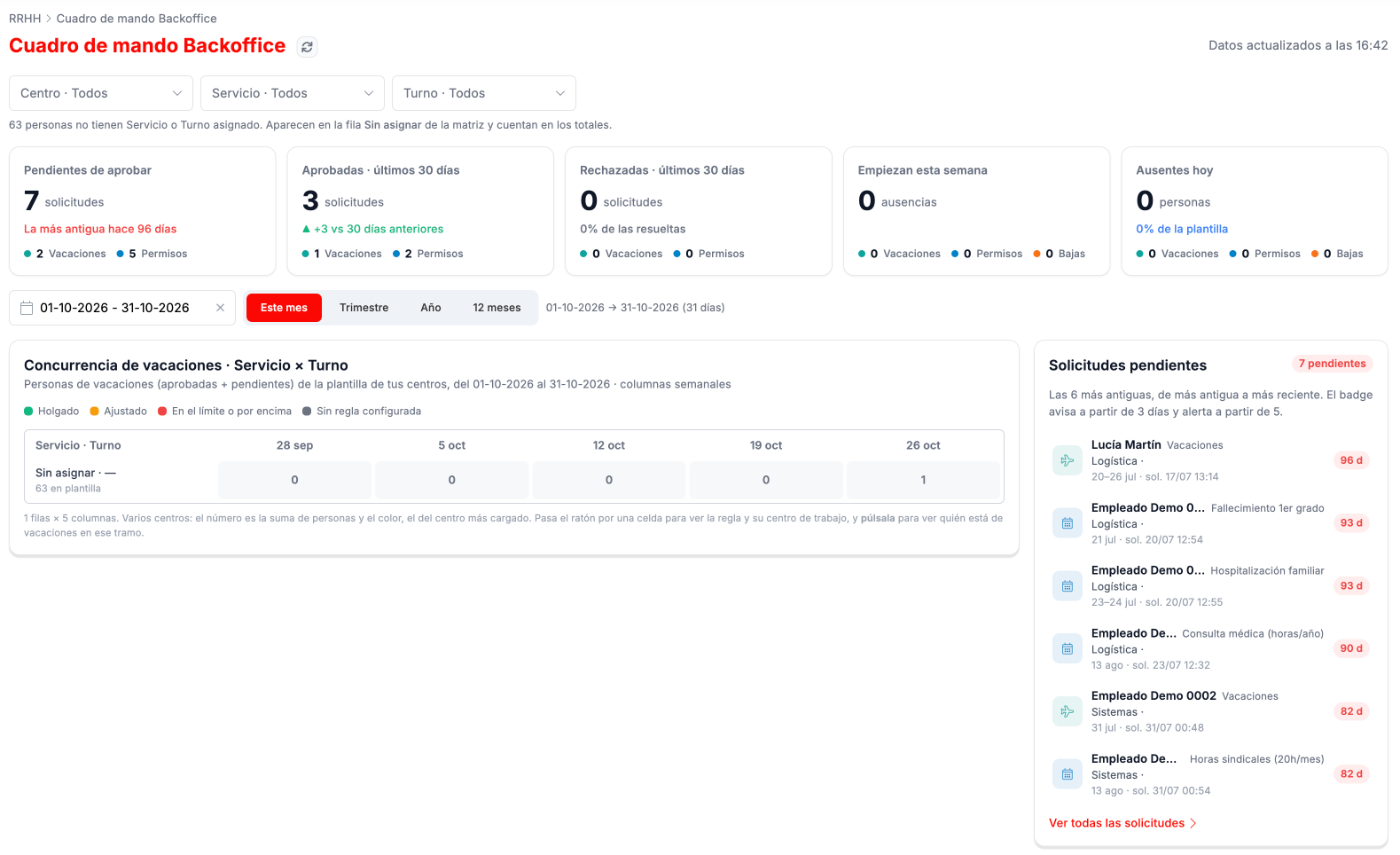
Section titled “Back-office dashboard”CLOUD HRMS › Dashboard Backoffice summarizes the status of the requests and absences of the work centers you manage. You can filter by work center, service and shift, and choose the period.
- Indicators: pending approval (and the age of the oldest), approved and rejected in the last 30 days, absences starting this week and people absent today.
- Vacation concurrency: how many people from each service and shift are on vacation each week, with a color according to the configured coverage rule. Clicking a cell shows who is on vacation.
- Pending requests: the oldest first, with a warning from 3 days and an alert from 5.
- Absences by service and shift: what percentage of each team is absent in the period.
Troubleshooting
Section titled “Troubleshooting”- You do not know who has to approve a request. The Aprueba column of the list tells you. It is set up in the approval groups.
- In the concurrency view, everyone appears under Sin asignar. Those people have no service or shift: assign it in their record.