
Time tracking
Time tracking is the daily record of each person’s working day: when it starts, when it ends and which breaks they take. People clock in and out from their portal (see Clocking in and out) and validate their days; HR defines the planned schedules, reviews the working days and closes the periods.
Activation
Section titled “Activation”Time tracking is turned on per organization and has a start date: recording begins on that day and there are no earlier working days to validate or to chase.
Once it is on, people with access to the portal see Mi jornada (My working day) in their menu.
Organization schedules
Section titled “Organization schedules”The planned schedule says how many hours each person must work and in which time slots. Without any schedule, the planned working day is calculated from the weekly hours in the contract: recording works the same way, except that the system knows how many hours are owed but not at what time.
Schedules are managed in Horarios de la organización, in the main menu, just below Jornadas de la plantilla. The screen has two tabs: Patrones (Patterns) and Turnos y centros (Shifts and centers).
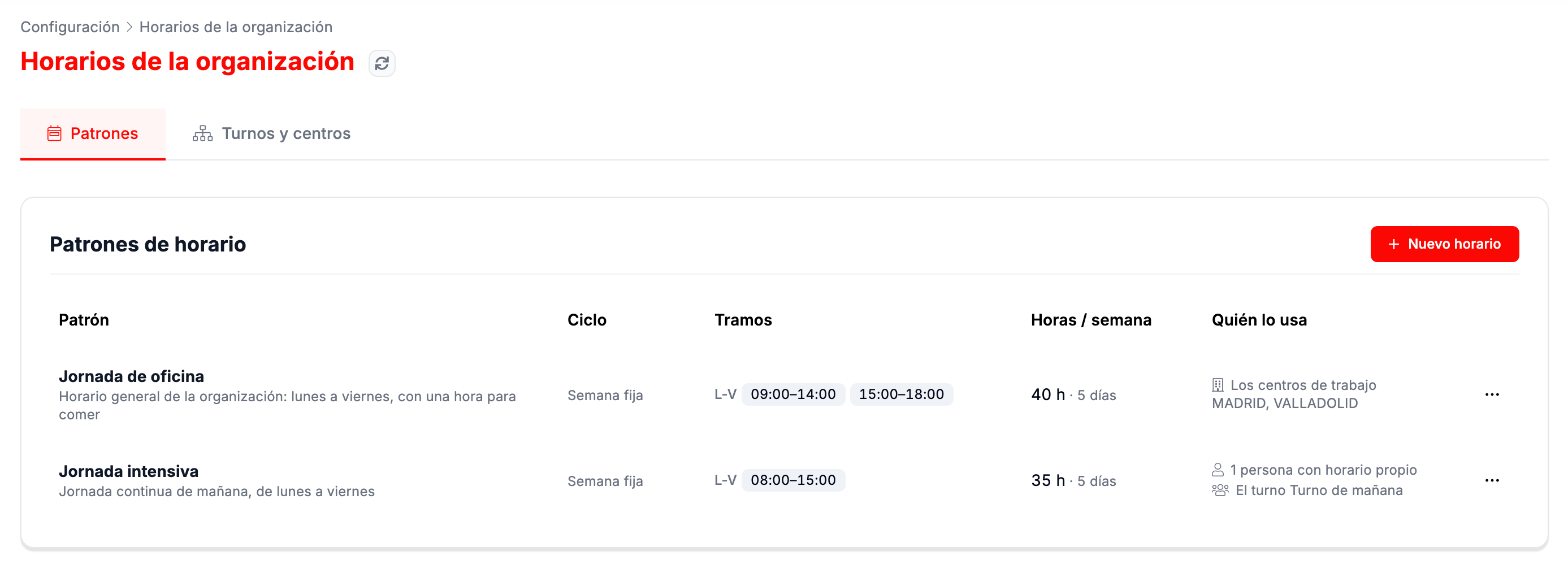
Creating a pattern
Section titled “Creating a pattern”A pattern is a reusable schedule, for example «Jornada de oficina» (Office hours) Monday to Friday from 09:00 to 14:00 and from 15:00 to 18:00.
- On the Patrones tab, click Nuevo horario (New schedule).
- Enter the name and, if you like, a description saying who it is for.
- Define the time slots for each day. Añadir tramo (Add slot) adds another slot to the day (for example, morning and afternoon) and Repetir de lunes a viernes (Repeat Monday to Friday) copies the day to the whole working week. A day without slots is a non-working day.
- If the schedule rotates, increase the weeks in the cycle: each week of the cycle has its own slots.
- Check the weekly total of hours at the bottom, which comes from the slots, and click Guardar horario (Save schedule).
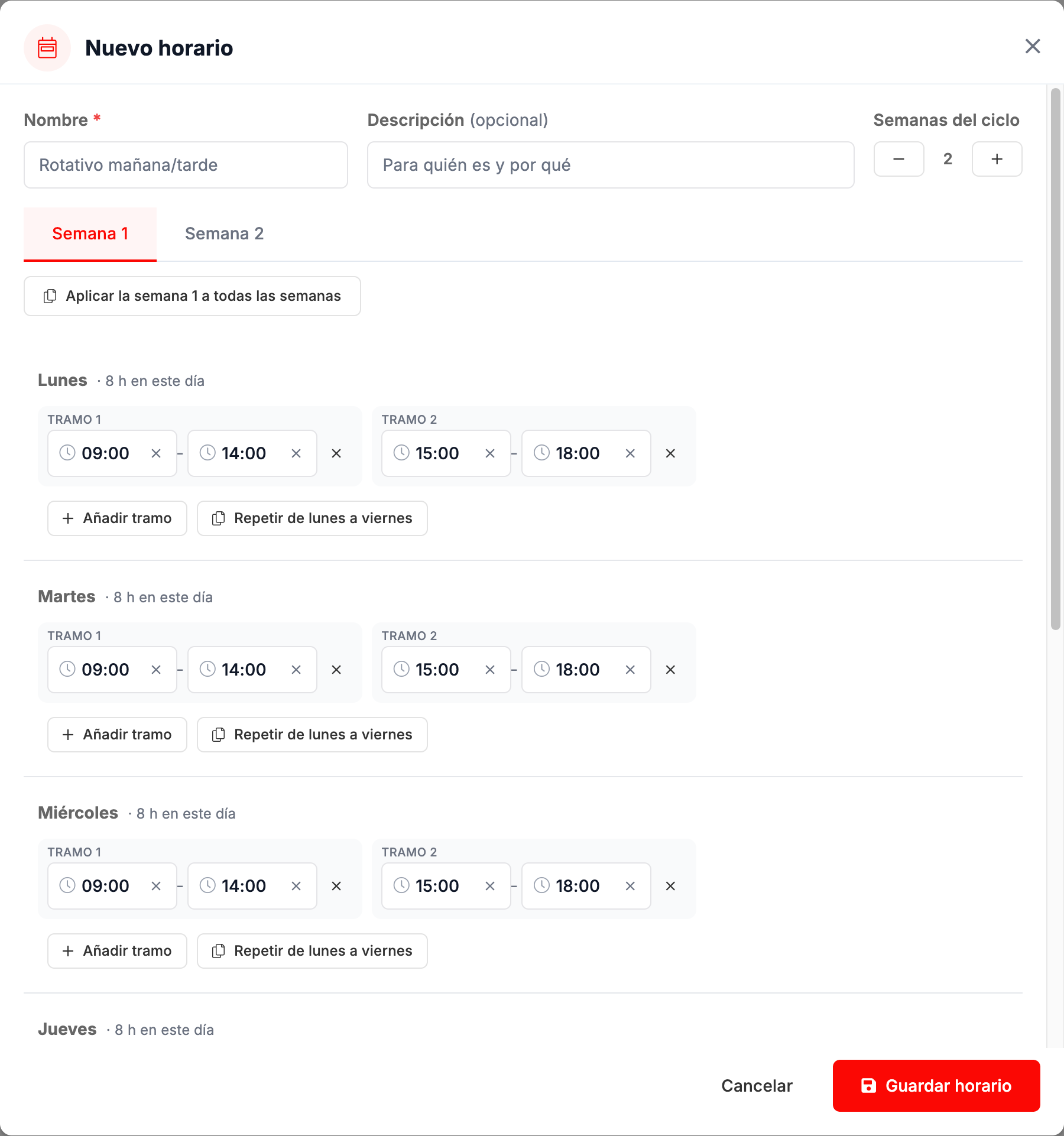
With more than one week in the cycle, a tab appears for each week along with the Aplicar la semana 1 a todas las semanas (Apply week 1 to all weeks) button, so you can start from the first and change only what differs.
The patterns table shows the cycle, the slots, the hours per week and who uses it.
Assigning a schedule
Section titled “Assigning a schedule”A pattern is applied in three ways:
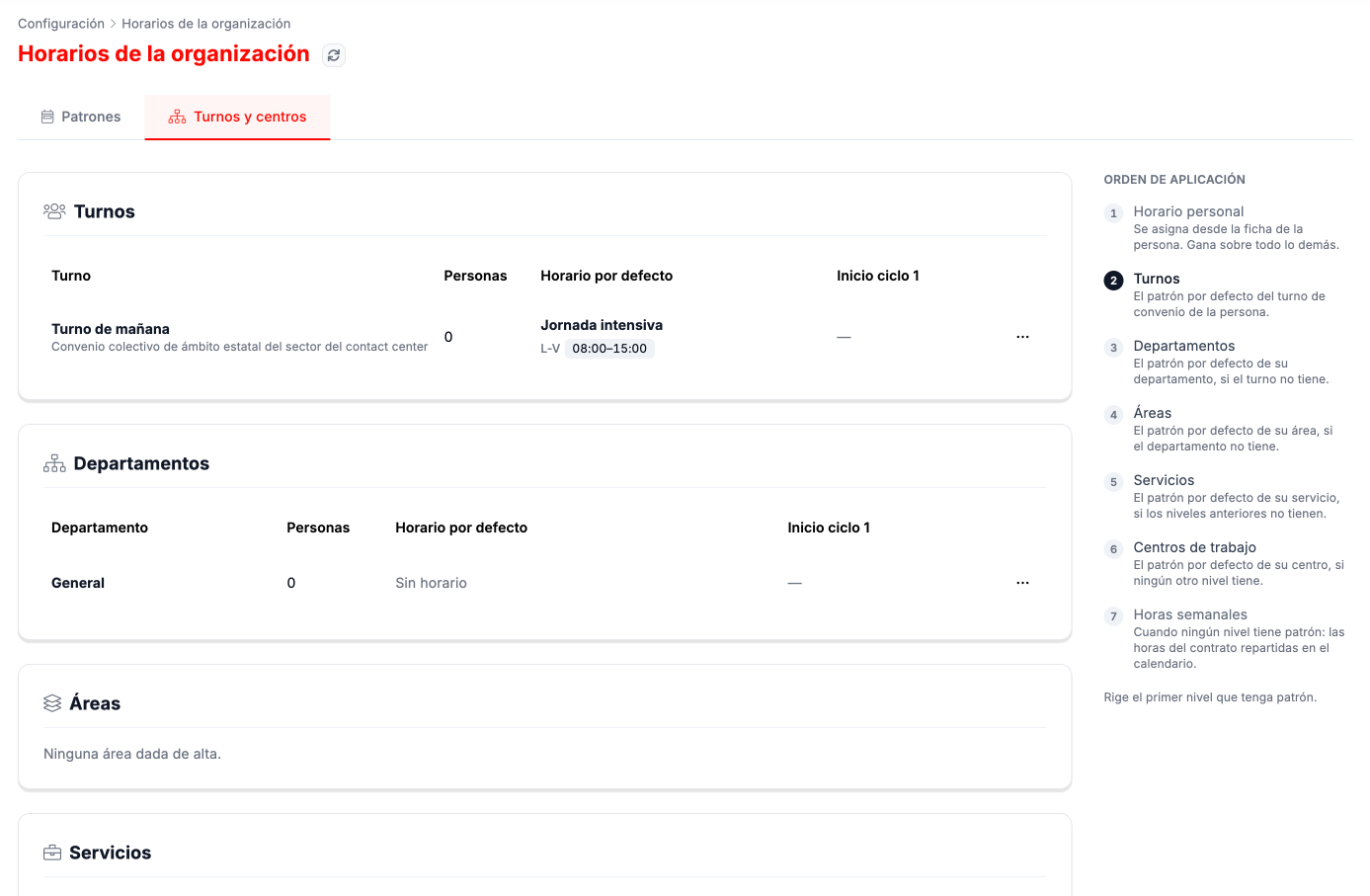
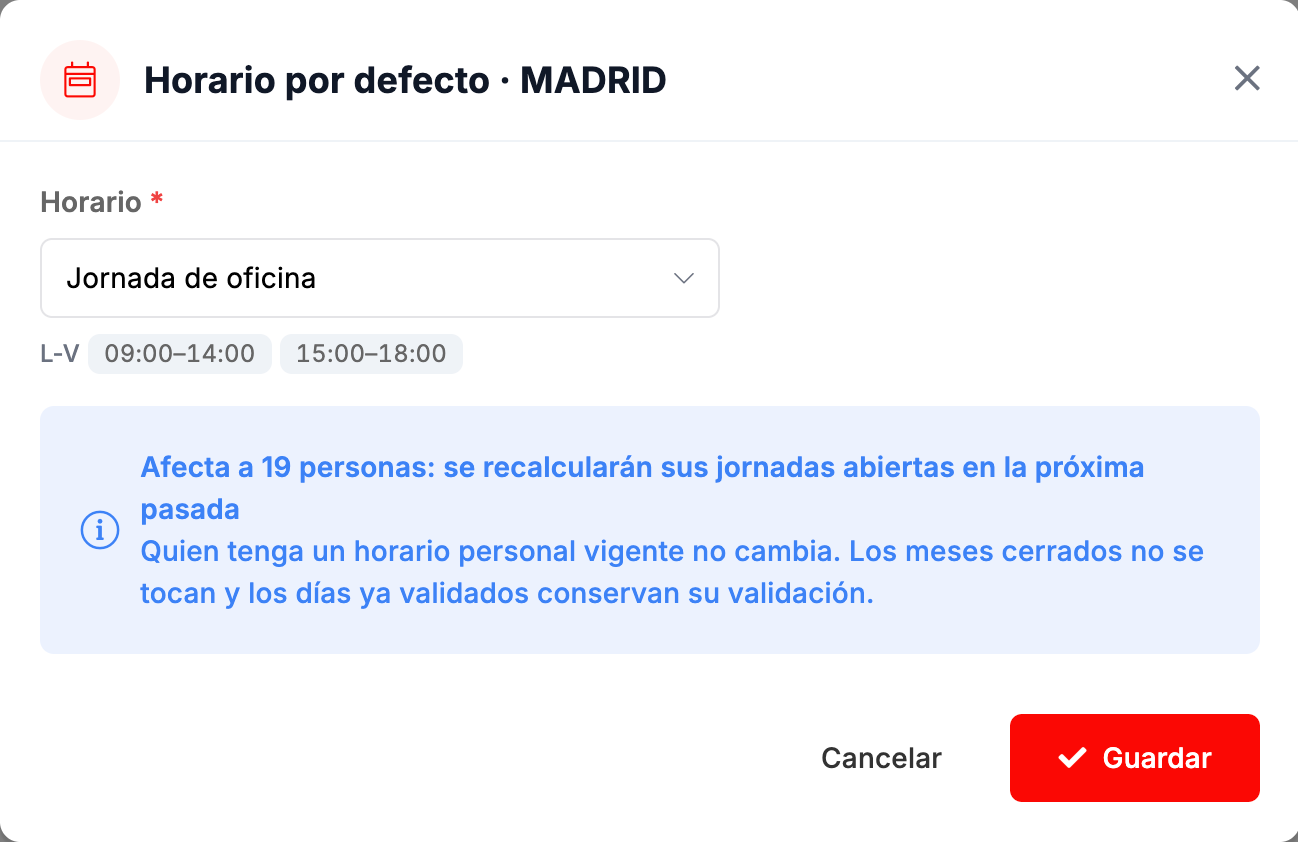
- As the default for a level of the organization. On the Turnos y centros tab, each shift, department, area, service and work center can have a default schedule. When you choose it, the window tells you how many people it affects and what happens to their working days.
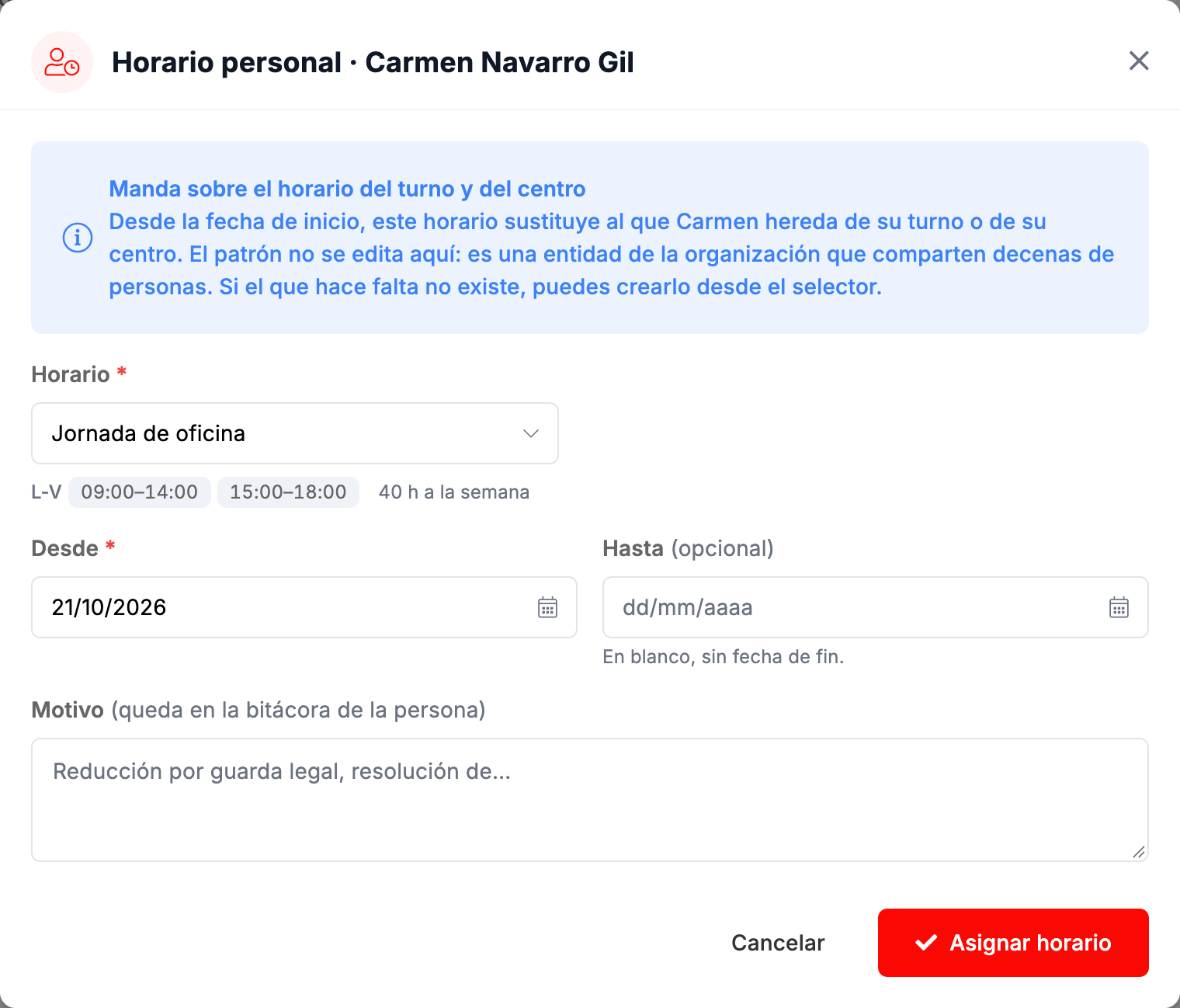
- Personal. From the person’s record, Horario (Schedule) tab, Horario personal (Personal schedule) button: you choose the pattern, the start date, the end date if there is one, and the reason, which is recorded in the person’s log.
- None. If no level has a schedule, the weekly hours in the contract are used.
When you change a level’s default schedule, the open working days of the people affected are recalculated in the next run. Anyone with a current personal schedule does not change, closed months are not touched and days already validated keep their validation.
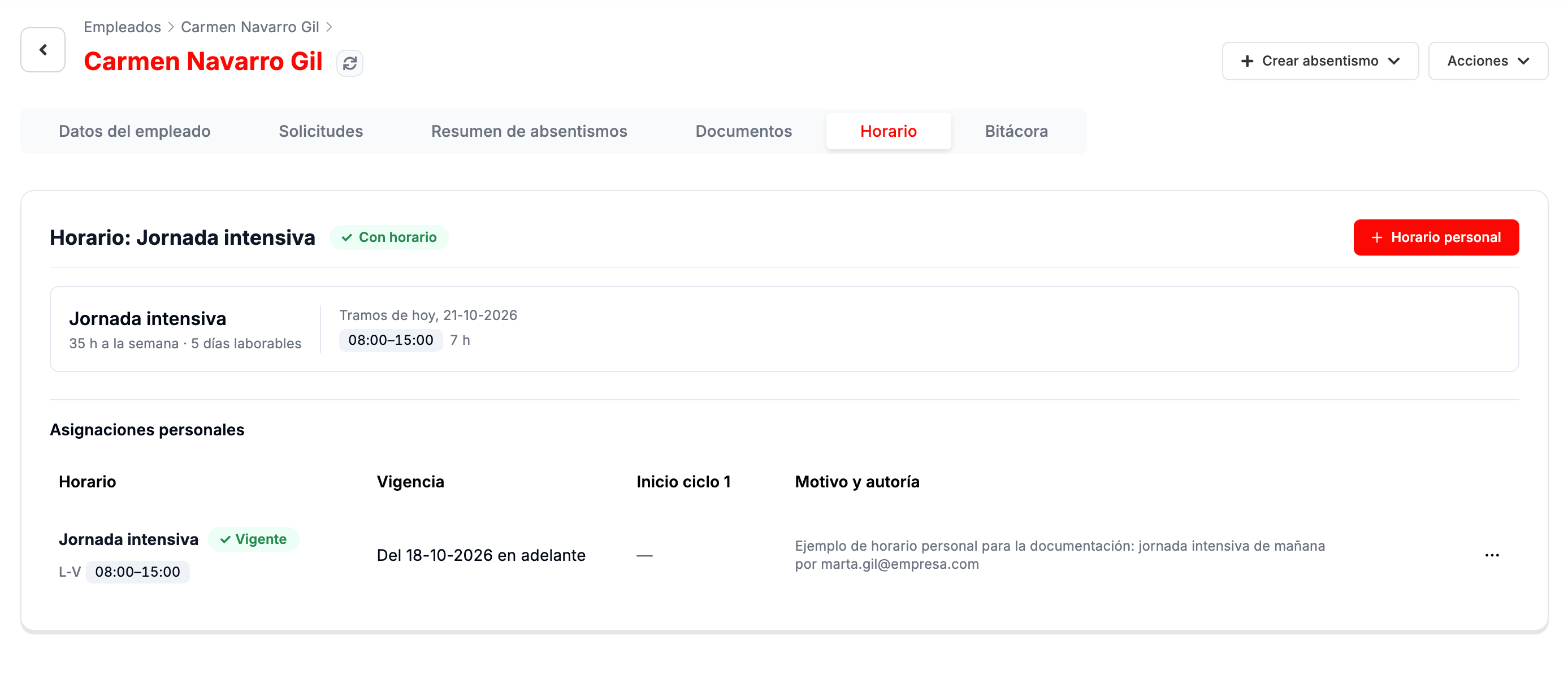
The personal schedule takes precedence over the shift’s and the center’s from its start date. The pattern is not edited from the record: it belongs to the whole organization. If the one you need does not exist, you can create it from the selector itself.
Which schedule applies
Section titled “Which schedule applies”If a person has a schedule at several levels, the first one in this list that has a pattern applies:
- Personal schedule.
- Shift of their collective agreement.
- Department.
- Area.
- Service.
- Work center.
- Weekly hours in the contract.
The Turnos y centros tab shows this order on the right, and the Horario tab of each person’s record says which schedule they have today, their time slots for the day and the history of personal assignments with their validity, the reason and who made them.
Workforce working days
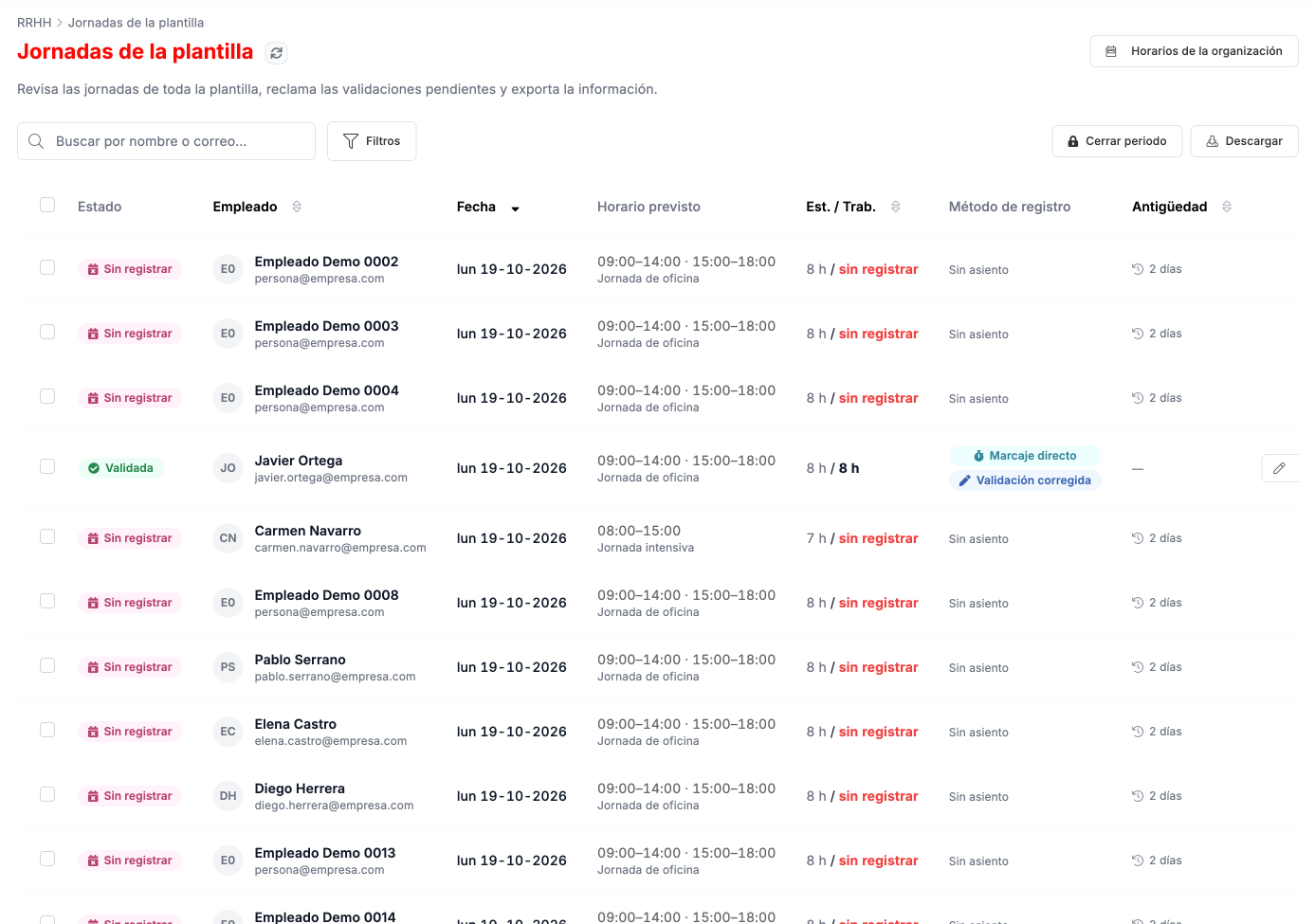
Section titled “Workforce working days”In Jornadas de la plantilla, in the main menu, you review the working days of the whole workforce, chase pending validations and download the information. Each row is one day of one person: its status, the planned schedule, the estimated and worked hours, the recording method and how old it is.
Filters
Section titled “Filters”With Filtros (Filters) you narrow by date range, person, center and status. The list also includes the unrecorded days. The Necesitan acción (Need action) status brings together what requires work: unrecorded days, unresolved incidents and unvalidated working days that have already passed the organization’s escalation threshold. The other statuses are Sin registrar (Unrecorded), Incidencia sin resolver (Unresolved incident), Sin validar (Not validated), Validada (Validated), Periodo cerrado (Period closed) and Anulada (Voided).

Correcting a working day
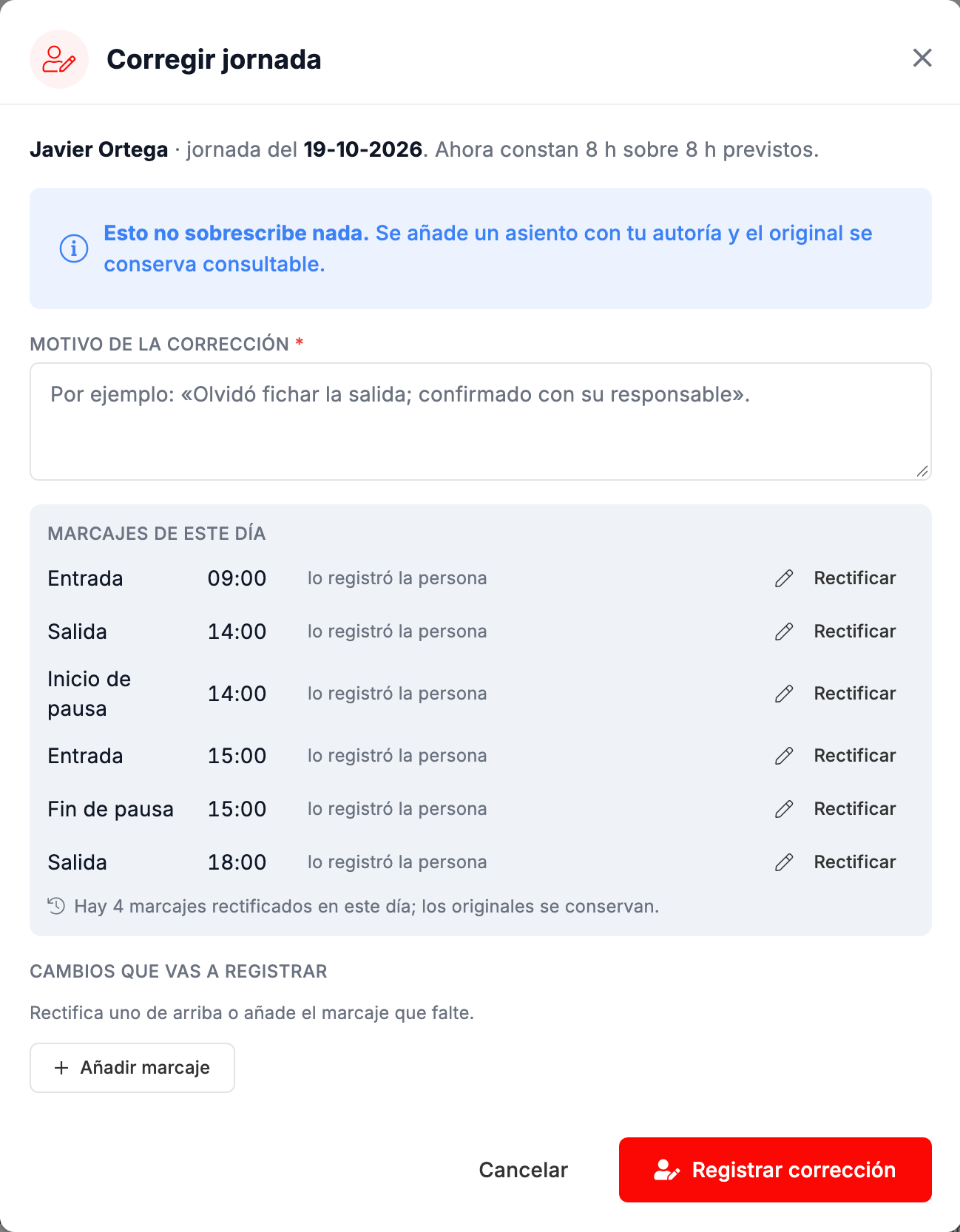
Section titled “Correcting a working day”Corregir (Correct) opens the clock entries of the day. You can Rectificar (Amend) any of them or Añadir marcaje (Add entry) if one is missing, and the reason is required. Nothing is overwritten: a new entry is added under your name and the original can still be viewed.
Voiding a working day
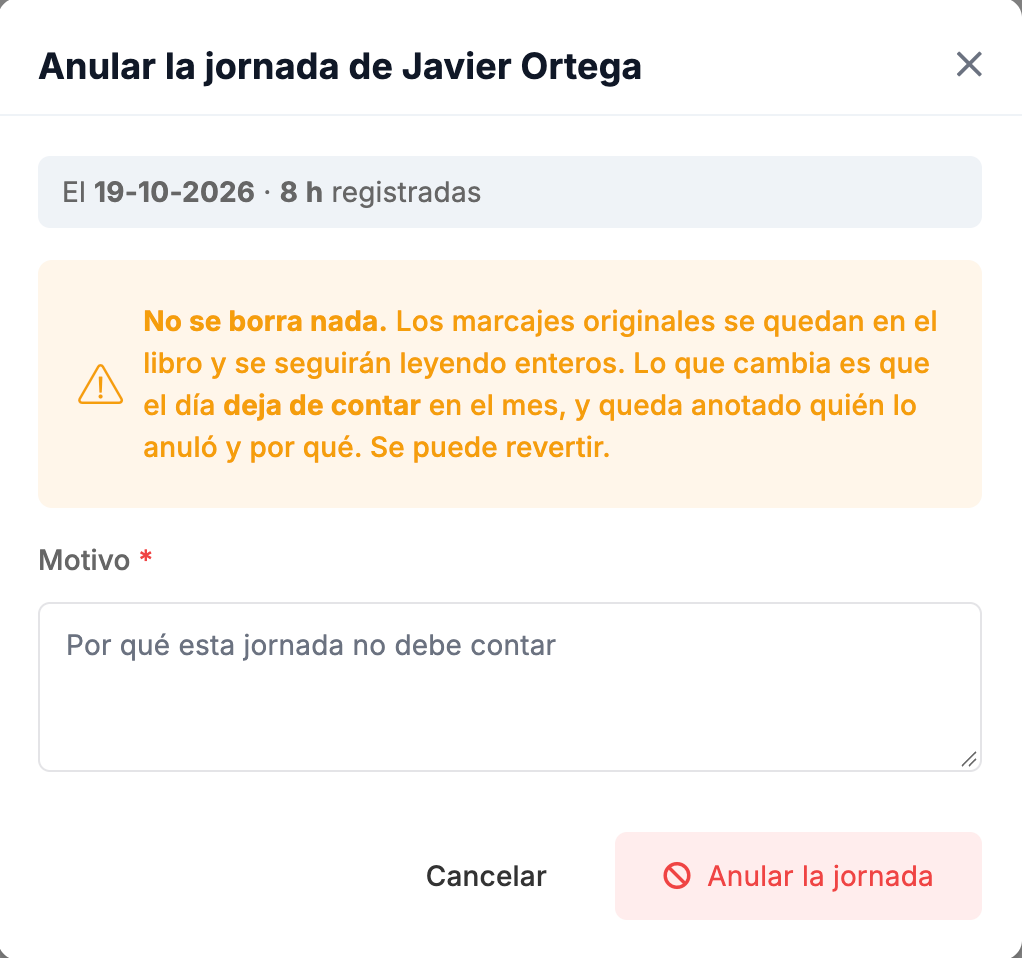
Section titled “Voiding a working day”Anular (Void) makes a day stop counting in the month, for example if it was recorded by mistake. It does not delete anything either: the original clock entries are kept and it is recorded who voided it and why. It can be reverted.
Downloading
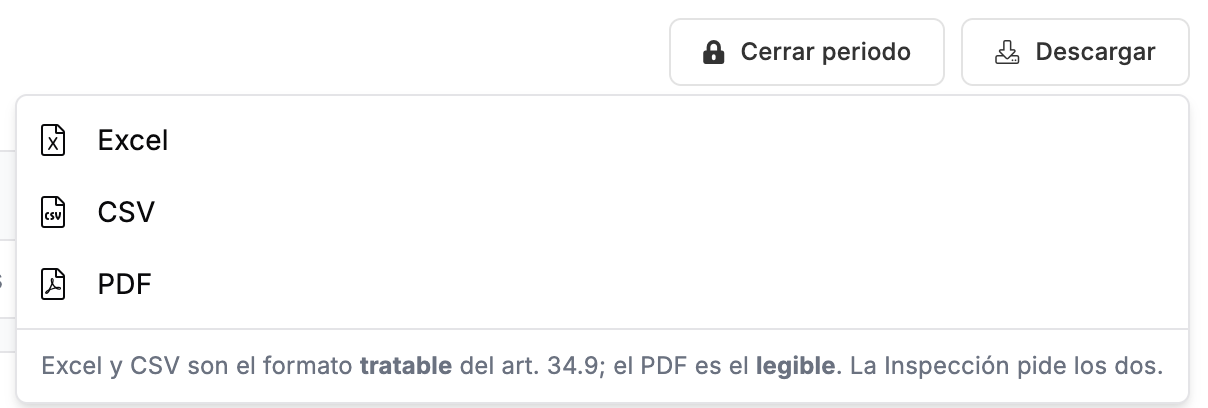
Section titled “Downloading”Descargar (Download) exports what the list shows in Excel, CSV or PDF. Excel and CSV are the processable format and PDF is the readable one; a labor inspection may ask for both.
Closing a period
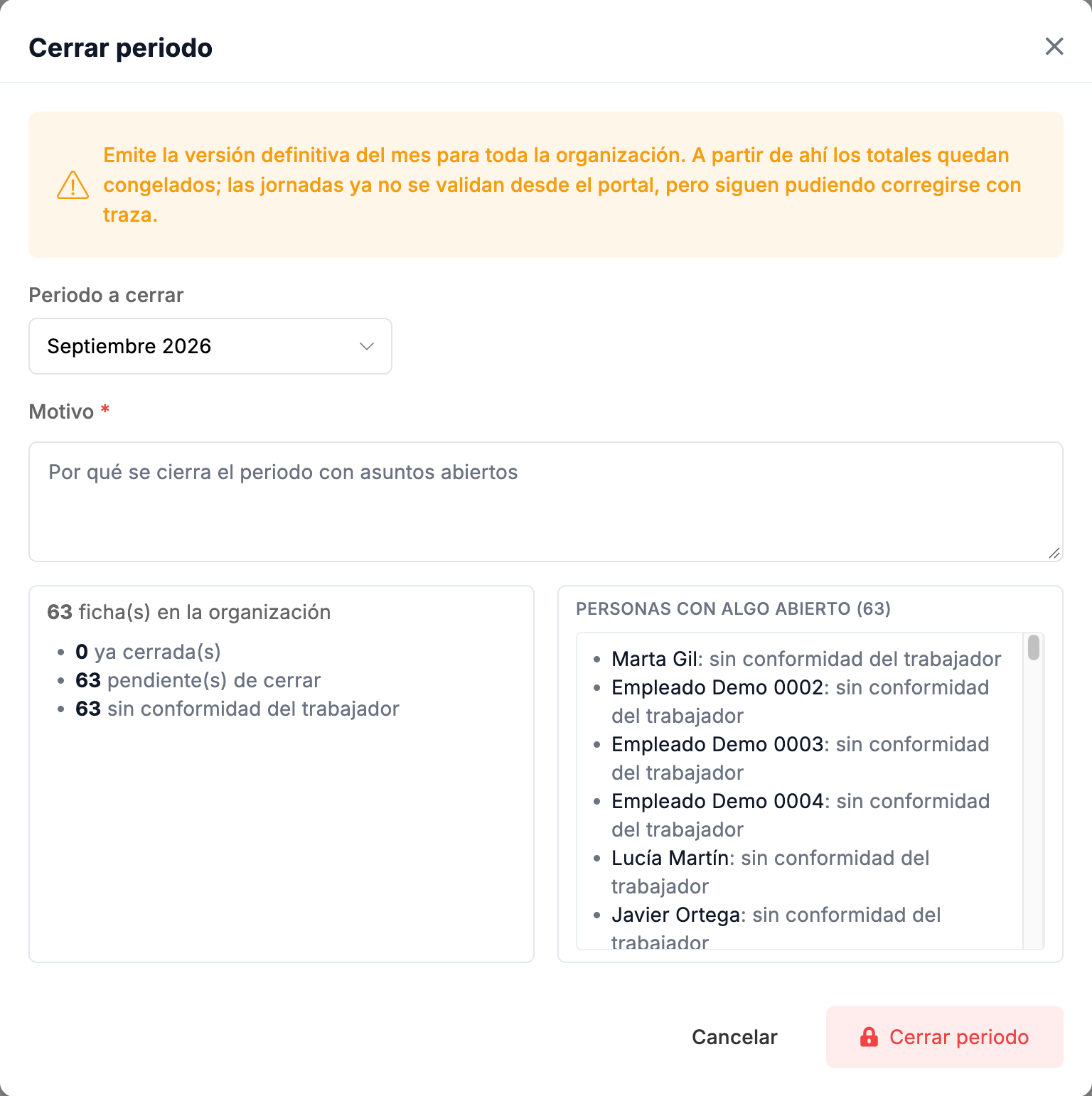
Section titled “Closing a period”Cerrar periodo (Close period) issues the final version of a month for the whole organization. From then on the totals are frozen: working days can no longer be validated from the portal, although they can still be corrected with a trace.
Before closing, the window reviews all the time sheets and shows you how many are already closed, how many are pending and how many lack the person’s agreement, with the list of who has something open and what. If you close with open issues, you have to write the reason.
Legal limits
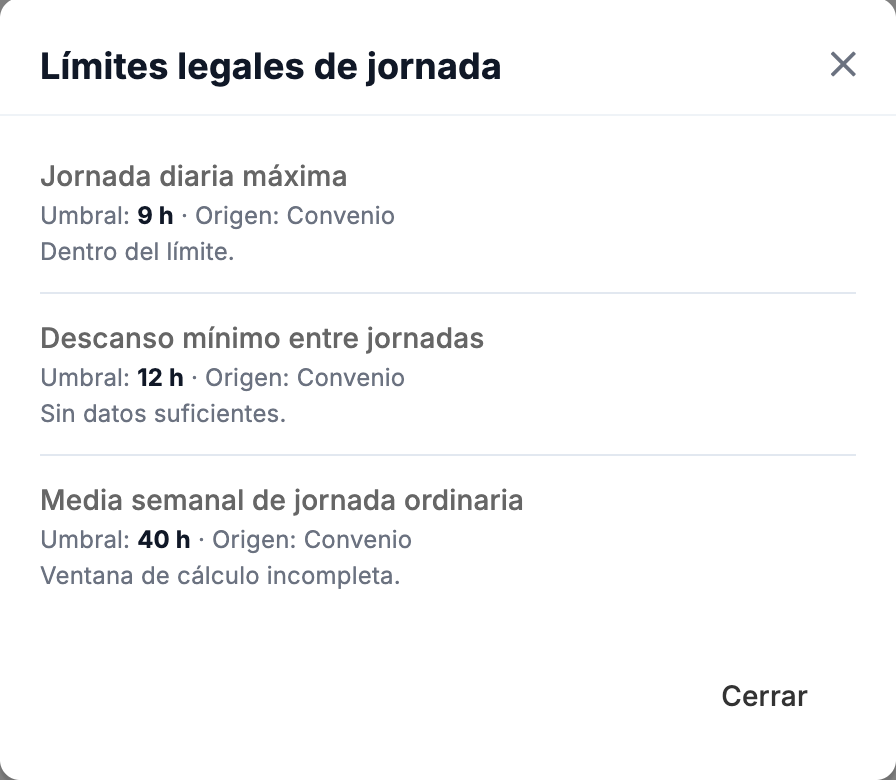
Section titled “Legal limits”Each person can see the legal limits of their working hours on their Mi jornada screen, with the information icon next to the day’s status. Three limits are shown:
- Maximum daily working hours.
- Minimum rest between working days.
- Weekly average of ordinary working hours.
For each one you see the threshold, its origin (for example, the collective agreement) and how the person is doing: within the limit, not enough data yet, and so on.
Troubleshooting
Section titled “Troubleshooting”- A person has no planned schedule. No level has a pattern: the weekly hours of their contract are used. Assign them a default from a level or a personal schedule.
- A schedule change does not show on a day. Closed months are not touched and days already validated keep their validation; open working days are recalculated in the next run.
- A day should not count. Use Anular on that working day: nothing is deleted and it can be reverted.